Date Name Author(s) Rev Language Page
11/05/12 Settings_and_user_manual _Orpheo_TG TF 6 English 10/24
• If the channel number is green, this indicates that the device has found a valid signal,
i.e. that the channel is available for transmission.
• If the channel number is red, it indicates that transmission is not occurring; this
could be caused if the device is set to the wrong channel or if it is too far away from
the transmitter.
VII.
TRANSMITTER MODE
Main Screen
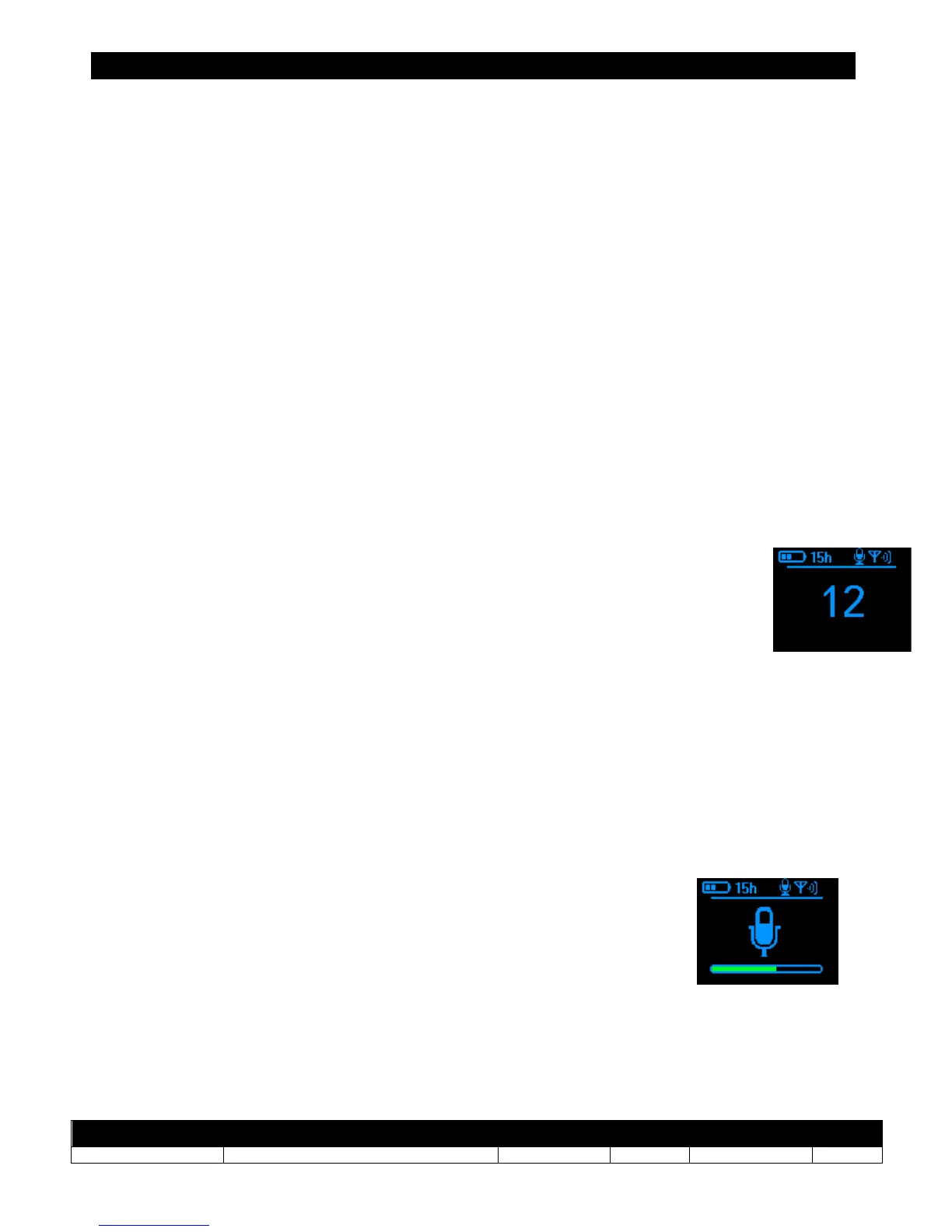
On the main screen of a device in receiver mode, the following information is displayed:
• The channel number is displayed in the middle of the screen.
• At the top of the screen, there is a line of icons which indicate the
following (from left to right):
- The remaining autonomy of the Orpheo TourGuide in hours is displayed
beside the battery icon. This icon indicates the remaining energy. When
the battery is low, the icon is displayed in red. The autonomy of the
Orpheo TourGuide working in transmitter mode is approximately 20 hours
- A small icon at the top of the screen symbolizing a microphone indicates that
the Orpheo TourGuide is presently in transmitter mode.
- If the selected input is auxiliary AUX will appear in place of the microphone
symbol.
Tuning and Configuration from the Main Screen
Adjust the input gain
To adjust the input gain of the microphone or of the auxiliary input, press
the [+] and [-] buttons. Once the level is chosen, the device will return
automatically to the main screen.



 To Next Page