Date Name Author(s) Rev Language Page
11/05/12 Settings_and_user_manual _Orpheo_TG TF 6 English 11/24
Select the channel
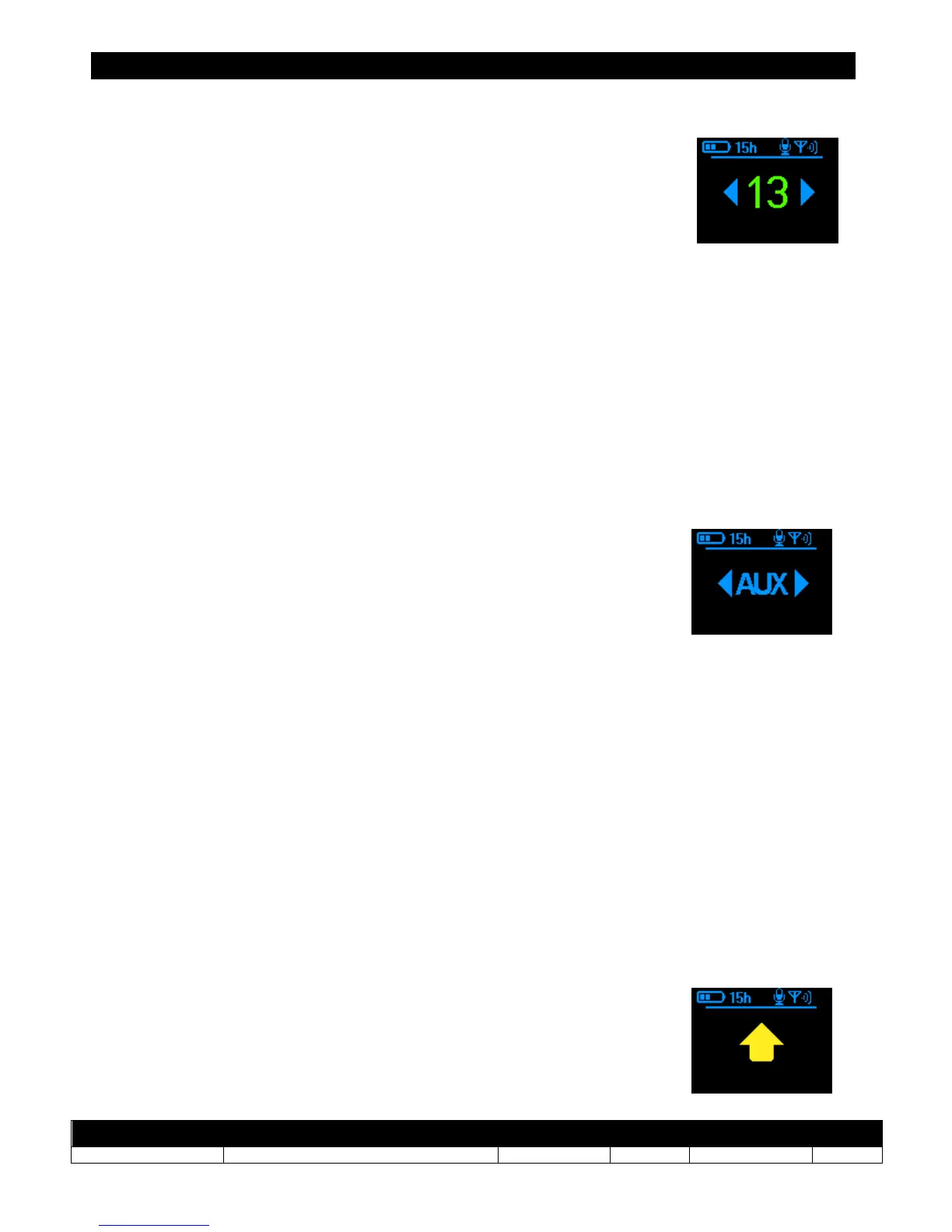
To change the channel number, press the [MENU] button and select the
channel by pressing the [+] and [-] buttons. Then, validate your choice by
pressing the [Ok] button.
Note: when selecting a new channel, the device will indicate if that channel
is free or occupied. This information provided by color code:
• If the channel number is blue, the device is scanning the channel.
• If the channel number is green, it indicates that the channel is available and can be
selected.
• If the channel number is red, it indicates that this channel is being used by another
group or that this channel has interference from another transmitter.
Select the source
To configure the input source (auxiliary or microphone), from the main
screen, press the [MENU] button 3 times. Select the input type by pressing
the [+] and [-] buttons. Validate your choice by pressing the [Ok] button.
Using the microphone/auxiliary sources simultaneously
When the selected input source is set to microphone, holding down the OK button will allow
you to send pre-recorded commentary via an Orpheo audio guide. When using OTG with an
Orpheo audio guide, the volume level of the audio guide should be set to 10%.
On the contrary, when the selected input source is set to auxiliary mode, holding down the
OK button continuously will allow you to speak through the microphone.
Send the configuration via the charging rack
It is possible:
A) To switch all the devices into receiver mode
B) to transfer the channel number of one device to the other devices
via the charging rack.



 To Next Page