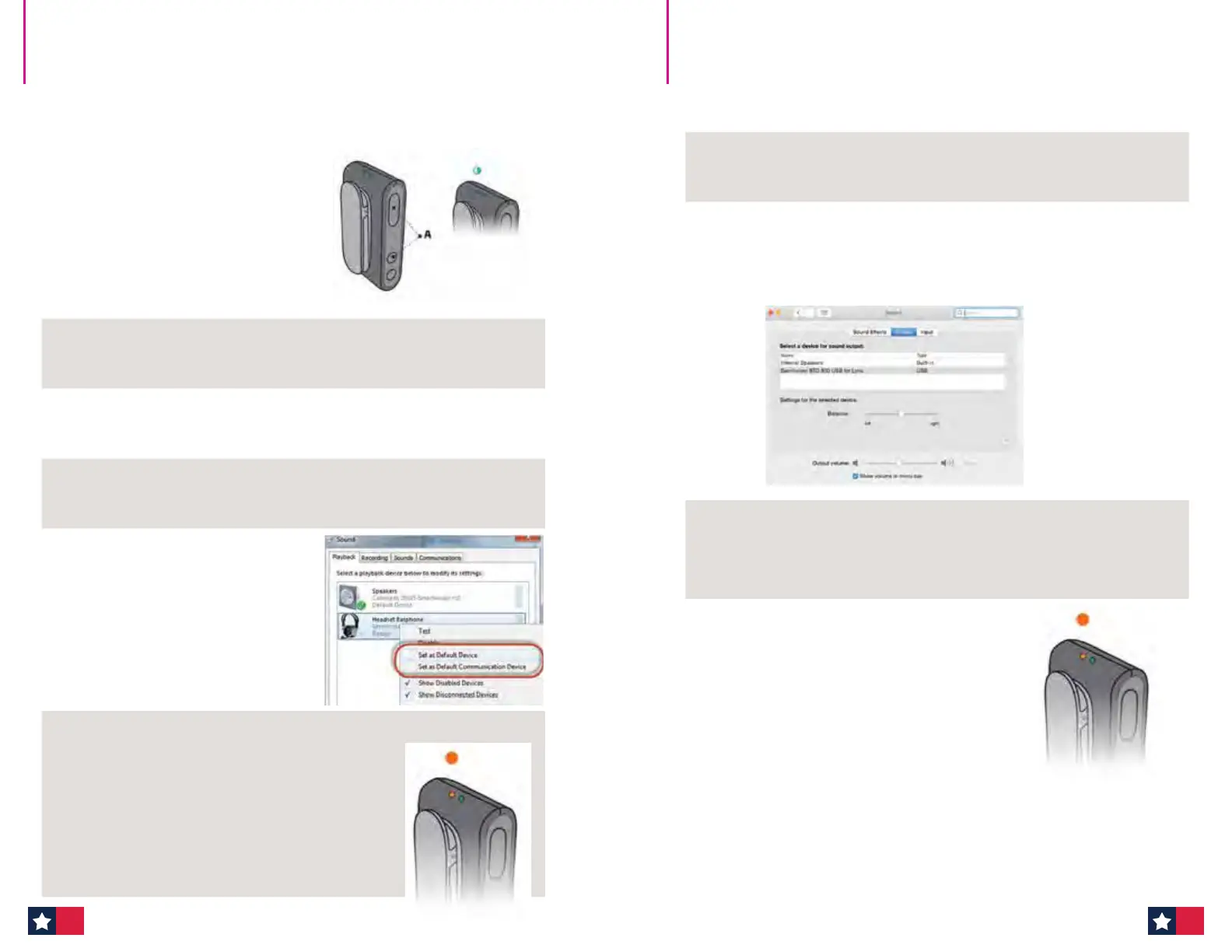
Step 1
Place ConnectClip into
pairing mode by pressing
the multi-button and
volume up button (A) for
6 seconds until the status
light blinks blue. The LED
lights will turn on and show
green and flashing blue.
Step 2
Plug BTD-800 USB dongle into the USB port on the computer,
allow the computer to detect and connect to the dongle.
Step 3
Press and hold the side button on the BTD-800 USB dongle for
3 seconds or until the LED light starts flashing red then blue.
Step 4
Pairing is complete once the dongle and ConnectClip status
light turn solid blue.
Step 5
Go to the Windows Start
menu and follow this path:
Control Panel > Hardware
and Sound > Sound >
Right click on Headset
Earphone — Sennheiser
BTD 800 USB for Lync ->
Select “Set as Default”.
Step 6
Now you are ready to stream audio
from the computer. The status
indicator light on the ConnectClip will
display orange when audio is being
played through a paired computer.
Status light will change from orange
to a very light blue (almost white)
color when audio is turned off.
How to pair ConnectClip to BTD-800 USB
dongle and set as the audio source
How to set up the BTD-800 USB dongle as
the audio source on your Apple® computer
Step 1
Follow the ConnectClip and BTD-800 USB dongle pairing
instructions mentioned on page 1.
Step 2
Go to the Apple logo in top left corner of the screen and
follow this path: System Preferences > Sound >
click on the Output tab and select the Sennheiser
BTD 800 USB for Lync.
Step 3
At this point the BTD 800 is connected for audio out. If you
want to use the BTD 800 and ConnectClip as a full headset
then click on the Input tab and select the BTD 800.
Step 4
The status indicator light on the
ConnectClip will display orange
when audio is being played through
a paired computer. Status light will
change from orange to a very light
blue (almost white) color when audio
is turned off.
ConnectClip can also be paired to Apple computers without a BTD-800 USB. Complete the
pairing process by going to the "System Preferences"
> "Bluetooth" menu. Once
ConnectClip is in pairing mode, it will appear in the Bluetooth menu as ConnectClip 1.0.
70 71




 To Next Page