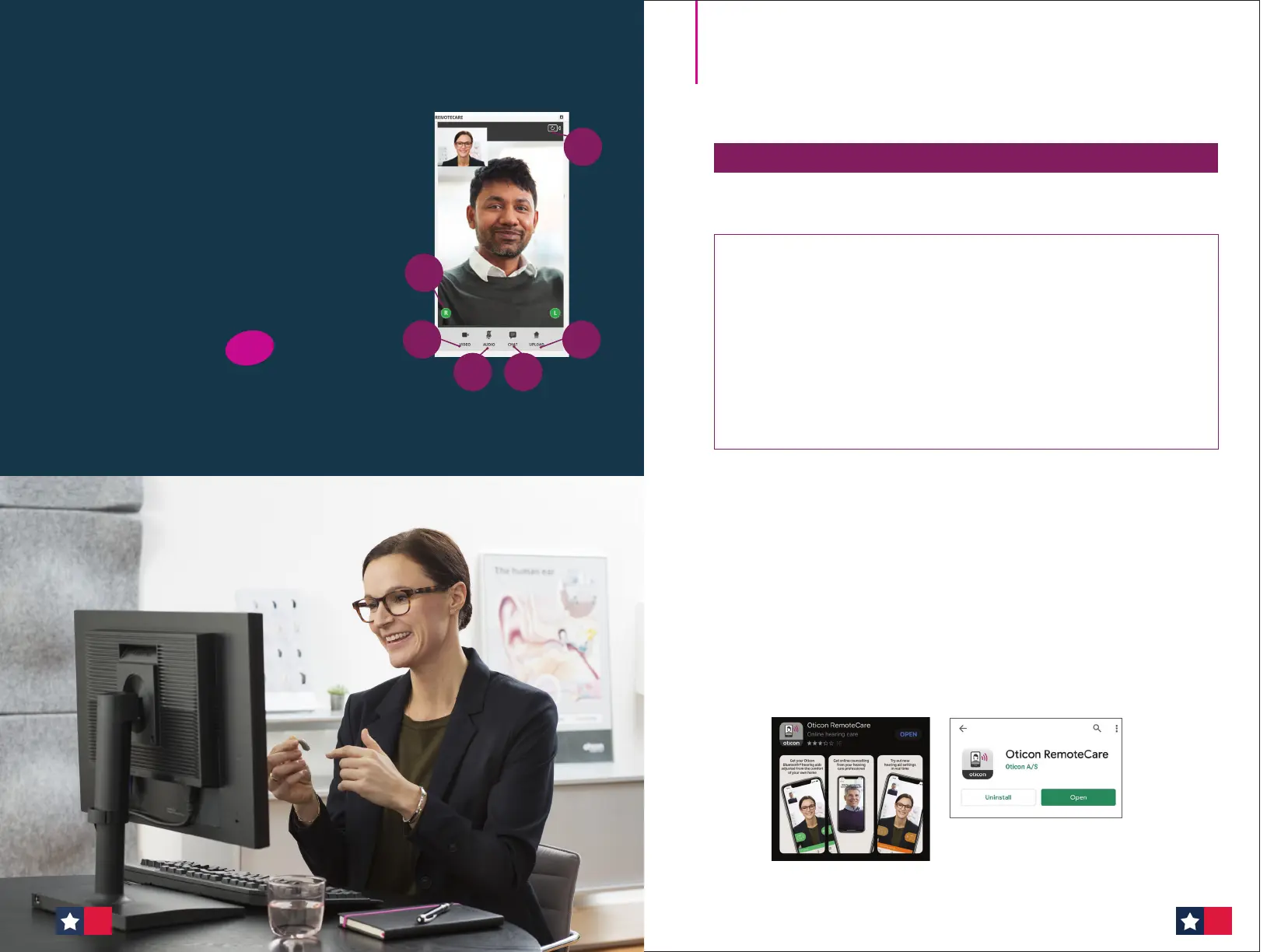
Important: Use RemoteCare
Communicator to communicate
with your patient
a. Hearing aid status indicators
b. Endable/disable camera
c. Mute/unmute microphone
d. Enables text messaging and
communication via audio and video
between you and your patient
e. Upload button
f. Refresh video
a
b
c
e
f
d
NEW
location
RemoteCare Quick Guide
for Patients
Setting up your hearing aids and phone/tablet
To use this app, the following items are needed:
•
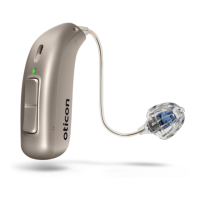
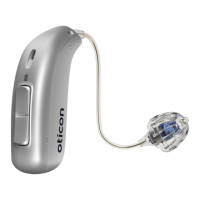
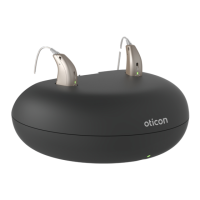
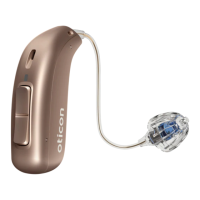
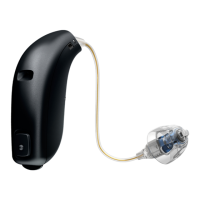
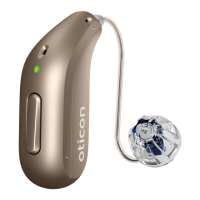
Oticon More™, Opn S™, Opn™, Xceed, or Opn Play™ hearing aids paired to
your device.
•
A stable Internet connection with a recommended minimum speed of 1/1
Mbit/s (check with provider).
•
An email account.
•
A compatible Apple® or Android™ phone or tablet (see https://www.
oticon.com/support/compatibility for compatible device list).
• Apple devices: must have iOS version 13.0 or newer.
• Android devices: must have operating system 8.0 or newer.
Step 1: Pair your Oticon hearing aids to your
phone or tablet
For more information, refer to your Instructions for Use booklet (included
with your hearing aids) or the Oticon website: www.oticon.com/support/
how-to/connect-to-wireless-accessories. For Android devices, patients
will connect directly through the RemoteCare app.
These 4 steps will help you set up your hearing aids and phone/
tablet for RemoteCare.
Step 2: Download the Oticon RemoteCare app
Open the Apple App Store® or Android Google Play™ Store on your phone
or tablet. Search for “Oticon RemoteCare” and download it to your device.
Apple
Android
8382





 To Next Page