Quick Start Guide - GB
ICONS AND THEIR DESCRIPTION
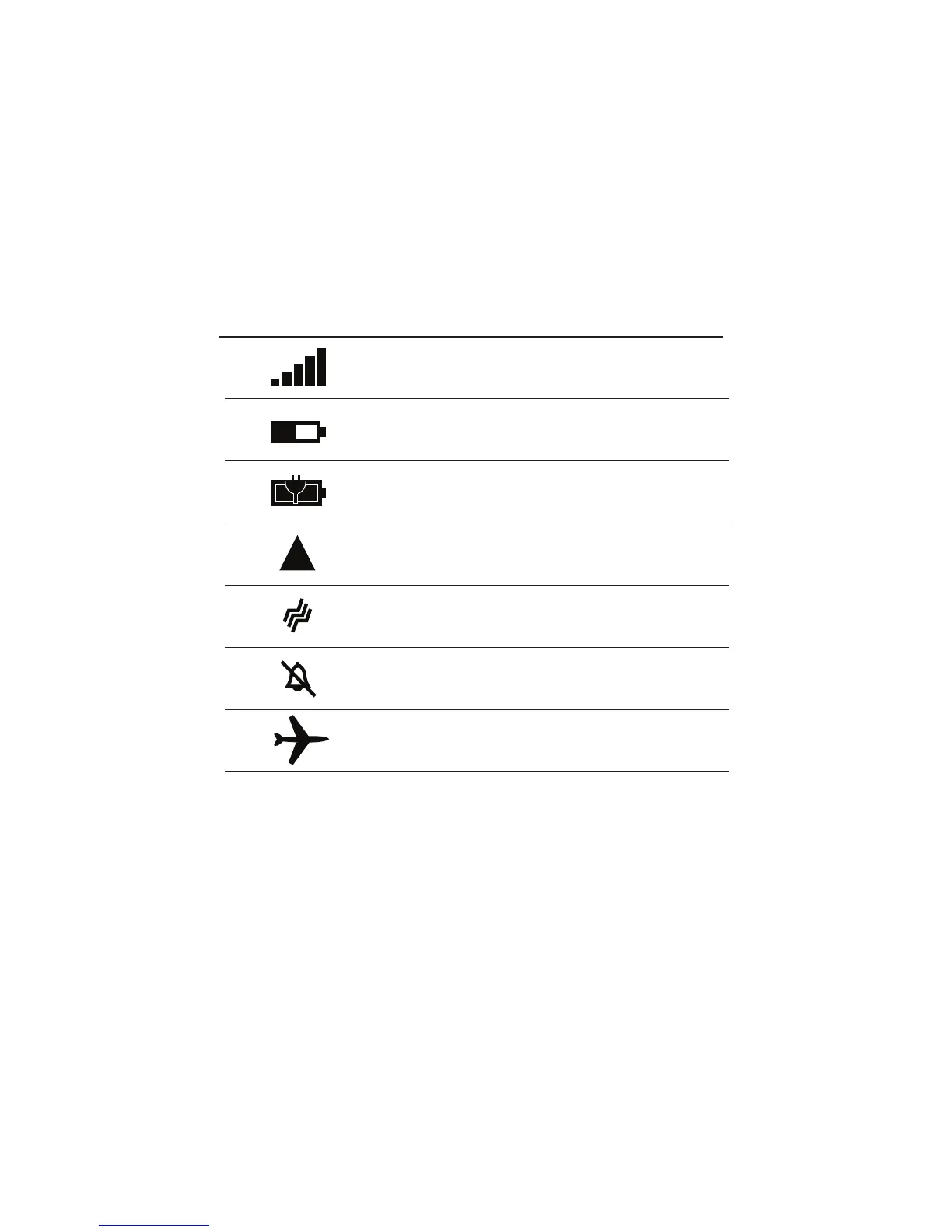
ICON DESCRIPTION
Signal strength
Battery power level
The battery is charging.
Your phone is roaming and not on your
home mobile network.
Vibrate mode is switched on.
Silent mode is switched on.
Airplane mode is switched on.
BASIC OPERATION & KNOWLEDGE
Using Touch Screen
Tap: To act on items on the screen, such as application, icons and
options you simply touch the screen.
Tap & hold: Touch the screen for about 2 seconds. This action will pop-up
a special options list or activate special actions.
Drag: Touch the screen and move your nger without lifting it up to
scroll options, switch screens and other content displayed on the screen.
Flick: Drag quickly and release. To scroll through a list or move quickly,
ick across the touch screen. When you ick a long list, tap the screen
to stop scrolling.
Pinch: Some applications (such as Maps, Browser, and Gallery) allow
you to zoom in and out by placing two ngers on the screen at once
and pinching them together (to zoom out) or spreading them apart (to
zoom in).



 To Next Page