EasyManua.ls Logo

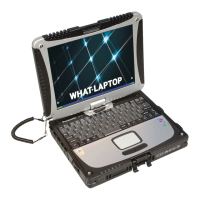
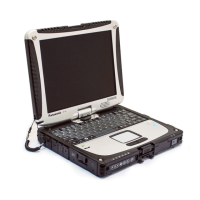
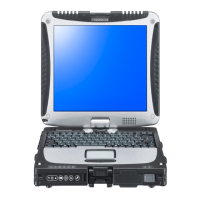
Panasonic CF-19 - User Manual

Panasonic CF-19
40 pages
Print Icon
To Next Page IconTo Next Page
Loading...
Contents
Getting Started
OPERATING INSTRUCTIONS
Personal Computer
Model No.
CF-19
series
Introduction .................................................................
2
Read Me First .............................................................
3
Description of Parts ..................................................
10
First-time Operation ..................................................
13
Useful Information
On-screen Manual ....................................................
17
Handling and Maintenance .......................................
19
Reinstalling Software ................................................
21
Troubleshooting
Troubleshooting (Basic) ............................................
23
Appendix
LIMITED USE LICENSE AGREEMENT ...................
28
Speci cations ...........................................................
30
LIMITED WARRANTY ..............................................
33
Please read these instructions carefully before using this product and save this manual for future use.
For further information about the com-
puter, you can refer to the on-screen
manual.
To access the on-screen manual
page 17 “On-screen Manual”
Getting StartedUseful InformationTroubleshootingAppendix

CF-19CTQZZBM.indb 1CF-19CTQZZBM.indb 1 10/23/2009 2:40:56 PM10/23/2009 2:40:56 PM

Other manuals for Panasonic CF-19

Questions and Answers

  • L
    Lance RushSep 8, 2025
    What to do if my Panasonic Desktop displays '[Executing Battery Recalibration] screen'?
    • T
      Timothy PhillipsSep 8, 2025
      If your Panasonic Desktop displays the '[Executing Battery Recalibration] screen', turn off the computer using the power switch, then turn it back on to start Windows.
  • S
    Sara ShafferSep 7, 2025
    What to do if my Panasonic Desktop screen is disordered?
    • D
      drobinsonSep 7, 2025
      If your Panasonic Desktop screen appears disordered, restarting the computer can resolve issues caused by changing the number of display colors and resolution or connecting/disconnecting an external display. Additionally, restarting may fix screen issues after resuming from sleep or hibernation, especially concerning the external display.
  • R
    Robert MurphyAug 22, 2025
    What to do if my Panasonic Desktop external display does not work normally?
    • S
      Steven CabreraAug 22, 2025
      If the external display on your Panasonic Desktop does not support the power saving function, it may not work normally when the computer enters the power saving mode. In this case, turn off the external display.
  • J
    Jessica NunezSep 4, 2025
    What to do if my Panasonic Desktop displays '[Enter Password] does not appear when resuming from sleep/hibernation'?
    • A
      angelapettySep 4, 2025
      If '[Enter Password]' doesn't appear when resuming your Panasonic Desktop from sleep or hibernation, first, select [Enabled] in [Password On Resume] within the Setup Utility's [Security] menu. Note that the Windows password can be used instead of the password set in the Setup Utility. Ensure you have added a password. You can also set this up via Control Panel by navigating to [System and Security] - [Power Options] - [Require a password on wakeup] and adding a check mark for [Require a password]. Alternatively, go to [Control Panel] - [System and Security] - [Power Option] - [Require a password when the computer wakes] and add a check mark for [Require a password].
  • D
    Daniel WeaverSep 3, 2025
    What to do if my Panasonic Desktop screen is dark?
    • B
      Benjamin BeckerSep 3, 2025
      If your Panasonic Desktop screen is dark, remember that the screen appears darker when the AC adapter is disconnected. Try pressing Fn + F2 to adjust the brightness. Also, press Fn + F8 to turn off the concealed mode.
  • M
    Molly AlvarezSep 1, 2025
    How to fix incorrect date and time on my Panasonic Desktop?
    • R
      russelllauraSep 1, 2025
      To correct the date and time on your Panasonic Desktop, first, make sure you set the correct settings. If the problem continues, the internal clock battery may need replacement, so contact Panasonic Technical Support. If your computer is connected to a LAN, check the date and time of the server. Note that this computer will not correctly recognize years 2100 A.D. or later.
  • R
    Richard GuzmanAug 31, 2025
    Why is my Panasonic Desktop Windows startup so slow?
    • T
      Tommy NealAug 31, 2025
      If your Panasonic Desktop experiences slow Windows startup and operation, try pressing F9 in the Setup Utility to reset settings (excluding passwords) to default. Then, restart the Setup Utility and configure your settings again. If you installed resident software after purchasing the computer, try turning it off. Also, disable the pop-up menu and Input Panel Tab by opening the Input Panel, clicking [Tools] - [Options] - [Opening], and removing the check mark from [Show Input Panel sliding open from the tab].
  • A
    Alison RodriguezAug 30, 2025
    What to do if my Panasonic Desktop shows 'Remove disks or other media. Press any key to restart'?
    • D
      Daniel GainesAug 30, 2025
      If your Panasonic Desktop displays the message 'Remove disks or other media. Press any key to restart', it could be due to a floppy disk in the drive without system startup information. Remove the floppy disk and press any key. Also, disconnect any devices connected to the USB port or ExpressCard slot, or disable the [USB Port] or [ExpressCard Slot] in the Setup Utility. If the problem continues after removing the disk, it may indicate a hard disk failure, in this case contact Panasonic Technical Support. As an additional step, you can set [UEFI Boot] to [Disabled] in the [Boot] menu of the Setup Utility.
  • J
    Jennifer RogersAug 29, 2025
    What to do if my Panasonic Desktop won't start and the power indicator is off?
    • S
      Stephen DiazAug 29, 2025
      If your Panasonic Desktop isn't starting and the power indicator isn't lit, try these steps: First, connect the AC adapter. If that doesn't work, insert a fully charged battery. You can also try removing the battery pack and AC adapter, then reconnecting them. If devices are connected to the USB port or ExpressCard slot, disconnect them or disable the corresponding settings in the Setup Utility's Advanced menu. Press Fn + F8 to turn off concealed mode. Lastly, check the UEFI Boot setting in the Setup Utility, ensuring it's set to either Enabled or Disabled.
  • J
    Julie RochaAug 27, 2025
    I forgot my Panasonic Desktop password, what can I do?
    • M
      Matthew DawsonAug 27, 2025
      If you have forgotten your Panasonic Desktop password, contact Panasonic Technical Support. If you have a password reset disk, you can reset the administrator password by setting the disk, entering any wrong password, and following the on-screen instructions to set a new password. If you do not have a password reset disk, reinstall and set up Windows, and then set a new password.

Summary

Introduction to Your Panasonic Computer

Manual Navigation and Terms

Explains how to navigate the manual, defines key terms, and clarifies illustration simplifications.

Regulatory Compliance and Trademarks

Lists product trademarks and outlines regulatory compliance statements and notices.

Read Me First: Safety and Compliance Information

FCC Compliance and US Notices

Details FCC statements on radio frequency interference and modem compliance requirements for the USA.

Canadian Compliance and Wireless Restrictions

Covers Industry Canada compliance, ICES-003, and wireless LAN/Bluetooth restrictions for Canada.

European Declarations and General Safety

Includes EU Declaration of Conformity and general safety precautions for telephone equipment.

Health, Environment, and User Information

Provides information on product health effects and disposal guidelines for areas outside the European Union.

Wireless Safety and Regulatory Context

Outlines safety precautions for wireless WAN use and general regulatory responsibilities.

Battery, Vehicle Use, and Camera Light Safety

Covers lithium battery handling, vehicle usage guidelines, and safety for the camera light.

General Operational Precautions

Lists essential precautions for the computer's operation, handling, and electrical safety.

Battery Pack Specific Precautions

Details specific precautions for using, charging, and handling the battery pack to prevent damage or hazards.

Description of Parts and Accessories

External Component Identification

Identifies and labels various external parts and indicators on the computer.

Internal Component Identification

Details the identification of internal components and connection ports on the computer.

Operational Mode Switching

Provides instructions for switching the computer into tablet mode for different usage.

Accessory Attachment Procedures

Guides users on how to attach accessories like the stylus and carrying straps.

First-time Operation and Setup

Preparation and Accessory Check

Guides users to check supplied accessories and read the license agreement.

Battery Pack Installation

Step-by-step guide for correctly inserting the battery pack into the computer.

Initial Power-Up and OS Setup

Details connecting power, turning on the computer, and the initial operating system setup process.

System Calibration and Configuration

Guides on calibrating input devices like the touchscreen and setting up system configurations.

User Account and Disk Management

Instructions for creating a user account and managing disk partition structures.

Useful Information

Accessing On-Screen Manuals and Tips

Explains how to access the Reference Manual and Important Tips for detailed information.

Computer Handling and Maintenance

Provides guidelines for safe operation, handling, and cleaning of the computer.

Software Reinstallation Guide

Step-by-step instructions for reinstalling the operating system and recovery software.

Troubleshooting Common Issues

Startup and Power Issues

Addresses problems with the computer not starting, power indicators, or warming up.

System Resume and Password Issues

Solutions for issues resuming from sleep/standby and forgotten passwords.

Display and Input Device Problems

Guides on resolving display issues, cursor control, and input device malfunctions.

Software and Reference Access Troubleshooting

Troubleshooting steps for accessing the reference manual and handling general software unresponsiveness.

Appendix: Legal and Technical Details

Software License Agreement

The legal agreement governing the use of the provided software.

Technical Specifications

Details the hardware specifications, connectivity, and performance metrics of the computer.

Warranty Information (USA)

Outlines the limited warranty terms for hardware, software, and accessories in the USA.

Warranty Information (Canada)

Provides warranty coverage details specific to Canada for hardware, software, and accessories.

Panasonic CF-19 Specifications

General IconGeneral
Resolution1024 x 768
TouchscreenYes
Operating SystemWindows 7
Rugged FeaturesMIL-STD-810G certified
GraphicsIntel Integrated Graphics
ConvertibleYes
PortsUSB, Serial, Ethernet, VGA, Headphone/Microphone
WirelessWi-Fi, Bluetooth

Related product manuals