237
Wi-Fi/NFC
1 Select the menu.
2 Select [Via Network] or [Direct], and connect. (P259)
3 Select a device you want to connect.
•
When the connection is complete, the screen is displayed. To change the send setting,
press [DISP.]. (P266)
4 Select [Single Select] or [Multi Select].
•
To change the setting or disconnect, press [Wi-Fi]. (P224)
Sending selected images ([Send Images Stored in the Camera])
[Wi-Fi] > [New Connection]>[Send Images Stored in the
Camera]>[Smartphone]
On your smartphone/tablet
When connecting with [Via Network]:
1 Turn on the Wi-Fi function.
2 Select the wireless access point you want to connect to, and set.
3 Start “Image App”.
¢
(P227)
When connecting with [Wi-Fi Direct] or [WPS Connection] in [Direct]:
1 Start “Image App”.
¢
(P227)
When connecting with [Manual Connection] in [Direct]:
1 Turn on the Wi-Fi function.
2 Select the SSID that matches the one displayed on the screen of this unit, and
then enter the password.
3 Start “Image App”.
¢
(P227)
¢ A window indicating that the smartphone/tablet is connecting to the camera is
displayed. If you are using an Android device, press the back key. If you are using an
iOS device, close the window.
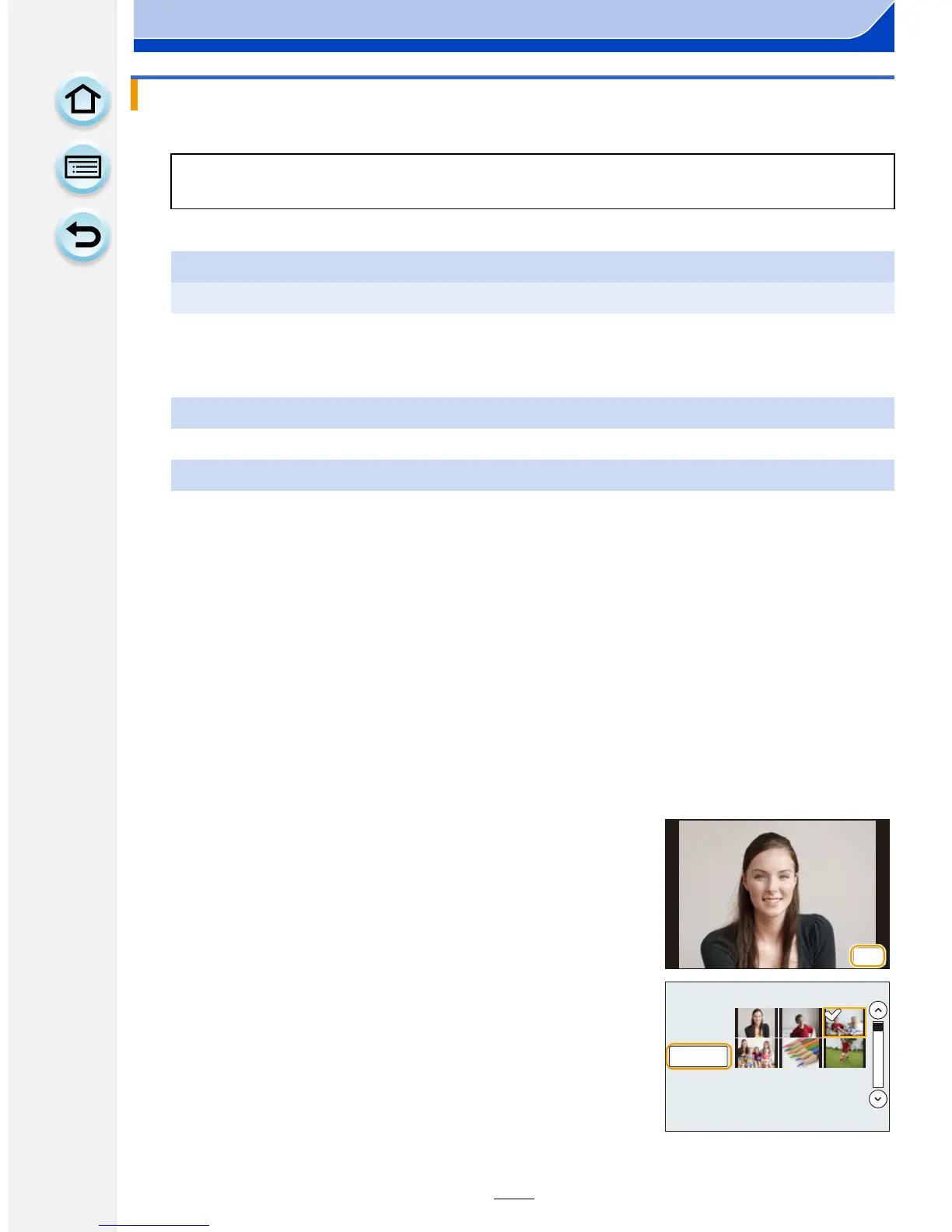
[Single Select] setting
1 Select the picture.
2 Select [Set].
[Multi Select] setting
1 Select the picture. (repeat)
•
The setting is canceled when the picture is selected
again.
2 Select [OK].
•
The number of pictures that can be sent by [Multi
Select] is limited.
• Confirmation screen is displayed. It is executed when [Yes] is selected.
6HW
2.




 To Next Page