To Next Page


E
Eric PorterAug 19, 2025
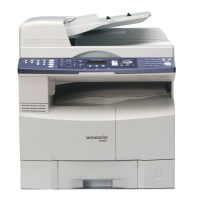
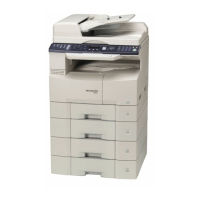
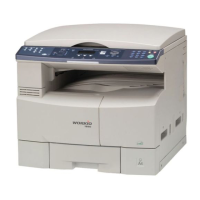
What to do if Panasonic DP-4530 All in One Printer says 'During Reception: Add Toner'?
- Llarry85Aug 19, 2025
If your Panasonic All in One Printer displays 'During Reception: Add Toner', replace the Toner Bottle.

What to do if Panasonic DP-4530 All in One Printer says 'During Reception: Add Toner'?
If your Panasonic All in One Printer displays 'During Reception: Add Toner', replace the Toner Bottle.
What to do if my Panasonic All in One Printer says 'No Waste Toner Box'?
If your Panasonic All in One Printer displays 'No Waste Toner Box', install the Waste Toner Box.
How to troubleshoot no dial tone on Panasonic DP-4530?
If there is no dial tone on your Panasonic All in One Printer, you should: 1. Check the connection of the telephone line. 2. Check the telephone line itself.
What to do if my Panasonic DP-4530 All in One Printer says 'During Reception: Add Paper'?
If your Panasonic All in One Printer displays 'During Reception: Add Paper', you need to replenish the recording paper.
How to fix document feed issues on Panasonic All in One Printer?
To resolve document feeding issues like documents not feeding or multiple feeds on your Panasonic All in One Printer: 1. Ensure your document is free of staples, paper clips, grease, and tears. 2. Verify your document is suitable for the ADF (Automatic Document Feeder) by checking the list of "Originals You Cannot Send." If unsuitable, use the Platen. 3. Confirm the document is loaded correctly.
Why Panasonic All in One Printer cannot transmit or receive?
If your Panasonic All in One Printer cannot transmit or receive, an information code will be shown on the display. Refer to the information code table to find out the trouble.
Why doesn't the recording paper advance into my Panasonic All in One Printer?
If the recording paper doesn't advance into your Panasonic All in One Printer, make sure that there is paper in the Paper Cassette and follow the instructions for loading paper.
What to do if recording paper doesn't eject from Panasonic DP-4530 All in One Printer?
If the recording paper doesn't eject after printing on your Panasonic All in One Printer, check to see if the recording paper is jammed inside of the machine.
How to troubleshoot no auto answer on Panasonic All in One Printer?
If your Panasonic All in One Printer does not auto answer: 1. Check the connection of the telephone line. 2. Check the Reception mode setting. 3. If the Fax Parameter No. 013 (AUTO JOURNAL PRINT) is set to "Valid" (default setting) and the machine is printing the received document(s) from memory, which also happens to be the 200th transaction, the machine will not auto answer until the Transaction Journal completes printing.
How to remove vertical lines on transmitted document from Panasonic DP-4530 All in One Printer?
If you observe vertical lines on documents transmitted from your Panasonic All in One Printer, check your own copy quality. If the copy is OK, then your machine has no problem, report to the receiving party that they have a problem. If the copy shows the same issue, clean the Document Scanning Area.
Essential safety precautions and warnings for operating the machine to prevent hazards.
Instructions on how to place documents into the ADF or on the platen glass.
Temporary adjustments to transmission settings like contrast and resolution before sending.
Using special keys to assign stations for group dialing, polling, or deferred sequences.
Securely storing and retrieving confidential fax documents using a 4-digit code.
Essential network setup and parameter information required before configuring Internet Fax.
How to change the machine's dialing method between Tone and Pulse based on the phone line.
Adjusting the monitor volume for dial tone, dialing signals, and busy tone through the built-in speaker.
A record of the last 200 sent/received transactions, including communication results and details.
A guide to identifying and resolving common operational issues and error codes.
Technical details and performance specifications for the machine's G3 facsimile and Internet Fax capabilities.
 General
| Brand | Panasonic |
|---|---|
| Model | DP-4530 |
| Category | All in One Printer |
| Language | English |