EasyManua.ls Logo

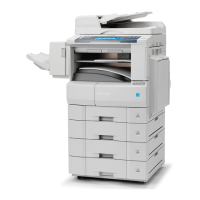
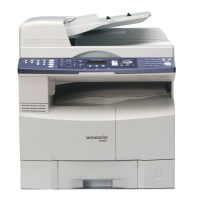
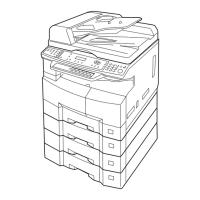
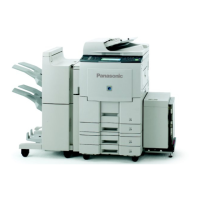
Panasonic DP-8020E - Service Manual

Panasonic DP-8020E
498 pages
Print Icon
To Next Page IconTo Next Page
Loading...
Order Number: MGCS060806C0
H21
Digital Imaging Systems
DP-8020E/8020P/8016P
[ Version 1.0 ]
This service information is designed for experienced repair technicians only and is not intended for use by the general public.
It does not contain warnings or cautions to advise non-technical individuals of potential dangers in attempting to service a product.
Products powered by electricity should be serviced or repaired only by experienced professional technicians. Any attempt to service
or repair the product or products dealt within this service information by anyone else could result in serious injury or death.
WARNING
© 2006 Panasonic Communications Co., Ltd.
All rights reserved. Unauthorized copying and distribution is
a violation of law.

Table of Contents

Other manuals for Panasonic DP-8020E

Questions and Answers

  • N
    Nathan WilliamsSep 23, 2025
    What to do if remote station requires password for Panasonic All in One Printer?
    • C
      Christopher RaySep 23, 2025
      If the remote station requires a Receiving Password to receive the document on your Panasonic All in One Printer, check the settings on the remote station.
  • T
    Timothy SheppardAug 25, 2025
    What to do if my Panasonic Copier document is too long or jammed?
    • P
      Patricia GalvanAug 25, 2025
      If the document is too long or jammed in your Panasonic Copier, especially in 'Super Fine' (400 and 600 dpi) mode, it might be due to memory limitations. To resolve this: 1. Reload the document properly. 2. Remove any document jams.
  • M
    mfrancisAug 25, 2025
    What to do if the ADF cover is open on my Panasonic Copier?
    • N
      Noah KirkAug 26, 2025
      If the ADF cover (Document Return Guide) is open on your Panasonic Copier, simply close the ADF cover.
  • V
    Victoria HernandezAug 27, 2025
    What to do if my Panasonic Copier goes to receiving mode, but receives no command from the transmitting side?
    • S
      Suzanne FernandezAug 27, 2025
      If your Panasonic Copier enters receiving mode but doesn't receive any command, it might be due to the remote side misdialing. You can also check with the other party to ensure they are sending correctly.
  • K
    Kenneth BrowningSep 23, 2025
    What to do if ADF Cover is open on Panasonic DP-8020E?
    • R
      rhughesSep 23, 2025
      If the ADF Cover (Document Return Guide) is open on your Panasonic All in One Printer, close the ADF Cover.
  • K
    Kelsey HamiltonSep 13, 2025
    What to do if Panasonic DP-8020E All in One Printer shows communication error during initial handshake?
    • A
      Amanda MendozaSep 13, 2025
      If a communication error occurred during the initial handshake with your Panasonic All in One Printer, reload the document and send it again.
  • J
    Jack BowmanSep 12, 2025
    How to fix document misfeeding on Panasonic DP-8020E?
    • M
      Matthew WalkerSep 12, 2025
      If the document is misfeeding in your Panasonic All in One Printer, try the following: * Reload the document properly. * Remove any document jams. * Adjust the ADF (Automatic Document Feeder).
  • D
    David CantuSep 12, 2025
    What to do if document is too long or jammed in Panasonic All in One Printer?
    • C
      Christopher WilliamsSep 12, 2025
      If your Panasonic All in One Printer indicates that the document is too long or jammed, try these steps: * Reload the document properly. * Remove any document jam.
  • S
    sean51Sep 4, 2025
    What to do if my Panasonic Copier interface is incompatible?
    • S
      sharon05Sep 4, 2025
      If the interface is incompatible with your Panasonic Copier, check with the other party.
  • M
    Marie GomezSep 2, 2025
    What to do if my Panasonic Copier has no confirmation from the receiving station for the previous page sent?
    • A
      Allen CopelandSep 2, 2025
      If there is no confirmation from the receiving station for the previous page sent by your Panasonic Copier, wait a few minutes and try sending again.

Panasonic DP-8020E Specifications

General IconGeneral
BrandPanasonic
ModelDP-8020E
CategoryAll in One Printer
LanguageEnglish

Related product manuals