EasyManua.ls Logo

Panasonic DP-8035 - User Manual

Panasonic DP-8035
196 pages
Print Icon
To Next Page IconTo Next Page
Loading...
Internet Fax
Features
Advanced Internet
Fax Features
Printing Journals
and Lists
Model No. DP-8060 / 8045 / 8035
Operating Instructions
(For Facsimile and Internet Fax/
Email Functions)
Digital Imaging Systems
English
Getting to Know
Your Machine
Facsimile
Features
Internet Fax
Features
Advanced
Facsimile Features
Advanced Internet
Fax Features
Setting
Your Machine
Printout Journals
and Lists
Problem Solving
Appendix
Before operating this machine, please carefully read this manual, and keep this
documentation in a safe place for future reference.
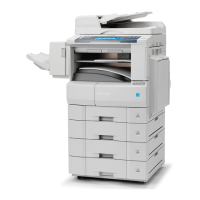
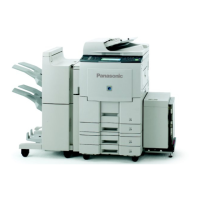
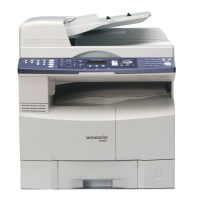
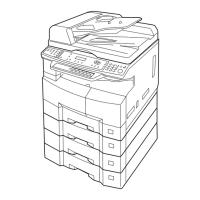
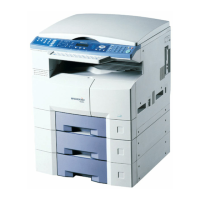
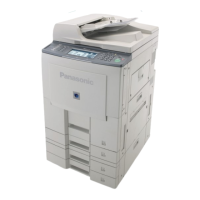
(Illustration shows optional accessories that may not be installed on your machine.)

Table of Contents

Other manuals for Panasonic DP-8035

Questions and Answers

  • Y
    Yvonne ReillyAug 20, 2025
    What to do if my Panasonic All in One Printer document is misfeeding?
    • A
      Amanda DrakeAug 20, 2025
      If the document is misfeeding in your Panasonic All in One Printer, try the following: 1. Reload the document properly. 2. Remove any jammed documents. 3. Adjust the ADF (Automatic Document Feeder).
  • B
    bonnieleeAug 21, 2025
    What to do if the ADF Door (Document Return Guide) is open on my Panasonic DP-8035?
    • T
      Tom HicksAug 22, 2025
      If the ADF Door (Document Return Guide) is open on your Panasonic All in One Printer, simply close the ADF Door.
  • R
    Rachel DickersonAug 25, 2025
    What should I do if my Panasonic All in One Printer shows 'During initial handshake, communication error occurred'?
    • J
      Johnny CarterAug 25, 2025
      If your Panasonic All in One Printer displays a 'communication error occurred' message during the initial handshake, reload the document and send again.
  • L
    Lisa SerranoAug 26, 2025
    What to do if my Panasonic All in One Printer shows 'No confirmation from the receiving station for the previous page sent'?
    • J
      jasongatesAug 26, 2025
      If your Panasonic All in One Printer indicates 'No confirmation from the receiving station for the previous page sent', wait a few minutes and then try sending the document again.
  • N
    Nathan WilliamsAug 28, 2025
    What does it mean if my Panasonic DP-8035 All in One Printer says 'During initial handshake, receiving station did not respond or communication error occurred'?
    • D
      Dennis HaleAug 28, 2025
      If your Panasonic All in One Printer displays 'During initial handshake, receiving station did not respond or communication error occurred': 1. Check with the other party to ensure their system is ready. 2. Reload the document and attempt to send it again.
  • J
    Joel WileyAug 30, 2025
    What to do if my Panasonic DP-8035 shows 'Remote side confirmation of previous page is illegible'?
    • F
      Fred HowardAug 30, 2025
      If your Panasonic All in One Printer displays 'Remote side confirmation of previous page is illegible', wait a few minutes before attempting to send the document again.
  • K
    kmonroeAug 31, 2025
    Why does my Panasonic DP-8035 All in One Printer say 'Communication aborted by the transmitting side'?
    • M
      matthew79Aug 31, 2025
      If your Panasonic All in One Printer shows 'Communication aborted by the transmitting side', check with the other party to investigate the issue.
  • R
    Russell WilsonSep 2, 2025
    What to do if my Panasonic DP-8035 displays 'Transmission Password does not match. Receiving Password does not match. Received from an unauthorized station in Selective Reception mode'?
    • K
      Kristin BishopSep 3, 2025
      If your Panasonic All in One Printer displays the message 'Transmission Password does not match. Receiving Password does not match. Received from an unauthorized station in Selective Reception mode', check the password or the telephone number in the Address Book.
  • T
    Theresa FoxSep 5, 2025
    What to do if my Panasonic All in One Printer shows 'Remote station required a Receiving Password to receive the document. Remote station does not have Confidential Mailbox'?
    • L
      Laura CollinsSep 5, 2025
      If your Panasonic All in One Printer displays the message 'Remote station required a Receiving Password to receive the document. Remote station does not have Confidential Mailbox', check the settings of the remote station.
  • S
    Stephen JenkinsSep 7, 2025
    What does it mean if my Panasonic DP-8035 All in One Printer says 'No polling capability at the remote side'?
    • S
      Stacy MillerSep 7, 2025
      If your Panasonic All in One Printer displays 'No polling capability at the remote side', ask the remote side to set "POLLED=ON".

Summary

Getting to Know Your Machine

Operating Instructions Manuals

Overview of included operating instruction manuals for setup and basic operations.

Internet Fax Features

Advanced Facsimile Features

Confidential Mailbox

Feature for secure storage and retrieval of confidential documents.

Printout Journals and Lists

Problem Solving

Troubleshooting

Guides on identifying and correcting common problems.

Connecting the Cable

Control Panel Overview

Control Panel Buttons

Explains the functions of the control panel buttons and indicators.

Facsimile Features: Sending Documents

Transmitting Documents Stored in Memory

How to send documents stored in memory before transmission.

Direct Transmission Method

Sending documents immediately without storing into memory.

Stopping Transmission

Steps to stop transmission when using memory or direct method.

Facsimile Features: Sending Documents

Facsimile Features: Receiving Documents

Facsimile Features: Receiving Documents

Substitute Memory Reception

Stores received documents in memory if paper or toner runs out.

Facsimile Features: Timer Controlled Communications

Deferred Transmission Procedure

Procedure for sending documents at a predetermined time.

Deferred Polling Procedure

Procedure for polling documents at a predetermined time.

Facsimile Features: Batch Transmission

Facsimile Features: Polling

Facsimile Features: Polling

Poll Documents from Another Station

Procedure to call and retrieve documents from another station.

Facsimile Features: Program Keys

Internet Fax Features

SMTP;POP3 Client Setup

Network parameters needed for SMTP/POP3 setup.

Internet Fax Features: Internet Communication

Transmission and Reception

Transmitting documents via Internet Fax or PC.

Internet Mail Reception

Receiving and printing emails automatically or manually.

Internet Fax Features: Important Information

Internet Fax Features: Setting Internet Parameters

Basic Parameters Setup

Five essential parameters for machine setup.

User Parameters for Internet Settings

Lists and explains user-specific internet parameters.

Internet Fax Features: Sending Documents

Manual Email Addressing

Entering email addresses manually using the keyboard.

Multi Email Addressing (Broadcasting)

Sending emails to multiple recipients using address book.

Internet Fax Features: Address Book

Searching and Editing Address Book

Searching directories using local address book or LDAP.

Internet Fax Features: Sending Documents

Internet Fax Features: Receiving Documents

Receiving Email from POP Server

How to receive and print emails from a POP server.

Internet Fax Features: Program Keys

Setting POP Email Retrieval Key

Preprogramming POP account names/passwords into Program Keys.

Using POP Email Retrieval Key

Retrieving email from POP Server using Program Key.

Advanced Facsimile Features: Confidential Mailbox

Advanced Facsimile Features: Confidential Mailbox

Polling a Confidential Document

Procedure to poll confidential documents from remote station.

Storing a Confidential Document

Procedure to store a confidential document in memory.

Printing Out a Confidential Document

Procedure to print a confidential document from memory.

Deleting Confidential Documents

How to delete confidential files individually or all at once.

Advanced Facsimile Features: Sub-Addressing

Sending Fax with Sub-Address

Procedure for sending faxes using sub-addressing.

Advanced Facsimile Features: Sub-Addressing

Advanced Facsimile Features: Password Communications

Setting Password Transmission;Reception

Procedure for setting transmission and reception passwords.

Using Password Transmission

Procedure for transmitting faxes with password.

Advanced Facsimile Features: Receive to Memory

Setting Receive to Memory Password

Procedure for setting a password for received documents.

Advanced Facsimile Features: PIN Code Access

Advanced Facsimile Features: Selective Reception

Advanced Facsimile Features: Department Code

Advanced Facsimile Features: Edit File Mode

Advanced Internet Fax Features: Internet Communication

Advanced Internet Fax Features: Internet Communication

Advanced Internet Fax Features: Sender Selection

Advanced Internet Fax Features: Inbound Routing

Advanced Internet Fax Features: Inbound Routing

Advanced Internet Fax Features: Fax Forward

Advanced Internet Fax Features: Relayed Transmission

Advanced Internet Fax Features: Relayed Transmission

Setting Your Machine: Address Book

Setting Your Machine: Fax Parameters

Setting Your Machine

Problem Solving

Problem Solving: Information Code

Problem Solving: Information Code

Panasonic DP-8035 Specifications

General IconGeneral
Printing TechnologyLaser
Print Speed (Black)35 ppm
Copy Speed (Black)35 cpm
Copy Resolution600 x 600 dpi
Scan Resolution600 x 600 dpi
Fax Transmission Speed33.6 Kbps
DisplayLCD
Max Document Enlargement400 %
Max Document Reduction25 %
Max Copies999
Output Tray Capacity250 sheets
Duplex PrintingYes
FunctionsCopy, Fax, Print, Scan
Scanner TypeFlatbed
ConnectivityUSB, Ethernet
Reduction / Enlargement25% - 400%
Grayscale Depth256
Supported Media TypePlain, Recycled, Heavy, Bond, Label, Transparency, Envelope
Standard Media SizeA4, A5
Original SizeA4
Operating System CompatibilityWindows
Supported Media Weight60 g/m² - 163 g/m²

Related product manuals