EasyManua.ls Logo

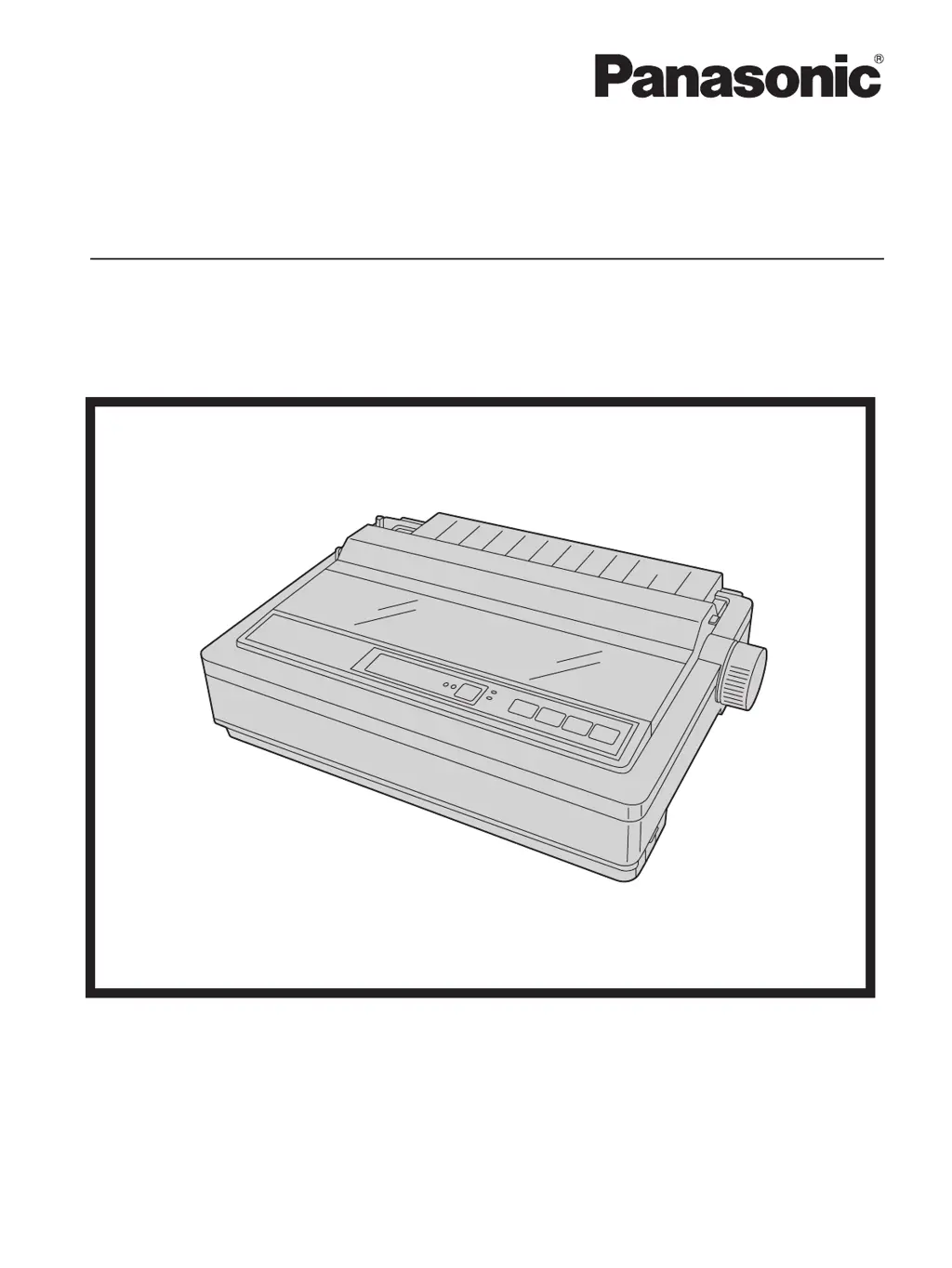
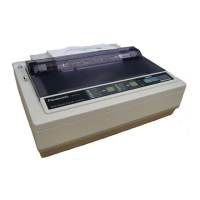
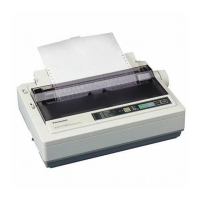
Panasonic KX-P1121E - User Manual

Panasonic KX-P1121E
43 pages
Print Icon
To Next Page IconTo Next Page
Loading...
Model No.
KX-P1121E
Operating Instructions
Please carefully read this manual, and keep this documentation in a safe place for future reference.
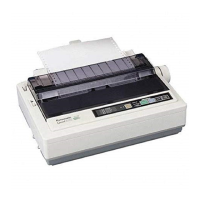
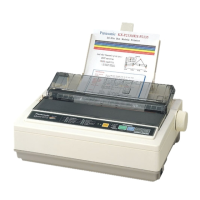
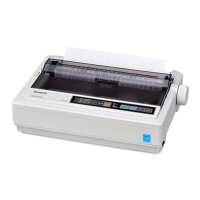
Impact Dot Matrix Printer

Questions and Answers

  • R
    Ryan TrevinoAug 19, 2025
    What to do if my Panasonic KX-P1121E power is on but it does not print?
    • J
      Jamie CoffeySep 12, 2025
      If your Panasonic printer has power but isn't printing, there are several potential causes. First, ensure the printer is set to ON LINE by pressing the ON LINE switch. Check that the interface cable is securely connected. Also, make sure the printer has paper installed. Finally, the printhead may be overheated; allow it some time to cool down, and printing should resume automatically.
  • L
    longconnieAug 21, 2025
    Why does my Panasonic KX-P1121E Printer not power up?
    • M
      Michelle FordAug 21, 2025
      If your Panasonic Printer isn't powering up, the most likely cause is a lack of AC power. Check the power cord to ensure it is properly connected and the outlet is working.
  • L
    lindaclarkAug 23, 2025
    How to fix Panasonic Printer when carriage stops moving and all indicators are blinking?
    • B
      Beth RiveraAug 23, 2025
      If the carriage on your Panasonic printer stops moving and all the indicators start blinking, it means the printhead's path is blocked. Clear any obstructions, then turn the power off and back on to resume printing.
  • M
    Michael RothAug 26, 2025
    What to do if Panasonic KX-P1121E keeps printing on the same line?
    • C
      chandlerevanAug 26, 2025
      If your Panasonic Printer keeps printing on the same line, the computer may not be sending a LF (line feed) command. To resolve this, set Auto LF to ON.
  • L
    laura70Aug 27, 2025
    How to resolve Panasonic Printer printing unexpected characters?
    • H
      Holly YatesAug 27, 2025
      If your Panasonic Printer is printing unexpected characters, the emulation setting is likely incorrect. Check the printer driver of your software package and set the emulation accordingly.
  • K
    Kiara WalkerAug 29, 2025
    How to fix Panasonic KX-P1121E head moving but not printing?
    • S
      Shawn DavisAug 29, 2025
      If the printhead on your Panasonic printer moves but doesn't print, it could be due to a couple of reasons. First, make sure the ribbon cassette is correctly installed by re-inserting it. Also, check that the head gap lever is in the proper position.
  • Z
    Zoe AustinAug 31, 2025
    How to fix ink smears on Panasonic KX-P1121E?
    • E
      Earl SavageSep 1, 2025
      If your Panasonic Printer is smearing ink, the head gap lever is not in the proper position. Move the lever toward the lower position (+) until ink does not smear.
  • D
    Debbie MyersSep 3, 2025
    Why is my Panasonic KX-P1121E Printer printout faint?
    • B
      Barbara SpencerSep 3, 2025
      If the printout from your Panasonic Printer is faint, the head gap lever is not in the proper position. Set the lever to the proper position.
  • B
    Brooke VillarrealSep 5, 2025
    What causes paper wrinkles when using tractor feed on a Panasonic KX-P1121E Printer?
    • L
      lisa14Sep 5, 2025
      Paper wrinkling with tractor feed on your Panasonic Printer is likely due to no reverse tension on the paper. Ensure the paper supply is set lower than the printer.
  • J
    Jennifer DuncanSep 7, 2025
    Why does my Panasonic Printer print "£" instead of "#" or vice versa?
    • M
      Matthew MaciasSep 7, 2025
      If your Panasonic Printer is printing the wrong currency symbol, it means the wrong international character is selected. To switch this setting, turn the power on while holding down the LF/FF and TEAR OFF buttons. If the left FONT LED blinks, "#" is set to print; if the right FONT LED blinks, "£" is set to print.

Summary

Introduction

Feature Highlights

Printer features overview.

About the documentation

Explains the manual structure and content.

Introduction

Abbreviations and Trademarks

Defines technical terms and lists registered trademarks.

International ENERGY STAR Program

Information on the product's energy efficiency rating.

Introduction

Federal Communications Commission Requirements

FCC compliance details for US users.

Technical Support Calls

Contact information for product support.

Safety Information

For Your Safety

General safety warnings and advice for users.

Power and Ground Connection

Guidelines for safe electrical connections.

Safety Information

Operating Safeguards

Crucial safety rules for operating the printer.

Safety Information

Precautions

Installation and environmental safety precautions.

Operating Safeguards

Additional safety rules for operation.

Safety Information (For United Kingdom only)

How to replace the fuse

Procedure for replacing the fuse in the power plug.

Precautions

Installation, Operation, and Ribbon Precautions

Safe placement, usage, and ribbon handling.

Caution Labels

Explanation of warning labels on the printer.

Before You Start

Unpacking and Initial Setup

Checking contents and basic setup steps.

Before You Start

Parts of the Printer (Front View)

Identification of printer components from the front.

Before You Start

Parts of the Printer (Rear View)

Identification of printer components from the rear.

Before You Start

Control Panel Overview

Explanation of control panel buttons and indicators.

Setup

Installing the Software

Step-by-step guide for software installation.

Setup

Connecting to a Computer

Connecting the printer via USB or parallel cable.

Power Supply Connection

Connecting the printer to an AC power outlet.

Setup

Installing the Ribbon Cassette

Procedure for mounting the ribbon cassette.

Setup

Removing the Ribbon Cassette

Procedure for removing the ribbon cassette.

Handling Fanfold Paper

Loading fanfold paper using the tractor feed.

Setup

Fanfold Paper Loading Steps

Continuation of fanfold paper loading.

Setup

Fanfold Paper Loading Completion

Final steps for fanfold paper setup.

Setup

Handling Single Sheets and Envelopes

Loading single sheets or envelopes.

Setup

Single Sheet Loading Completion

Final steps for single sheet loading.

Printer Self Test

How to perform the printer's self-test function.

Using the Software

Control Panel Software Program

Guide to the printer configuration software.

Using the Software

Software Control Panel Buttons

Explanation of software interface elements.

Uninstalling the Software

Steps to remove the printer software.

Using the Control Panel

Initial Setup Mode

How to enter the printer's setup mode.

Using the Control Panel

Control Panel Settings Overview

Summary of available control panel settings.

Using the Control Panel

Resetting to Factory Settings

Procedure to restore factory default settings.

Using the Control Panel

Printing Current Settings

How to print the current printer configuration.

Using the Control Panel

Selecting a Character Font

How to choose different printer fonts.

Paper Feeding Operations

Adjusting paper using control panel switches.

Maintenance & Troubleshooting

Periodic Maintenance

Routine cleaning and care for the printer.

Ribbon Cassette Maintenance

Re-inking the ribbon cassette for better print.

Maintenance & Troubleshooting

Troubleshooting Common Problems

Diagnosing and fixing typical printer issues.

Maintenance & Troubleshooting

Troubleshooting Printout Issues

Resolving print quality problems like spacing.

Appendix

Printer Specifications

Detailed technical specifications of the printer.

Appendix

Printer Specifications Continued

Additional technical data and measurements.

Appendix

Paper Specifications

Guidelines for acceptable paper types and sizes.

Appendix

Printing Area for Fanfold Paper

Defines printable zones on fanfold paper.

Appendix

Printing Area for Single Sheets

Defines printable zones for single sheets.

Appendix

Supplies Information

Details about available consumables like ribbons.

Information on Disposal

Disposal for Private Households

WEEE disposal instructions for consumers.

Disposal for Business Users

WEEE disposal instructions for businesses.

Panasonic KX-P1121E Specifications

General IconGeneral
TypeDot Matrix Printer
Print Width80 columns
Resolution240 x 216 DPI
Number of Pins24
InterfaceParallel
Noise Level55 dB
Paper Pathfriction feed

Related product manuals