EasyManua.ls Logo

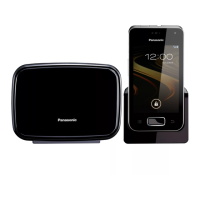
Panasonic KX-PRW120 - User Manual

Panasonic KX-PRW120
64 pages
Print Icon
To Next Page IconTo Next Page
Loading...
Operating Instructions
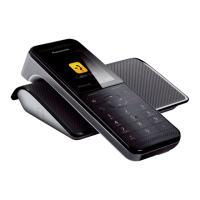
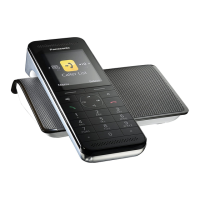
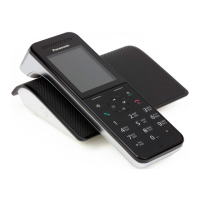
Premium Design Phone with Smartphone Connect
Model No. KX-PRW120
Before initial use, see “Getting Started”
on page 9.
Thank you for purchasing a Panasonic product.
Please read these operating instructions before using the unit and save them for
future reference.
Consulte “Guía Rápida Española”, página 55.
For assistance, visit our Web site: http://www.panasonic.com/help for customers
in the U.S.A. or Puerto Rico.
Please register your product: http://www.panasonic.com/prodreg
PRW120(en)_1016_ver041.pdf 1 2013/10/16 10:40:15

Table of Contents

Questions and Answers

  • M
    Marcus WalkerSep 23, 2025
    What to do if liquid entered my Panasonic KX-PRW120 handset/base unit?
    • J
      Jerry BensonSep 23, 2025
      If liquid or other form of moisture has entered the handset/base unit, disconnect the AC adaptor and telephone line cord from the base unit. Remove the batteries from the handset and leave to dry for at least 3 days. After the handset/base unit are completely dry, reconnect the AC adaptor and telephone line cord. Insert the batteries and charge fully before use.
  • S
    Sean AndersonAug 23, 2025
    What to do if my Panasonic Telephone handset beeps?
    • Y
      ychavezAug 25, 2025
      If your handset is beeping, it indicates that new messages have been recorded. Listen to the new messages.
  • N
    Nicholas EdwardsAug 25, 2025
    What to do if my Panasonic Telephone does not record new messages?
    • C
      Corey GomezAug 25, 2025
      If your unit isn't recording new messages, first check that the answering system is turned on. If it is on, the message memory might be full, so erase unwanted messages. Also, verify the recording time is not set to “Greeting only”, and if you subscribe to a voice mail service, messages are recorded by your service provider/telephone company, not your telephone. In this case, you may need to change the unit’s number of rings setting or contact your service provider/telephone company.
  • C
    Christopher DiazAug 27, 2025
    What to do if my Panasonic KX-PRW120 Telephone handset does not ring?
    • L
      lopezedwardAug 27, 2025
      If the handset does not ring, first check if the ringer volume is turned off and adjust it accordingly. Also, verify that silent mode is not turned on, and turn it off if it is.
  • M
    Monica HughesAug 27, 2025
    Why can't I make a call on my Panasonic KX-PRW120 Telephone?
    • L
      Laura OwensAug 27, 2025
      If you cannot make a call, the dialing mode may be set incorrectly. Change the setting.
  • C
    Chase MosesSep 17, 2025
    What to do if I fully charged the batteries, but the Panasonic Telephone still flashes?
    • A
      Alejandro SmithSep 17, 2025
      If you have fully charged the batteries, but the unit still flashes, clean the battery ends and the charge contacts with a dry cloth and charge again. If the issue persists, it may be time to replace the batteries.
  • C
    Carolyn DavisSep 14, 2025
    How to fix a Panasonic KX-PRW120 if I cannot operate the answering system remotely?
    • J
      Jose HamiltonSep 14, 2025
      If you cannot operate the answering system remotely, the remote access code might not be set, so set the remote access code. Also, ensure that you are entering the correct remote access code, and if you have forgotten it, enter the remote access code setting to check your current code. Finally, the answering system might be turned off, so turn it on.
  • M
    Mitchell PhamSep 15, 2025
    Why does my Panasonic Telephone not emit the specified number of rings?
    • T
      Tina PottsSep 15, 2025
      If the unit does not emit the specified number of rings, it may be because the first ring is turned off. If the first ring is turned off, the number of rings decreases by 1 from the specified number of rings.
  • S
    sarah70Sep 6, 2025
    How to fix a blank or dark display on a Panasonic KX-PRW120 handset?
    • K
      Kimberly PhillipsSep 6, 2025
      If the handset display is blank or dark, the handset might be in screen saver mode. To activate the handset display again, press M N when on a call, or press MOFFN at all other times. Alternatively, “LCD backlight” might be set to “Off” while on charge, so change the setting.
  • J
    Jacqueline StaffordSep 3, 2025
    How to fix a Panasonic Telephone when the handset beeps and/or flashes?
    • J
      Jeffrey CoxSep 3, 2025
      If the handset beeps and/or flashes, the battery charge is likely low. Fully charge the batteries.

Summary

Introduction

Accessory Information

Details on supplied and replacement accessories for the phone.

Expanding Phone System

Information on adding optional handsets and smartphones to the system.

Important Information

Safety Precautions

Essential safety precautions for product operation, installation, and safeguards.

Medical and Environmental Guidelines

RF energy impact on medical devices and guidelines for the operating environment.

Performance, Care, and Specifications

Tips for best performance, routine care, battery info, and technical specifications.

Getting Started

Initial Setup and Connections

Step-by-step guide for initial setup, connections, and battery installation.

Battery Charging and Notes

Instructions for charging batteries and important setup notes.

Controls and Display Icons

Identification of controls, navigator, and explanation of display icons.

Settings and Languages

How to change languages, set date/time, and configure screen saver.

Dialing Mode

How to set the dialing mode (tone or pulse) for making calls.

Making and Answering Calls

Basic Call Operations

Procedures for making, answering, ending calls, and using speakerphone.

Call Management Features

Features like Hold, Mute, Redial, and adjusting volume during calls.

Advanced Call Features

Features like Flash, Call Waiting, Clarity Booster, Noise Reduction, Equalizer, and Call Share.

Intercom and Conference Calls

How to make intercom calls, transfer calls, and set up conference calls.

Phonebook Management

Phonebook Overview and Entries

Information on adding, editing, erasing phonebook entries, and character tables.

Speed Dial and Chain Dial

How to assign and manage speed dial keys, and use chain dial feature.

Programming Features

Menu Navigation and Codes

How to access features via menu or direct command codes.

Alarms and Silent Mode

Setting alarms, managing silent mode, and bypassing it with groups.

Call Blocking and Baby Monitor

How to block callers, manage call block lists, and set up the baby monitor.

Schedule Alarms and Registration

Programming schedule alarms and registering/deregistering handsets.

Caller ID Service

Caller ID Features and Usage

Overview of Caller ID, features, missed calls, and talking caller ID.

Caller List Management

Editing, erasing, and auto-editing caller information in the caller list.

Answering System

Answering System Operation

Turning the system on/off, greeting messages, and recording.

Message Playback and Remote Operation

Listening to messages, operating the system, and remote control via phone.

Answering System Settings

Configuring call screening, ring count, recording time, and greeting options.

Smartphone Integration

Smartphone Integration Overview

Features, requirements, and functionality of smartphone integration.

Network Configuration

Setting up network connections for the base unit using DHCP or WPS.

Advanced Network Settings

Manually configuring static IP settings and using Wi-Fi repeater mode.

Smartphone Connect App

Information on downloading and using the Smartphone Connect app.

Useful Information

Voice Mail Service

Explanation of voice mail service and storing access numbers.

Error Messages and Troubleshooting

Lists common error messages and provides troubleshooting steps for various issues.

FCC and RF Information

Regulatory compliance, FCC rules, and RF exposure information.

Quick Start Guide (Spanish)

Connections and Battery Setup

Basic steps for connecting the base unit and setting up the battery.

Basic Operations and FAQs

Tips for operation, language/date settings, and answers to common questions.

Appendix

Customer Services and Accessories

Contact information for support and details on purchasing accessories.

Warranty Information

Details of the limited warranty coverage, limits, exclusions, and repair service.

Troubleshooting Summary

Initial Troubleshooting Steps

Key steps to take if the product is not working properly.

Panasonic KX-PRW120 Specifications

General IconGeneral
TypeDECT telephone
Ringer typePolyphonic
Answering machineYes
Number of melodies10
Elderly phone-
Mounting typeDesk/Wall
Product colorBlack
Phonebook capacity500 entries
Call list capacity phonebook50
Backlight colorWhite
Display diagonal2.2 \
Display number of colors65536 colors
Battery typeAAA
Standby time150 h
Battery technologyNickel-Metal Hydride (NiMH)
Battery recharge time7 h
Power consumption (typical)2 W
Number of batteries supported2
Number of handsets included1
Weight and Dimensions IconWeight and Dimensions
Base weight150 g
Handset weight140 g
Base dimensions116 x 31 x 92 mm
Handset dimensions (WxDxH)47 x 35 x 153 mm

Related product manuals