EasyManua.ls Logo

Panasonic KX-PRW120AZW - User Manual

Panasonic KX-PRW120AZW
8 pages
Print Icon
To Next Page IconTo Next Page
Loading...
Smartphone Connect Setup Guide
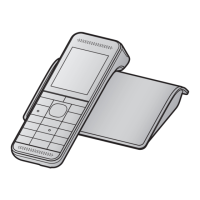
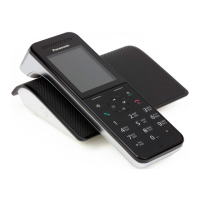
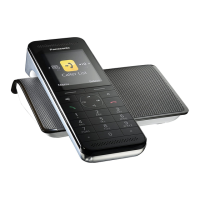
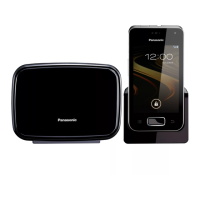
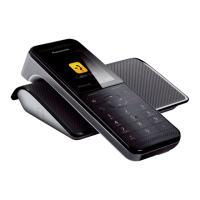
Premium Design Phone with Smartphone Connect
Model No. KX-PRW110
KX-PRW120
Wi-Fi
KX-PRW110
KX-PRW120
What is Smartphone Connect?
Smartphone Connect is a free app provided by Panasonic that turns your
smartphone into an extension of your phone system. You can use Smartphone
Connect to:
make and receive landline calls with your smartphone
copy data from your smartphone to your phone system
and more!
Plus, you can even use your base unit to extend the range of your existing wireless
network (see page 6), perfect for larger homes.
How does it work?
Your smartphone and your phone system’s base unit communicate with each other
using your wireless router, allowing you to use phone system features over Wi-Fi.
Question and Answer IconNeed help?

Do you have a question about the Panasonic KX-PRW120AZW and is the answer not in the manual?

Overview

The Panasonic KX-PRW110 and KX-PRW120 are premium design phone systems featuring Smartphone Connect, a free application that extends the functionality of the phone system to your smartphone. This guide outlines the setup and features of the Smartphone Connect system, including its use as a Wi-Fi range extender.

Function Description:

The core function of the Panasonic KX-PRW110/KX-PRW120 phone system, when integrated with Smartphone Connect, is to allow your smartphone to act as an extension of your landline phone. This means you can:

  • Make and receive landline calls using your smartphone: Your smartphone essentially becomes an additional handset for your home phone system, allowing you to answer or make calls from your landline number anywhere within your home's Wi-Fi network.
  • Copy data from your smartphone to your phone system: This feature enables seamless transfer of information between your mobile device and the phone system, enhancing convenience and integration.
  • Extend your existing wireless network (Wi-Fi repeater mode): The base unit of the phone system can function as a Wi-Fi range extender, boosting the signal of your wireless router to cover larger areas of your home. This is particularly useful in multi-story or wide, single-story buildings where the router's signal might not reach all areas.

Important Technical Specifications:

  • Wireless Router Standard: For optimal performance, the recommended wireless router standard is IEEE 802.11g or IEEE 802.11n.
  • Smartphone Connect App Compatibility:
    • iOS Devices: iPhone 4, iPhone 4S, iPhone 5, iPad, and iPad mini running iOS 5.0 or later.
    • Android Devices: Devices running Android™ 4.0 or later.
  • Wi-Fi Repeater Mode: Requires an existing wireless router with its router function enabled. The base unit itself does not have a router feature; it acts solely as a wireless access point to extend an existing network.

Usage Features:

  1. Configuring the Base Unit:

    • Typical Configuration (DHCP): This is the standard setup process. Using a supplied handset, you navigate to the menu (#523), search for available Wi-Fi networks, select your wireless router's SSID, confirm it, and then enter your Wi-Fi password. The base unit will then connect to your wireless router.
    • Simplified Configuration (WPS, DHCP): If your wireless router supports WPS (Wi-Fi Protected Setup), this method offers a quicker setup. Again, using a handset, you select "WPS (Easy Setup)" from the menu (#523), then press the WPS button on your wireless router and confirm on the handset. The base unit will automatically connect.
    • Connection Confirmation: After successful connection, the handset will display "Connected to" followed by your wireless router's SSID.
  2. Downloading the Smartphone Connect App:

    • The app can be downloaded directly from your smartphone's app store (by searching for "Panasonic Smartphone Connect") or via the Panasonic Global web site support page: www.panasonic.net/pcc/support/tel/air.
    • An "App Guide" is also available for download from the support page, providing detailed instructions on using the app.
  3. Starting the App for the First Time:

    • Ensure your smartphone's Wi-Fi is enabled and connected to the same wireless network as your base unit.
    • Launch the Smartphone Connect app by tapping its icon.
    • When prompted to register your smartphone to the base unit, tap "Start".
    • The app will display the [Keypad] screen upon successful registration, indicating a connection to the base unit. For iPhone/iPad users, this can be confirmed in the Notifications Centre; for Android users, a specific icon will appear in the status bar and notifications panel.
  4. Wi-Fi Repeater Mode:

    • Activation: To turn on Wi-Fi repeater mode, use a supplied handset, go to the menu (#538), select "On" for Repeater mode, and press (OK).
    • Placement Recommendations:
      • General: Do not place the base unit and wireless router too close to each other, as this can cause sound cut-outs during landline calls.
      • Single-story buildings: Place the base unit and router in different rooms, at least one room-width apart.
      • Three-story buildings: Place the base unit and router on different floors.
    • Important Note: Do not use Wi-Fi repeater mode if you already have another Wi-Fi range extender, as this can lead to network problems, including loss of internet access and call interruptions.

Maintenance Features:

  • Troubleshooting Information: The manual directs users to the network connection troubleshooting section of the Operating Instructions supplied with the phone system for issues during setup. For problems specifically with the Smartphone Connect app, users should refer to the troubleshooting section of the Smartphone Connect App Guide, available for download from the Panasonic website.
  • Software Information: The End User License Agreement (EULA) for the Smartphone Connect app is available on the Panasonic website.
  • Open Source Software Notice: The product utilizes open source software under GPL and LGPL licenses. Information regarding these licenses and the ability to obtain corresponding source code is provided on the Panasonic website (www.panasonic.net/pcc/support/tel/air). Panasonic commits to providing a machine-readable copy of the source code for a charge no more than the cost of physical distribution for at least three years from product delivery.

General Notes:

  • The app's functionality may vary depending on the smartphone model, connected peripherals, and other installed apps.
  • An active Wi-Fi connection is essential for most app features, including making and answering calls. If the smartphone's Wi-Fi is disabled or set to suspend for power saving, these features will not work.
  • Design and specifications are subject to change without notice. Illustrations in the document may vary slightly from the actual product.
  • For sales department and customer support information, refer to the base unit's operating instructions.

Panasonic KX-PRW120AZW Specifications

General IconGeneral
BrandPanasonic
ModelKX-PRW120AZW
CategoryTelephone
LanguageEnglish

Related product manuals