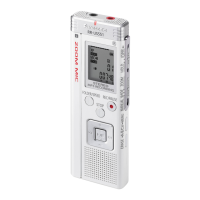
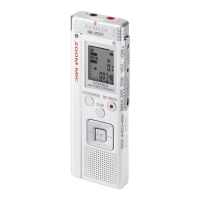
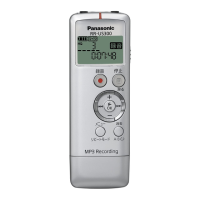
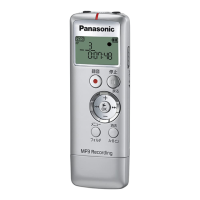
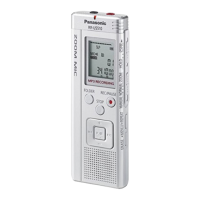
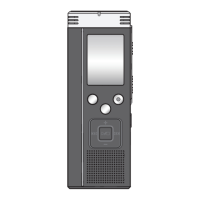
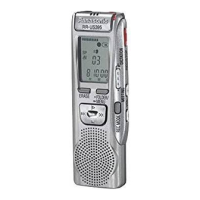
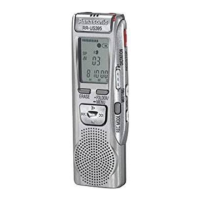
How to disable hold function on Panasonic Voice Recorder?
- JjennifermorganSep 2, 2025
If operation is not possible and “hold” appears on the display of your Panasonic Voice Recorder, the Hold function is on. Turn off the Hold function.
How to disable hold function on Panasonic Voice Recorder?
If operation is not possible and “hold” appears on the display of your Panasonic Voice Recorder, the Hold function is on. Turn off the Hold function.
What does 'U01' mean on my Panasonic RR-US490?
If “U01” appears on the display of your Panasonic Voice Recorder, it means the battery has run down. Replace the battery.
Why can't I play files on my Panasonic RR-US490?
If you cannot play files on your Panasonic Voice Recorder, it may be because you tried to play secured files in folder S. Enter a password set on this unit to play files in folder S.
Why can't I move a file on my Panasonic RR-US490?
You cannot move files to folders that already contain 99 files; free up space in the destination folder. You cannot move files from folder A, B, C or S to the dictation folder. Also, you cannot move files from folder S unless the password matches; enter the correct password.
Why is there no sound from the speaker of my Panasonic Voice Recorder?
There is no sound from the speaker when you have connected earphones. Disconnect the earphones.
Why is the timer recording not working on my Panasonic RR-US490 Voice Recorder?
Timer recording may fail on your Panasonic Voice Recorder if the batteries are removed and the clock settings are cleared; in this case, reconfigure your timer settings. Also, timer recording does not work if the unit is used for playback or another operation at a set time, so ensure the unit is not used for other operations at the scheduled time. The timer recording setting is canceled once timer recording is performed, so set the timer again when necessary.
Why did a recording disappear from my Panasonic RR-US490?
Recordings can disappear from your Panasonic Voice Recorder if the unit receives a shock, such as being dropped, or if the batteries run out during recording. Take care not to drop the unit and ensure batteries are replaced in time.
How to fix sound issues with earphones on a Panasonic RR-US490 Voice Recorder?
If you're experiencing sound issues with earphones on your Panasonic Voice Recorder, first ensure the plug is inserted firmly. If the problem persists, wipe the plug clean.
Why is my Panasonic Voice Recorder not working?
If your Panasonic Voice Recorder isn't working, ensure the batteries are correctly inserted. Also, the unit cannot be operated when connected to a computer.
What to do if the Panasonic RR-US490 Voice Recorder displays 'FULL'?
If your Panasonic Voice Recorder displays 'FULL', it means either that there are 99 files in the folder or there is no remaining recording time. To solve this, delete unneeded files.
Describes the general flow for recording and playback operations of the IC recorder.
Details the process of connecting the IC recorder to a computer for file management.
Guides users on which instruction manuals to refer to for specific operations.
Lists all included items with model variations to help users identify their accessories.
Explains how to install batteries correctly and interpret the battery indicator.
Details how to use the Hold function to prevent accidental operation and battery drain.
Explains that recordings are saved as audio files and organized into folders.
Provides expected total recording durations for different quality modes and models.
Details how to adjust recording modes and microphone sensitivity for meetings.
Explains the factory-set dictation mode for quick and simple recording.
Identifies all buttons, ports, and physical parts of the IC recorder.
Explains the various indicators and information shown on the unit's display.
Explains basic operations using the quick search dial for selecting and confirming items.
Details how to use the joystick for navigation, volume control, and playback.
Describes how to enter and navigate through the device's menu system.
Lists main menu categories like Recording mode, Security, and Timer recording.
Step-by-step instructions for setting the device's internal clock.
Explains how to disable or enable the audible feedback for button presses.
Provides a step-by-step guide for performing meeting recordings with optimal settings.
Explains the information displayed on the unit's screen while recording is active.
Step-by-step guide for dictation recording, optimized for voice recognition software.
Instructions on how to stop, pause recordings and check remaining recording time.
How to use zoom recording to capture distant or specific voices clearly.
Instructions for connecting and using an external microphone with the unit.
How to listen to the audio being recorded using earphones.
Explains how to enable or disable Voice Activated System for automatic pausing.
Details how to set the unit to record automatically at a specified time.
Guide on how to browse and select audio files for playback.
Covers playback initiation, volume adjustment, navigation, and noise reduction.
Methods for fast forward and fast backward searching through audio files.
Instructions on how to adjust the playback speed to different levels.
How to play audio files in a folder sequentially from start to finish.
Guidance on connecting and using earphones for private listening.
Instructions on how to delete individual files, folders, or all files.
Details on how to move audio files between different folders on the unit.
How to use the lock function to protect files from deletion or modification.
Introduction to the Folder S feature and its password protection system.
Step-by-step instructions for setting a 4-digit password for secure folders.
How to access files in Folder S by entering the correct password.
Guidance on handling forgotten passwords and understanding Folder S display statuses.
Instructions for transferring audio from the IC recorder to a cassette tape.
Instructions for transferring audio from a cassette tape to the IC recorder.
Step-by-step guide for installing the Voice Editing software on a computer.
Instructions for connecting the IC recorder to a computer using the provided USB cable.
How to launch the Voice Editing software after installation.
Guidance on locating and opening the Voice Editing software's help and manual files.
Specifies the compatible versions of Windows operating systems for the software.
Lists the required CPU and RAM specifications for running the software.
Details the necessary free hard disk space for software installation.
Specifies requirements for CD-ROM drives, sound devices, and display resolution.
Details necessary interfaces like USB ports and other peripherals.
Highlights system compatibility limitations and important usage notes.
Information on operating system language support and voice recognition training.
Lists other essential software components and add-ins needed for full functionality.
Provides legal notices regarding trademarks and copyrights of software and systems.
Guidance on how to install and uninstall the Voice Editing software.
Notes on the accuracy and effectiveness of translation and noise cancellation features.
Important warnings about translation accuracy, noise cancellation, and liability.
Addresses issues like 'No operation', 'hold' display, time flashing, 'EE:EE', and recording date display.
Covers problems with available recording time, recording stops, and 'FULL' storage indicator.
Addresses no sound from earphones and incorrect playback speed.
Issues with sound output, file deletion, moving, and playback.
Problems encountered when setting or using the timer recording feature.
Concerns related to battery usage and noise in recorded audio.
Sound quality issues including distortion and interference from external noise.
Problems connecting to PC, using Voice Editing software, and dictation cord sensitivity.
Detailed technical data including frequency response, output, and dimensions.
Information on battery performance and the unit's memory capacity.
Guidelines on how to clean the unit without causing damage.
Information regarding proper disposal of the product and relevant symbols.
Recommendations for proper handling, placement, and avoiding damage to the unit.
Safety guidelines for handling, inserting, and storing batteries.
Information regarding potential skin reactions and when to discontinue use.
Advice on maintaining safe listening volumes to protect hearing.
Recommendations for establishing and maintaining safe audio listening levels.
Guidance on minimizing radio interference from mobile phones and other devices.
Details on when the unit requires service and the importance of safety checks.
Information on obtaining product assistance and contact details for support.
How to pack and ship the unit for warranty service, including required documentation.
A section for users to record important information like purchase date and dealer details.
Specifies what parts and labor are covered, and for how long, under the warranty.
Instructions for sending the product to the service center for warranty claims.
Details what is not covered by the warranty, such as accidental damage or normal wear.
Contact details for customer support and information on purchasing accessories.
Defines the warranty period and coverage for products purchased in Canada.
Outlines what is excluded from the Canadian warranty, including misuse and commercial use.
Contact information for obtaining help with product operation and features.
Guidance on finding authorized service centers for product repairs.
Statement of compliance with FCC rules for digital devices in the USA.
Statement of compliance with Canadian regulations for digital apparatus.
| Internal Memory | 4GB |
|---|---|
| Microphone | Built-in stereo microphone |
| Battery Type | AAA |
| PC Connectivity | Yes |
| Playback | Yes |
| Headphone Jack | 3.5mm |
| Recording Format | MP3 |
| Battery | 1 x AAA |
| USB | USB 2.0 |


Loading...