EasyManua.ls Logo

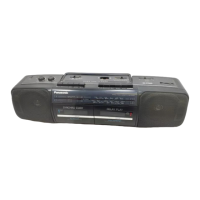
Panasonic RX-5080F - Recording; Recording Radio Broadcasts; Recording through Built-in Microphones; Recording through External Microphones

Panasonic RX-5080F
33 pages
Print Icon
To Next Page IconTo Next Page
To Previous Page IconTo Previous Page
Loading...
ae
@
Tape
Program
Sensor
System
(TPS)
The
Tape
Program
Sensor
system
can
be
set
to
automatically
find
and
playback
a
predetermined
selection
on
a
recorded
cassette
tape.
Procedure:
1)
Follow
the
same
procedure
as
described
in
step
(1)—(6)
of
“PLAYBACK”.
2)
Depress
the
Fast
Forward
or
Rewind
Button
keeping
the
Playback
Button
depressed.
TPS
Indicator
lights
up.
Depress
the
Fast
Forward
Button.
The
tape
will
advance
to
the
next
program
and
automatically
begin
to
play.
{Ps},
FF
PLAY
®Depress
the
Rewind
Button.
The
tape
will
rewind
to
the
beginning
of
the
present
program
and
begin
to
play.
TPS
REWIND
PLAY
TPS
Intervais
The
TPS
function
will
operate
with
most
pre-recorded
tapes.
For
self
recorded
tapes,
follow
the
procedure
below.
1)
Set
the
unit
to
the
recording
mode
(refer
to
‘RECORDING’.
2)
Depress
and
hold
the
Record
Muting
Button
for
4—6
seconds
after
a
program
has
been
recorded.
(No
sound
will
be
recorded
while
depressed,
but
the
LED
meter
will
function.)
3)
Depress
the
Pause
Button.
4)
Release
the
Record
Muting
Button.
5)
Depress
to
release
the
Pause
Button
to
record
again.
In
the
following
instances
the
Tape
Program
Sensor
system
may
not
operate
normally.
This
does
not,
however,
indicate
a
failure.
eWith
tapes
of
conversations
having
a
great
many
gaps
in
the
dialog.
e@With
tapes
having
tracks
with
extremely
low
sound
levels.
@With
tapes
having
portions
among
the
tracks
where
no
sound
has
been
recorded.
@With
tapes
having
intervals
of
less
than
3
secods
long.
@With
tapes
having
a
high
level
of
noise
during
the
intervals.
@When
less
than
10
seconds
separate
the
program
you
are
listening
to
and
the
next
program
when
you
want
to
move
on
to
listen
to
the
next
program.
|
RECORDING
@This
unit
has
an
Automatic
Level
Control
system
(tne
recording
level
is
automatically
adjusted).
@This
unit
has
a
variable-sound
monitor
system,
which
means
that
the
monitor
sound
can
be
adjusted
using
the
Volume
Control
without
affecting
the
recording
itself.
@This
unit
comes
with
a
one-touch
recording
mechanism.
This
means
that
when
recording
you
need
depress
only
the
Record
Button.
(In
other
words,
you
do
not
have
to
depress
the
Playback
Button.)
@
Recording
Radio
Broadcasts
1)
Follow
the
procedure
described
in
“LISTENING
TO
THE
RADIO”.
2)
Insert
the
cassette
into
the
Cassette
Compartment.
3)
Set
the
Tape
Selector
according
to
the
cassette
tape
used.
4)
Depress
the
Pause
Button
and
then
depress
the
Record
Button.
5)
Depress
to
release
the
Pause
Button
and
the
recording
will
begin.
6)
To
stop
the
recording,
depress
the
Stop/Eject
Button.
7)
Set
the
Function
Selector
to
‘POWER
[OFF]/TAPE”
to
turn
the
unit
off.
@Beat
Proof
switch
When
an
MW
broadcast
is
recorded,
the
Beat
Proof
Switch
can
be
used
to
reduce
unwanted
‘‘beat"’
signals
which
were
not
present
before
recording.
Set
the
switch
to
whichever
position
best
reduces
these
‘‘beat"’
signals.
@
Recording
through
the
Built-in
Microphones
The
built-in
condenser
microphones
in
this
unit
are
omni-directional
(all
directions),
so
that
recordings
can
be
made
from
any
direction.
1)
Set
the
Function
Selector
to
“POWER
[OFFI/TAPE”.
2)
Set
the
Mode
Selector
to
“STEREO”
or
MONO".
3)
Follow
the
procedure
described
in
steps
(2)—(6)
of
“Recording
Radio
Broadcasts”"’.
Note:
When
recording
through
the
Built-in
Microphones,
set
the
Volume
Control
to
its
minimum
position.
@
Recording
through
External
Microphones
1)
Connect
the
optional
external
microphones
to
the
Microphone
Jacks.
The
Built-in
Microphones
will
be
automatically
disconnected.
2)
Follow
the
procedure
described
in
‘Recording
through
the
Built-
in
Microphones”.
Notes:
@Use
two
microphones
which
have
the
same
specifications.
@When
only
one
external
microphone
is
used
for
recording,
the
sound
will
be
heard
only
from
the
channel
(left
or
right)
to
which
the
microphone
is
connected.
To
prevent
recording
of
sounds
through
the
Built-in
Micro-
phone
for
the
channel
(left
or
right)
to
which
the
external
microphone
is
not
connected,
connect
the
erase
plug
(optional)
into
the
Microphone
Jack
not
being
used.

Related product manuals