j 6_ ==i 011-.I_PIHII liH Ih] ii
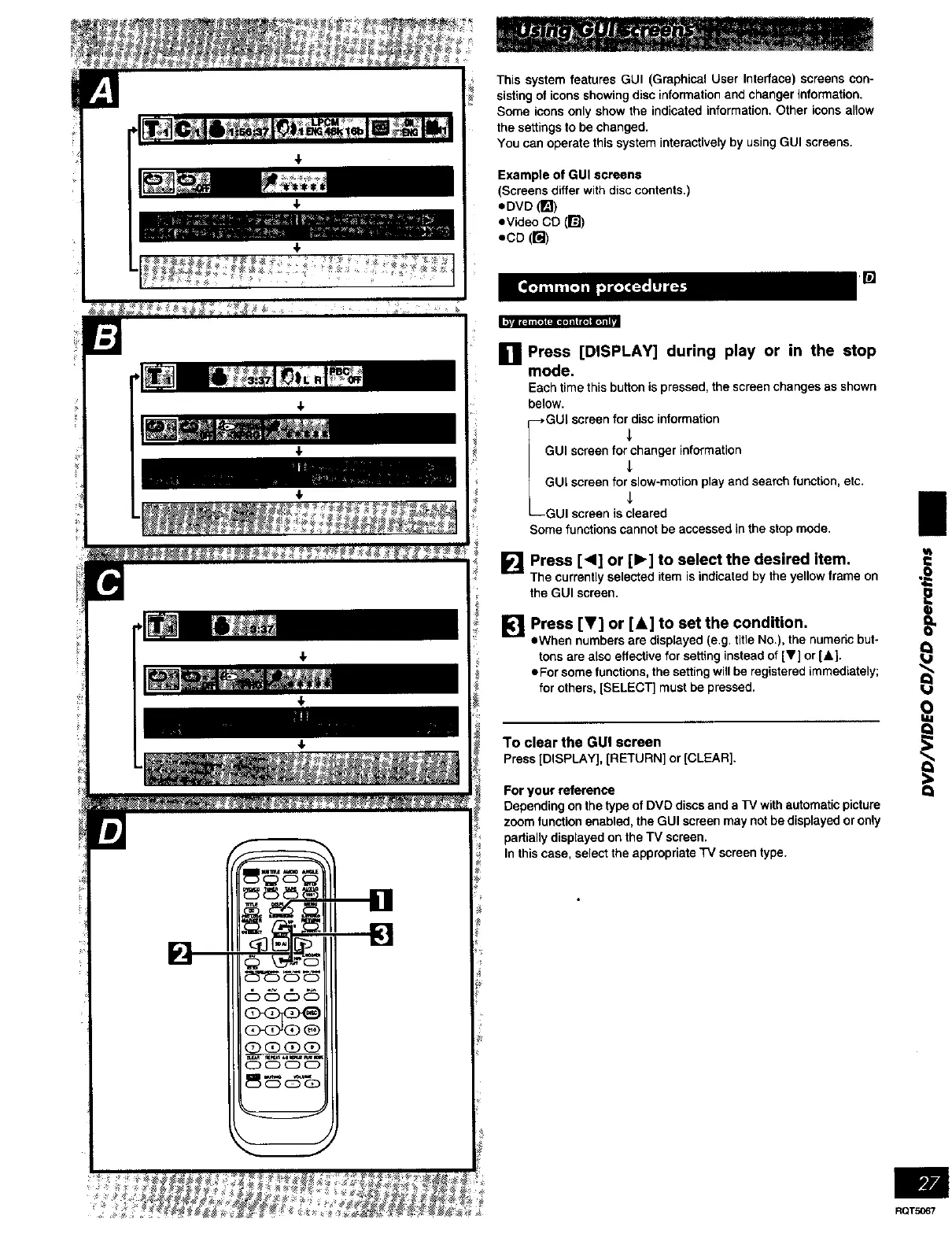
This system features GUI (Graphical User Interface) screens con-
sisting of icons showing disc information and changer information,
Some icons only show the indicated information. Other icons allow
the settings to be changed.
You can operate this system interactively by using GUI screens.
Example of GUI screens
(Screens differ with disc contents.)
eDVD (1_)
eVideo CD (131)
• CD (rd)
ra
[]
Press [DISPLAY] during play or in the stop
mode.
Each time this button is pressed, the screen changes as shown
below.
!_.GUI screen for disc information
GUI screen for changer information
4_
_11 ilre_i fi_r_il:aW£_°tion play and search functi°n' etc"
Some functions cannot be accessed in the stop mode.
[] Press [<1] or [1_] to select the desired item.
The currentlyselecteditemis indicatedbytheyellowframeon
the GUI screen,
[] Press [T] or [&] to set the condition.
oWhsn numbers are displayed (e.g. title No.), the numeric but-
tons are also effective for setting instead of [V] or [A].
• For some functions, the setting wifl be registered immediately;
for others, [SELECT] must be pressed.
To clear the GU! screen
Press[DISPLAY],[RETURN] or[CLEAR],
For your reference
Depending on the type of DVD discs and a TV with automatic picture
zoom function enabled, the GUI screen may not be displayed or only
partially displayed on the TV screen.
In this case, select the appropriate TV screen type.
|
vt
I,j
Q
RQT5067



 To Next Page