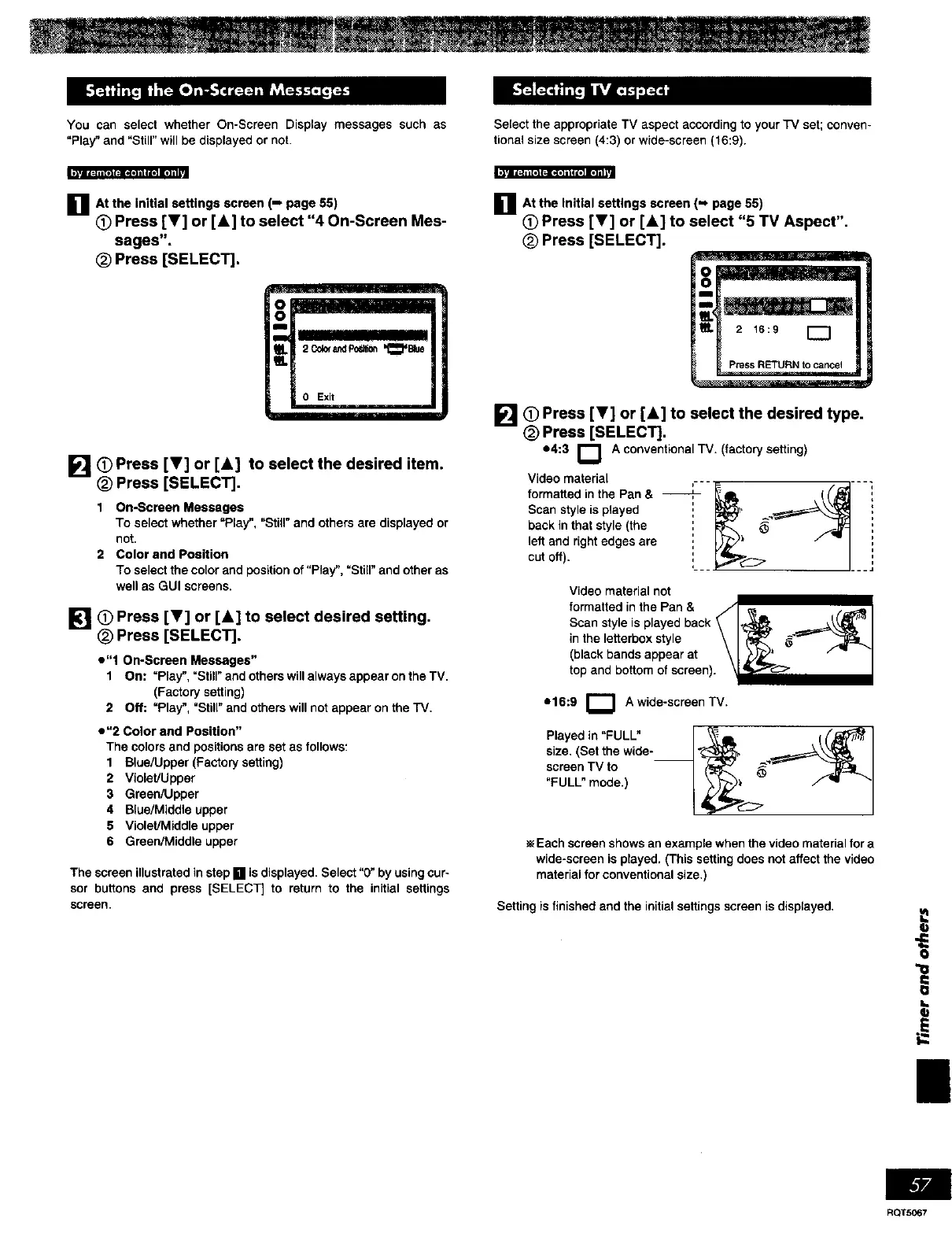
You can select whether On-Screen Display messages such as Select the appropriate TV aspect according to your TV set; conven-
"Flay" and "Still" will be displayed or not. tional size screen (4:3) or wide-screen (16:9).
, -iio . o| tll_"_l
,_,ml'._ tie _]rJltlo] t 1llel Ilel t n
_mAt the initialsettings screen (m page 55)
(_ Press [Y] or [A] to select "4 On-Screen Mes-
sages".
_) Press [SELECT],
[] 0 Press [V] or [A] to select the desired item.
(_ Press [SELECT].
I On-Screen Messages
To select whether "Play", "Still" and others are displayed or
not.
2 Color and Position
To select the color and position of "Play", "Still"and other as
well as GUl screens.
(_ Press [Y] or [A] to select desired setting.
M _ Press [SELECT].
e"l On-Screen Messages"
1 On: =Play", =Still" and others will always appear on the TV.
(Factory setting)
2 Off: "Play", =Still"and others will not appear on the TV.
• "2 Color and Position"
The colors and positions are set as follows:
1 Blue/Upper (Factory setting)
2 Violet/Upper
3 Green/Upper
4 Blue/Middle upper
5 Violet/Middle upper
6 Green/Middle upper
The screen illustrated in step [] is displayed. Select "0" by using cur-
sor buttons and press [SELECT] to return to the initial settings
screen.
_mAt the initialsettings screen (=, page 55)
O Press [Y] or [A] to select "5 TV Aspect",
Press [SELECT].
[] O Press [Y] or [&] to select the desired type.
_) Press [SELECT].
e4:3 O A conventional TV. (factory setting)
Video material
formatted in the Pan &
Scan style is played
back in that style (the
left and right edges are
cut off).
Video material not
formatted in the Pan & /Ir_ ..,_o I
Scan styleis playedback _ "C_ .,.._=:=_L._ "_
in the letterbox style \1_:_ _*-- _F_L.I
(black bands appear at \L_..._ / "
op and bottom of screen).\l t,_-
e16:9 r-"-I A wide-screen TV.
Inl
Flayed in "FULL"
size.(Setthe wide-
screen TVto
"FULL" mode.)
Each screen shows an example when the video material for a
wide-screen is played, (This setting does not affect the video
material for conventional size.)
Setting isfinished and the initial settings screen is displayed.
I)
II
RQTS067



 To Next Page