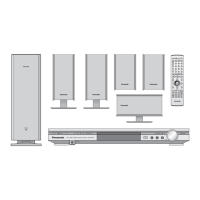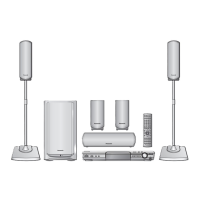

 To Next Page

N
ncoffeyAug 19, 2025
How to access the setup menu on Panasonic SC-HT540?
- GgloriajacksonAug 19, 2025
To access the Setup menu on your Panasonic Home Theater System, select “DVD/CD” as the source. Also, cancel All group, Program and Random play.

How to access the setup menu on Panasonic SC-HT540?
To access the Setup menu on your Panasonic Home Theater System, select “DVD/CD” as the source. Also, cancel All group, Program and Random play.
What to do if my Panasonic Home Theater System has no picture or sound?
If your Panasonic Home Theater System isn't producing picture or sound, and the buttons aren't responding, it might be due to an external factor like lightning or static electricity. Try turning the unit off and then back on. Also, condensation may have formed; wait 1 to 2 hours for it to evaporate. Ensure the batteries in the remote are not depleted, and replace them if needed. Verify that the disc is compatible and has recorded content. As a last resort, you can initialize the unit by pressing and holding the stop button on the main unit and S10 on the remote until 'Initialized' disappears from the screen (while stopped and DVD/CD is the source).
Why does my Panasonic SC-HT540 Home Theater System display “NO PLAY” or “NO DISC”?
If your Panasonic Home Theater System displays “NO PLAY” or “NO DISC”, it could be due to several reasons. You might have inserted a disc the unit cannot play, a blank disc, or a disc that hasn't been finalized. Ensure you insert a disc that is compatible. Also, check if you have inserted a disc correctly. If the disc is dirty, wipe it clean. If none of these steps work, there may have been an error; try turning the unit off and then back on.
What to do if the picture is not displayed correctly on my Panasonic Home Theater System?
If the picture on your television is not displayed correctly when using your Panasonic Home Theater System, it could be due to a few reasons. The unit and television might be using different video systems; use a multi-system or NTSC television. If the disc system doesn't match your TV, the unit can convert NTSC signals to PAL 60 via the “NTSC Disc Output” setting in the “Video” tab. Also, keep other appliances and cables away from the main unit, as mobile telephone chargers can cause disturbance. You can also try changing “Source Select” in the Picture Menu. If the picture stops and you're playing DivX files larger than 2 GB, restore the zoom ratio to “k1.00” using “Manual Zoom” in the Display Menu.
How to fix ghosting when progressive output is on Panasonic Home Theater System?
If you're experiencing ghosting with progressive output on your Panasonic Home Theater System, it's likely due to the DVD-Video's editing method or material. Setting “Video Output Mode” in the Picture Menu to “480i” or “576i” should correct this. You can also press and hold [CANCEL] to switch to “480i” or “576i”.
Why is there distorted sound or noise from my Panasonic SC-HT540 Home Theater System?
If you're experiencing distorted sound or noise from your Panasonic Home Theater System, try the following: Adjust the position of the FM or AM antenna. Use an outdoor antenna. Turn the television off or move it away from the unit. Also, separate the antenna from other cables.
Why does my Panasonic SC-HT540 say “This disc may not be played in your region”?
This message appears on your Panasonic Home Theater System because you are trying to play protected group or content, which you cannot play. You may be trying to display incompatible group or content. If you are trying to play DivX VOD content purchased with a different registration code, you cannot play the content on this unit.
What to do if my Panasonic Home Theater System has no power?
If your Panasonic Home Theater System has no power and is automatically switched to standby mode, it may be because the Sleep timer was working and reached the set time limit. In this case, insert the AC mains lead securely.
Why is Point B automatically set on my Panasonic SC-HT540?
Point B is automatically set because the end of an item becomes point B when it is reached.
Why is the subtitle position wrong on my Panasonic SC-HT540?
Subtitles may not be displayed depending on the disc. Adjust the position using the “Subtitle Position” setting in the Display Menu.
Enhances image smoothness and sharpness for a better viewing experience.
Supports a wide range of formats including DVD-RAM, DVD-Audio, and DivX.
Offers sound quality enhancements and bass boosting for immersive audio.
Provides phone numbers and website for customer support and product information.
Details on how to order accessories and consumables directly from Panasonic UK.
Covers speaker assembly, positioning, connections, and audio/video hookups.
Details radio, AC mains, remote control setup, and quick configuration.
Instructions for playing discs using the main unit or remote control.
Explains playback condition display, program/random play, and data disc navigation.
Guides users on playing various data disc formats using navigation menus.
Instructions for using the built-in radio tuner, including presets and manual tuning.
Covers sound field control, bass enhancement, and speaker level adjustments.
Information on attaching speakers to walls or stands.
Solutions for common issues and basic unit maintenance.
Definitions of terms and detailed product specifications.
Guidance on using the UK mains plug, fuse replacement, and wiring.
Important warnings regarding plug suitability, wet hands, and electrical shock prevention.
Advises on proper unit placement, voltage sources, and AC mains lead handling.
Warnings against objects, liquids, and unauthorized servicing to prevent damage.
Step-by-step instructions for assembling speaker stands and bases.
Guidance on attaching the speaker unit securely to the assembled stand.
Instructions for connecting speaker wires and ensuring secure mounting.
Recommendations for safely mounting speakers to walls to prevent accidents.
Guidance on positioning speakers for the best sound field and bass response.
Recommendations for placing the main unit and subwoofer for proper ventilation and sound.
Detailed instructions on connecting speaker wires, emphasizing correct polarity.
Notes on potential picture interference on televisions and demagnetization.
How to connect the system to a TV via SCART for improved audio and video quality.
Instructions for selecting the correct audio input on the TV using the remote.
Connecting the system to a TV using standard RCA audio and composite video cables.
Utilizing the S-Video output for a more vivid picture compared to composite video.
Connecting to TVs with component video inputs for higher fidelity color reproduction.
Guidance on connecting external sources like set-top boxes or VCRs.
Instructions for connecting the AM loop antenna and FM indoor antenna.
Steps for connecting the power cord and a reminder about safety.
How to insert batteries and important usage precautions for the remote.
A step-by-step guide to perform the initial system setup.
Detailed explanation of buttons on the remote control and their functions.
Overview of the main unit's buttons, indicators, and signal sensor.
A comprehensive list of all disc formats the unit can play, including DVD and CD variations.
Information on discs that cannot be played and details about PAL/NTSC video systems.
Guidelines for cleaning discs and handling them to prevent damage.
Instructions for cleaning the unit and precautions before moving it.
Steps required to register the unit for playing DivX Video-on-Demand content.
Step-by-step guide for turning on the unit, selecting sources, loading discs, and starting playback.
Explanation of playback functions like skip, pause, stop, and volume control.
Details on using stop, pause, skip, search, and frame-by-frame playback.
Instructions for accessing disc menus and returning to previous screens.
How to view current playback status, time, and detailed disc information.
Setting up custom playback sequences like programs, random play, and group play.
Navigating data discs using menus, submenus, and selecting items.
How to search for specific content or groups on data discs by title.
Instructions for playing CD Text, HighMAT discs, and DVD-VR content.
How to play playlists and select scenes from discs.
Guidelines for disc formats (DVD-RAM, DVD-R/RW, CD-R/RW) and file/folder naming.
Details on compatible audio and image file types like WMA, MP3, JPEG, MPEG4, and DivX.
Accessing and navigating the main menu for various disc types and settings.
Adjusting time-related settings, video parameters, and audio track selection.
Configuring still picture display, subtitle options, and aspect ratio adjustments.
Features for changing playback speed, setting repeat sections, and using markers.
Selecting and customizing picture modes like Cinema, Animation, and Dynamic.
Setting video output format and transfer modes for optimal TV display.
Using Dolby Pro Logic II, Dialogue Enhancer, Sound Enhancement, and aspect ratio adjustments.
Adjusting subtitle position, display brightness, and selecting playback sources.
Step-by-step guide to enter the setup menu and select tabs.
Overview of settings available in Disc, Video, Audio, Subtitle, Menus, Display, and Others tabs.
Configuring audio, subtitle, menu languages, and parental rating levels.
Adjusting TV aspect, type, time delay, and video output format.
Setting NTSC disc output and picture/video preferences.
Configuring dynamic range compression, speaker delays, display brightness, and DivX registration.
Guide to setting speaker delay times for optimal surround sound.
A reference table of language codes used in the system settings.
Instructions for tuning to preset stations and performing manual frequency searches.
How to automatically scan for and store radio stations, or preset them manually.
How to view RDS text data transmitted by radio stations.
Guidance on connecting external antennas to improve radio signal quality.
Adjusting center channel for clearer dialogue and applying Dolby Pro Logic II for surround sound.
Selecting sound modes (Movie, Sport, Music) and adjusting subwoofer bass level.
Boosting bass response for clearer and more impactful low frequencies.
Adjusting the volume level of individual speakers for optimal surround sound balance.
Connecting headphones and adjusting audio output for private listening.
Connecting external devices like MP3 players to enjoy music through the system.
Using the mute function and setting the sleep timer for automatic power off.
Using the remote control to operate basic TV functions like power, input, and volume.
Routing television audio through the main unit for a more immersive experience.
Steps for preparing speakers and walls for secure mounting.
Detailed instructions on driving screws and mounting speakers to walls.
Steps for re-connecting speaker cables after wall mounting or disassembling stands.
Criteria and checks for choosing appropriate speaker stands.
Solutions for units not powering on, standby mode issues, and unresponsive buttons.
Resolving remote control issues and problems with picture or sound output.
Solutions for subtitle display errors, marker issues, and distorted or absent sound.
Addressing issues with menu display, picture not showing, or incorrect picture size.
Solutions for progressive video problems, radio noise, and interpreting unit display messages.
Resolving TV display errors and issues related to content protection or region codes.
Explanations of audio codecs, video compression, and signal standards.
Definitions related to picture types (I/P/B), file formats (JPEG), and signal scanning (Progressive/Interlaced).
Detailed technical specifications for the amplifier, tuner sections, and various terminals.
Specifications related to supported disc formats and video output signals.
Technical details for all speaker components and the subwoofer.
Information on power supply, consumption, dimensions, and operating conditions.
Details on licensing for technologies like Dolby, DTS, Windows Media, and HighMAT.
Information on MPEG-4 Visual, HDCD, and DivX certifications and usage.
Critical warnings regarding laser usage, electrical safety, and maintaining proper ventilation.
Guidelines for responsible disposal of the product and batteries.
 General
| Type | Home Theater System |
|---|---|
| Number of Channels | 5.1 |
| Total Power Output | 1000 W |
| DVD Player | Yes |
| USB Playback | Yes |
| Bluetooth | No |
| Playback Formats | DVD, CD, MP3, WMA |
| Dolby Digital | Yes |
| DTS Decoder | Yes |
| Speaker System | 5.1 Channel |
| USB Port | 1 |
| HDMI Output | 1 |
| Surround Sound Decoding | Dolby Digital, DTS |
| Outputs | HDMI |
| Digital Audio Input | Optical |
| Weight | 2.6 kg |