EasyManua.ls Logo

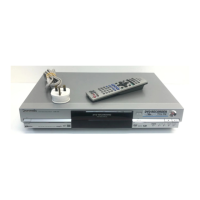
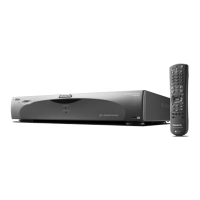
Panasonic Showstopper PV-HS2000 - User Manual

Panasonic Showstopper PV-HS2000
60 pages
Print Icon
To Next Page IconTo Next Page
Loading...
Please read these instructions carefully before attempting to connect,
operate or adjust this product. Please save this manual.
MODEL PV-HS2000
HARD DISK RECORDER
Operating Instructions
For assistance,
1-888-843-9788 http://www.panasonic.com/videoPhone
Consumerproducts@Panasonic.com
Web
e-mail
PanaHDR P01-.p65 00/11/28, 14:271

Table of Contents

Questions and Answers

  • X
    xdixonAug 20, 2025
    What to do if my Panasonic Showstopper PV-HS2000 DVR shows a 'no dial tone' error?
    • T
      Tracy DillonAug 20, 2025
      If you receive a 'no dial tone', 'modem timed out', 'no response from modem', or 'network connection error' message when connecting to the ReplayTV Service on your Panasonic DVR, try these steps: * First, ensure the phone line has a dial tone by connecting a phone and listening. * If you have call waiting, disable it by entering the correct prefix number in Setup (contact your phone company for this). * Disable any stutter dial tone by deleting/saving all messages on your message service. * Confirm you're using an analog phone line. * As a last resort, remove the power cable from the DVR for 15 seconds and then reconnect it to reboot the device.
  • A
    Anthony DiazAug 22, 2025
    Why is my Panasonic Showstopper PV-HS2000 DVR introduction screen not showing on my TV?
    • J
      Justin ButlerAug 22, 2025
      If you don't see the introduction screen on your Panasonic DVR, make sure that: * The correct input is selected on your TV. * The DVR is not in standby mode (the green power light should be on). * If using an A/V receiver, the input and output sources match (e.g., S-Video in and S-Video out).
  • A
    allison68Aug 25, 2025
    What to do if my Panasonic Showstopper PV-HS2000 DVR shows a blue screen with 'no video source'?
    • A
      Aaron WagnerAug 25, 2025
      If you see a blue screen with 'no video source' when selecting a channel on your Panasonic DVR, check the following: * Make sure you subscribe to the channel. * Verify the A/V connections between your cable box/satellite receiver and the DVR are correct. * Ensure all your components are powered on.
  • B
    Blake GayAug 26, 2025
    Why does my Panasonic Showstopper PV-HS2000 DVR show a solid blue screen when selecting a show?
    • J
      Jose AndersonAug 26, 2025
      If you get a solid blue screen when selecting a show on the Panasonic DVR Channel Guide, confirm that you have the correct input source specified in Setup. To do this, press the MENU button, highlight Setup, press SELECT, highlight Change Dialing & Input Settings, press SELECT, and use the ARROW buttons to verify that each input is configured correctly. Press SELECT when you’ve found the correct inputs.
  • B
    Brandon BartonAug 27, 2025
    Why is my Panasonic Showstopper PV-HS2000 DVR not changing channels on my cable box?
    • A
      Antonio MillerAug 27, 2025
      If the channel number doesn't change on your cable box or satellite receiver when selecting a channel in the Panasonic DVR Channel Guide: * If using an IR blaster, ensure it's directly in front of the IR detector on your cable box/satellite receiver. * Confirm you've selected the correct IR code for your cable box or satellite receiver.
  • V
    Valerie WoodsAug 29, 2025
    Why are shows in black and white on my Panasonic Showstopper PV-HS2000 DVR?
    • J
      jgilbertAug 29, 2025
      If shows appear in black and white on your Panasonic DVR, and you have a composite input source on LINE 2 but the input source in Setup (on LINE 2) is set to S-Video, go to Setup to correct the information.
  • H
    Henry McknightSep 2, 2025
    Why is the red light not blinking on my Panasonic DVR remote?
    • R
      Ryan YorkSep 2, 2025
      If the red light on your Panasonic DVR remote doesn't blink when you press a button, replace the batteries with two new AA alkaline batteries.
  • D
    David FletcherSep 4, 2025
    What to do if the phone outlet is too far from my Panasonic Showstopper PV-HS2000?
    • H
      Heather HernandezSep 4, 2025
      If the phone outlet is too far from your Panasonic DVR, you can use a wireless phone jack. The Phonex Wireless Modem Jack (Part # PX-421) is compatible and operates at speeds up to 33.6 baud. These can be found at most electronics stores.
  • L
    Larry HodgesSep 6, 2025
    Why can I only enter 6 digits for the phone number on my Panasonic Showstopper PV-HS2000?
    • G
      Gary LopezSep 6, 2025
      When entering your phone number during the Panasonic DVR setup, you only need to enter the first 6 digits. The last four digits will appear as XXXX.
  • S
    Samantha CampbellSep 7, 2025
    How to connect my Panasonic Showstopper PV-HS2000 DVR if the phone line is used by my cable box?
    • M
      maddenkyleSep 8, 2025
      The Panasonic DVR includes a telephone splitter, allowing you to connect both the DVR and your cable box/satellite receiver to the same phone line.

Summary

Important Safeguards

Grounding and Electrical Safety

Covers electrical safety, grounding, lightning protection, and power sources.

Ventilation and Environmental Precautions

Addresses ventilation slots, heat sources, extreme locations, and temperature changes.

Usage and Servicing Precautions

Details object/liquid entry, servicing, damage, parts, cord protection, and hard disk protection.

Precautions

Safety Symbols and Warnings

Explains caution symbols and provides essential warnings for safe operation.

Using the Main Menu

Basic Connections

Connecting Incoming Television Signal

How to connect antenna or cable TV signals to the Hard Disk Recorder.

Basic Connections (continued)

Connecting Composite Video Television

Steps for connecting the Hard Disk Recorder's composite video output to a TV.

Connecting the Telephone Line

How to connect the device to a phone line for service updates and channel info.

Advanced Connections

Output Connections to Television

Connecting the Hard Disk Recorder's output to the TV using S-Video or composite.

Advanced Connections (continued)

Connecting Cable Box to Hard Disk Recorder

Detailed steps for connecting a cable box to the Hard Disk Recorder.

Connecting Cable Box and A;V Receiver

Connecting a cable box and A/V receiver to the Hard Disk Recorder simultaneously.

Connecting Satellite Receiver (Using S-Video)

Step-by-step guide for connecting a satellite receiver using S-Video for better quality.

Connecting Cable Box, Satellite Receiver, and VCR

Connecting multiple source devices to the Hard Disk Recorder.

Connecting Cable Box, Satellite Receiver, A;V Receiver, and VCR

Comprehensive connection guide for four source devices to the Hard Disk Recorder.

Connecting and Setting Up the IR Blaster

Guide to positioning the IR blaster emitter for controlling external devices.

Connecting Hard Disk Recorder to VHF;UHF TV

Connecting the device to a TV with only VHF/UHF inputs, possibly using an RF modulator.

Connecting Satellite Receiver and A;V Receiver (Using S-Video)

Connecting both a satellite receiver and A/V receiver using S-Video.

Initial Setup

Input Options

Completing the IR Blaster Setup

Finalizing IR blaster setup by entering component codes for control.

Controlling Live Television

Controlling Live Television (continued)

Pausing Live Television and Recorded Shows

Temporarily stop playback of live or recorded TV programs.

Using Rewind and Fast Forward

Navigate through recorded shows or live playback using rewind/fast forward.

Recording Shows

Recording Shows (continued)

Watching and Recording a Show That Is Currently Airing

Steps to record a program that is currently being broadcast live.

Recording Multiple Episodes of One Show

Setting up the device to record entire series or multiple episodes.

Setting the Recording Options

Adjusting quality, guarantee, and episode retention for recordings.

Recording From Show Categories

Using ReplayZones to record shows based on topical categories.

Recording Shows Based On a Theme You Choose

Creating custom theme channels by entering keywords for desired shows.

Finding All Episodes of a Show

Locating all available episodes of a particular show within the guide.

Recording a Single Upcoming Show

How to schedule a recording for a future television program.

Cancelling a Recording

How to stop a scheduled recording before it begins or while in progress.

Finding Shows

Watching Your Recorded Shows

Watching Your Recorded Shows (continued)

Saving Shows to Videotape

Transferring recorded shows to videotape for long-term archiving.

Managing Recording Space

Managing Recording Space (continued)

Universal Remote Control

Changing Volume Lock

Adjusting the remote to control volume via a different component.

Setting Up Your Components

Programming the remote to operate TVs, cable boxes, and other devices.

Universal Remote Control (continued)

Searching for Your Components Code

How to find the correct remote code if your brand is not listed or codes fail.

Troubleshooting

Location of Controls

Location of Controls (continued)

Panasonic Showstopper PV-HS2000 Specifications

General IconGeneral
Recording FormatMPEG-2
Remote ControlIncluded
Playback FormatMPEG-2
Video InputsComposite, S-Video
Video OutputsComposite, S-Video
Audio InputsStereo RCA
Audio OutputsAnalog Stereo
TunerNTSC Analog

Related product manuals