EasyManua.ls Logo

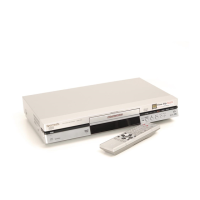
Panasonic DMR-E100H - User Manual

Panasonic DMR-E100H
72 pages
Print Icon
To Next Page IconTo Next Page
Loading...
Dear customer
Thank you for purchasing this product. For optimum performance
and safety, please read these instructions carefully.
Before connecting, operating or adjusting this product, please read
these instructions completely. Please keep this manual for future ref-
erence.
Region number supported by this unit
Region numbers are allocated to DVD players and software
according to where they are sold.
The region number of this unit is “1”.
The unit will play DVDs marked with labels containing “1” or
ALL”.
1
ALL
2
4
1
Example:
PC
®
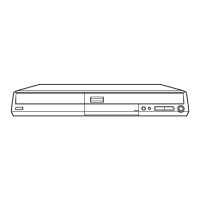
DVD VIDEO RECORDER
Operating Instructions
Model No. DMR-E100H
[For\U.S.A.]only]
The warranty can be found on page 68.
[For\Canada]only]
The warranty can be found on page 69.
En las páginas 70 y 71 hay una guía de referen-
cia rápida en español.
This manual was printed with soy based ink.
RQT6986-P
P
外部入力
2
(L2)
S
映像
映像
左/モノ
音声

Table of Contents

Questions and Answers

  • P
    pattyhunterAug 12, 2025
    Why is my Panasonic DMR-E100H not working and switches to standby?
    • E
      Erin GonzalesAug 12, 2025
      If your Panasonic DVR unit is on but not responding and switches to standby automatically, there might be several reasons. First, ensure the AC mains lead is securely inserted into the household AC outlet. If the unit is hot and displays “U14”, wait until “U14” disappears. If the issue persists, reset the unit: press [Í/I] to switch to standby (or press and hold for 10 seconds to force standby), then press [Í/I] again to turn it on. Alternatively, disconnect the AC mains lead, wait one minute, then reconnect it.
  • J
    Jordan ThompsonAug 16, 2025
    How to fix sound problems on Panasonic DMR-E100H?
    • S
      Sherri MoralesAug 16, 2025
      If you're experiencing sound issues with your Panasonic DVR, such as no sound, low volume, or distorted sound, try these solutions: Check the connections to ensure they are properly connected. If you have an amplifier connected, verify its input mode. Turn V.S.S. OFF. To select the desired audio type, press [AUDIO] on the remote control. For stereo or NICAM broadcasts, go to Sound in the SETUP menus and choose the correct setting with “Bilingual Audio Selection.” If you are using digital connection, connect to other equipment using audio cables (analog connection).
  • A
    Angela LaneAug 19, 2025
    How to eject a disc from Panasonic DMR-E100H when it's stuck?
    • J
      Justin RothAug 19, 2025
      If your Panasonic DVR is not ejecting a disc, turn the unit off by pressing [Í/I]. Then, hold down [?, STOP] and [CH, W] on the main unit simultaneously for about 5 seconds.
  • L
    Lauren MarshAug 23, 2025
    Why my Panasonic DMR-E100H remote control doesn’t work?
    • T
      Trevor GonzalesAug 25, 2025
      If the Panasonic DVR remote control isn't working, ensure that the [DVD, TV] button is switched to “DVD” for operating the unit or “TV” when selecting the receiving channel for the television. Other potential causes include depleted batteries (replace them), incorrect remote control code (change it), obstructions between the remote and the unit (remove them), or pointing the remote improperly (aim at the remote control sensor on the main unit). If you still cannot operate the television, try changing the manufacturer code.
  • H
    Haley AllenAug 31, 2025
    How to fix no power issue on Panasonic DMR-E100H DVR?
    • M
      Mrs. Theresa HodgesAug 31, 2025
      If your Panasonic DVR has no power or switches to standby mode, ensure the AC power supply cord is securely inserted into a working AC outlet. This issue might also be due to the power saving feature; you can disable it in the settings (Set Up—Off Timer— Off). Try pressing [Í, DVD POWER] to turn the unit on. If none of these work, one of the unit’s safety devices may have activated; press [Í, DVD POWER] to turn the unit on.
  • A
    amy98Sep 7, 2025
    Why is there ghosting when progressive output is on Panasonic DVR?
    • C
      cherylzimmermanSep 8, 2025
      If you notice ghosting when progressive output is enabled on your Panasonic DVR, set “Progressive” to “OFF”. This issue is often related to the editing method or material used on DVD-Video and can be corrected by using interlace output.
  • A
    antonio42Nov 26, 2025
    What to do if images from Panasonic DMR-E100H DVR do not appear on the television?
    • J
      Jessica GreerNov 26, 2025
      If images from your Panasonic DVR do not appear on the television, first ensure the TV is correctly connected to the AUDIO/VIDEO, S-VIDEO OUT, or COMPONENT VIDEO OUT terminals on the unit, and that the TV's input setting (e.g., VIDEO 1) is correct. For new units, remember that the HDD needs recorded content before playback is possible. If television reception worsens after connecting the unit, it might be due to signal division; using a signal booster may help. If the screen size is wrong, check the “TV Type”, “4:3 TV Settings for DVD-Video” or “4:3 TV Settings for DVD-RAM” in the TV Screen menu. To display on-screen messages, select “Automatic” for “Status Messages” in the Display menu. To enable the blue background, select “On” for “Blue Background” in the Display menu. For ghosting issu...

Summary

Safety and Regulatory Information

General Safety Precautions

Important warnings and cautions for safe operation of the unit.

FCC Compliance and Notes

Information regarding FCC rules and CATV system installation.

IMPORTANT SAFETY INSTRUCTIONS

Essential Safety Guidelines

Essential safety guidelines for safe unit operation.

Product Features Overview

Recording Capacities and Modes

Details on HDD/DVD recording hours and various recording modes.

Program Management and Editing

Functions for managing recorded content, like Auto Renewal and editing.

Advanced Media and Playback

Support for MPEG4, still pictures, MP3, and DVD-Video creation.

Operational Enhancements

Features like Fast Access, Quick View, and watching while recording.

Troubleshooting and Support

Error Messages

Error message explanations and solutions.

Troubleshooting Guide

Common problems and their solutions.

STEP 1 Antenna and television connections

Connection Preparation and Precautions

Initial setup, environmental notes, and cable guidance.

Video Connection Options

S-VIDEO OUT and COMPONENT VIDEO OUT terminal details.

STEP 3 Plug-in Auto Tuning

Language and Antenna System Setup

Language and antenna system selection steps.

Auto Channel Setting Process

Auto channel setting process instructions.

STEP 4 VCR Plus+ guide channel settings

VCR Plus+ Setup Procedure

VCR Plus+ code setup for timer recording.

STEP 5 Set up to match your television

Progressive Picture Settings

Settings for progressive television pictures.

Television Operation with Remote

TV operation using the unit's remote control.

Disc information

Compatible Discs for Recording and Play

Usable DVD-RAM, DVD-R, and other disc details.

HDD (Hard disk drive) Operation

HDD Operation Precautions

Safe HDD operation guidelines and damage prevention.

Recording television programs

Recording Procedures

TV program recording steps to HDD or DVD.

Timer recording

Using VCR Plus+ Codes

VCR Plus+ timer recording programming.

Manually programming timer recordings

Program Entry Procedure

Manually entering timer recording programs.

Dubbing programs or play list

Dubbing Preparation

Dubbing: Drive selection and initiation.

Selecting Dubbing Direction and Mode

Dubbing: Source, destination, and mode selection.

Dubbing Operations

One Touch Dubbing

One Touch Dubbing: Simplified HDD to DVD transfer.

Creating play lists

Play List Creation Steps

Play list creation: Scene start/end points.

Editing play lists

Play List Operations (Add, Move, Re-edit, Erase)

Play list editing: Scene manipulation steps.

HDD, Disc setting

Setting Disc Protection

Disc protection setup.

Erasing All Programs and Play Lists

Erasing all HDD or disc content.

Formatting Discs and HDD

Formatting discs and HDD.

Disc Management Operations

Setting Disc Protection and Finalizing

Disc protection and DVD-R finalization.

Changing the units settings

Channel and Setup Settings

Channel and setup configuration.

Clock settings

Auto Clock Setting

Auto clock setting procedure.

Manual Clock Setting and Time Zone Adjust

Manual clock setting and time zone adjustment.

Home Theater

Enjoying 5.1-channel surround sound

Digital connection for surround sound.

Connecting a cable TV box;satellite receiver

Single Cable Box;Satellite Receiver Connection

Single cable box/satellite receiver connection diagram.

Two Cable TV Boxes Connection

Two cable TV boxes connection diagram.

Connecting an amplifier or system component

Digital connection for Surround Sound

Digital connection for surround sound.

Troubleshooting guide

Power and Operation Issues

Power and operation troubleshooting.

Troubleshooting Guide (Continued)

Recording, Timer Recording, and Dubbing Issues

Recording, timer, and dubbing troubleshooting.

Panasonic DMR-E100H Specifications

General IconGeneral
HDD Capacity80 GB
TunerAnalog
Video Recording SystemMPEG-2
Audio Recording SystemDolby Digital
Recording FormatsDVD-RAM, DVD-R
Playback FormatDVD-Video, DVD-RAM, DVD-R
InputsComposite, S-Video
OutputsComposite Video, S-Video, Component Video
Dimensions430 x 79 mm
Video OutputComposite, S-Video, Component
TypeDVD Recorder with HDD

Related product manuals