EasyManua.ls Logo

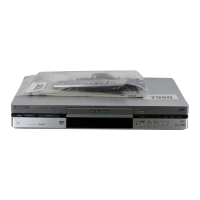
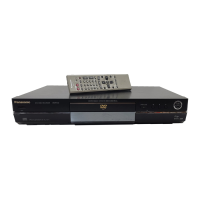
Panasonic DMR-E20 - User Manual

Panasonic DMR-E20
108 pages
Print Icon
To Next Page IconTo Next Page
Loading...
O_O C_C
ooo
ooo
oQo
oo_
oo_o
QQO0
Panasonic
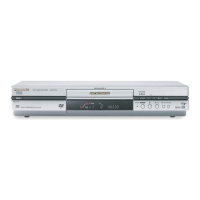
DVD VIDEO RECORDER
F-- --q Jl 1 Operating Instructions
=o, ,oo---[I=ll/ .... ...............
ModelNoDMR-E20
Before connecting, operating or adjusting this product, please read
these instructions completely.
Please keep this manual for future reference.
RAM
This unit responds to the region number information on
DVD-Video. The unit can only play DVD-Video if the re-
gion number of the disc matches the region number of
this unit. See page 6 for details.
The servicenter list and warranty can be found
on pages 103 and 105.
The warranty can be found on page 104.
RQT6035-P

Questions and Answers

  • C
    Cindy BrownAug 12, 2025
    How to fix Panasonic DMR-E20 DVR remote control not working?
    • P
      pchenAug 12, 2025
      If your Panasonic DVR remote control isn’t working, ensure that the [DVD, TV] is switched to “DVD” when operating the unit. If you're trying to operate the television, switch to “TV”. Also, verify that the remote control code is correct. Replace depleted batteries with new ones, and point the remote control at the remote control sensor on the main unit, removing any obstacles in between.
  • U
    usavageAug 16, 2025
    What to do if my Panasonic DMR-E20 shows flashing 0:00?
    • E
      ewilsonAug 17, 2025
      If your Panasonic DVR displays “0:00” flashing, it means the clock hasn't been set. To resolve this, navigate to Settings in the SET UP menus and set the clock using the “Clock” option.
  • N
    Natalie BoyleAug 20, 2025
    Why is my Panasonic DMR-E20 not recording?
    • D
      Derrick AndersonAug 20, 2025
      If your Panasonic DVR is not recording, ensure you've inserted a disc that the unit can record onto. If the disc is unformatted, format it so the unit can record on it. Check if the write protect tab on the cartridge is set to “PROTECT”; if so, release the write protection. Also, ensure the disc isn't full or nearly full. The material you are trying to record might be copy-guarded.
  • J
    Jamie AcostaAug 25, 2025
    How to fix Panasonic DMR-E20 no power issue?
    • N
      Nicole AveryAug 25, 2025
      If you're experiencing no power with your Panasonic DVR, ensure the mains lead is securely inserted into the household mains socket. If the unit is hot and “U14” appears on the display, wait for it to disappear. It's also possible that one of the unit’s safety devices has activated; in this case, reset the unit by pressing [Í/I] to switch to standby. If it doesn’t switch off, press and hold [Í] for about 10 seconds. Alternatively, disconnect the mains lead, wait one minute, then reconnect it. Press [Í/I] to turn the unit on.
  • T
    Tammy SandovalAug 27, 2025
    How to troubleshoot Panasonic DMR-E20 DVR no picture?
    • E
      Elizabeth JohnsonAug 27, 2025
      If you're experiencing issues like no picture or worsened television reception after connecting your Panasonic DVR, ensure the television’s input setting (e.g., AV1) is correct. If the signals are being divided between the unit and the television, use a signal booster. Also, check the settings on your television, and verify the settings for “TV Aspect”, “4:3 TV Settings for DVD-Video” or “4:3 TV Settings for DVD-RAM” in the Connection menu.
  • J
    Joshua SmithAug 31, 2025
    How do I fix Panasonic DVR sound problems?
    • C
      Cheryl YoderAug 31, 2025
      If you are experiencing no sound, low volume, or distorted sound on your Panasonic DVR, check the connections and the input mode on the amplifier if one is connected. If the V.S.S. feature is causing distortion, turn it off. Press [AUDIO] on the remote control to select the desired audio type, or go to Sound in the SET UP menus and choose the correct setting with “Billuingual Selection for DVD-R”. If using a digital connection, try using audio cables (analogue connection) instead. Note that you cannot change the audio type when using DVD-R.
  • T
    Tracy SmithSep 4, 2025
    What to do if Panasonic DMR-E20 DVR won't play?
    • A
      Alyssa StephensSep 4, 2025
      If play fails to start on your Panasonic DVR even when [1, PLAY] is pressed, ensure the disc is inserted correctly with the label facing up. Verify that the disc is a supported format (DVD-RAM, DVD-R, DVD-Video, Video CD, or CD). Clean the disc if it's dirty, and check for scratches. Note that blank DVD-RAM or DVD-R discs cannot be played. If the unit is unresponsive, try pressing [Á, TIMER REC] to switch to standby, then again to turn it on. The Child Lock function may also be activated.
  • T
    tstevensSep 7, 2025
    How to adjust display brightness on Panasonic DMR-E20 DVR?
    • T
      Taylor FoxSep 8, 2025
      To adjust the brightness of the display on your Panasonic DVR, navigate to Display in the SET UP menus and modify the display’s brightness using the “FL Display” option.

Summary

IMPORTANT SAFETY INSTRUCTIONS

Features

Watch a program while you are recording it

Allows viewing recorded content during the recording process.

Getting the most from the versatility of DVD-RAM and DVD-R

Explains how to maximize the use of DVD-RAM and DVD-R media.

Discs

Logos for discs you can record on and play

Identifies discs compatible for recording and playback.

Logos for discs you can play

Identifies discs compatible for playback only.

DVD-R

Before finalizing...

Operations available before finalizing a DVD-R disc.

After finalizing...

Features available after a DVD-R disc is finalized.

Recording to DVD-R

Instructions and considerations for recording onto DVD-R.

Control reference guide

Main unit

Identifies buttons and controls located on the main unit.

Remote control

Identifies buttons and controls on the remote control.

Set up steps

Prepare the remote control

Instructions for inserting batteries and setting up remote control.

Antenna and television connections

Guide for connecting the unit to antenna and television.

Tune into television stations

Steps for tuning television channels and setting preferences.

The remote control

Television operation

How to use the remote control to operate a television.

Plug-in Auto Tuning

Playing discs

Starting from where you finished (Resume Function)

Resumes playback from the last stopped position.

Fast forward and rewind-SEARCH

Controls for fast-forwarding and rewinding playback.

Recording television programs

One Touch Recording-Specify a time to stop recording

Simple recording method with a specified stop time.

Playing while you are recording

Chasing play

Watch a program from the beginning while still recording.

Simultaneous rec and play

Record one program while watching another.

Reviewing the recorded images while recording (Time Slip)

To change the part being played

Adjusts the time offset for reviewing recorded content.

Changing audio

Marking places to play again-MARKER

To play from a marked position

Instructions to start playback from a marked point.

Common procedures

Icons for disc information

Explanation of icons related to disc content.

Icons for unit information only

Explanation of icons related to unit status and settings.

Timer recording

Using VCR Plus+ codes to make timer recording

Programming recordings using VCR Plus+ codes.

Manually programming the unit to make timer recording

Setting up timer recordings manually.

To change the timer recording program

Modifying existing timer recording schedules.

Recording from a video cassette recorder

About DISC SETTING

Selecting programs to play

Using the direct navigator

Entering and editing program titles

How to assign or change titles for programs.

Using play lists to edit programs

Creating play lists

Enjoying CATV broadcasts

Enjoying 5.1-channel surround sound with Dolby Digital and DTS

Connecting for advanced surround sound audio.

Connecting a cable TV box

Connecting to a digital amplifier or system component

Connecting an analog amplifier or system component

Connecting a video cassette recorder

Summary of settings

Clock Settings

Settings for the unit's internal clock.

Audio Settings

Changing the units settings

Common procedures

General steps for navigating and changing unit settings.

When setting ratings

Auto Clock Setting

Manual Clock Setting

Channel Settings

Auto Channel Setting

Automatic channel scanning and setup.

Specifications

Troubleshooting guide

Power

Solutions for power-related issues.

Recording and timer recording

Damage requiring service

Conditions requiring professional servicing.

For U.S.A.

PANASONIC DVD RECORDER Limited Warranty

Details the limited warranty terms for the U.S.A.

For CANADA

PANASONIC;TECHNICS PRODUCT-LIMITED WARRANTY

Details the limited warranty terms for Canada.

Panasonic DMR-E20 Specifications

General IconGeneral
BrandPanasonic
ModelDMR-E20
CategoryDVR
LanguageEnglish

Related product manuals