Using Media Player
68
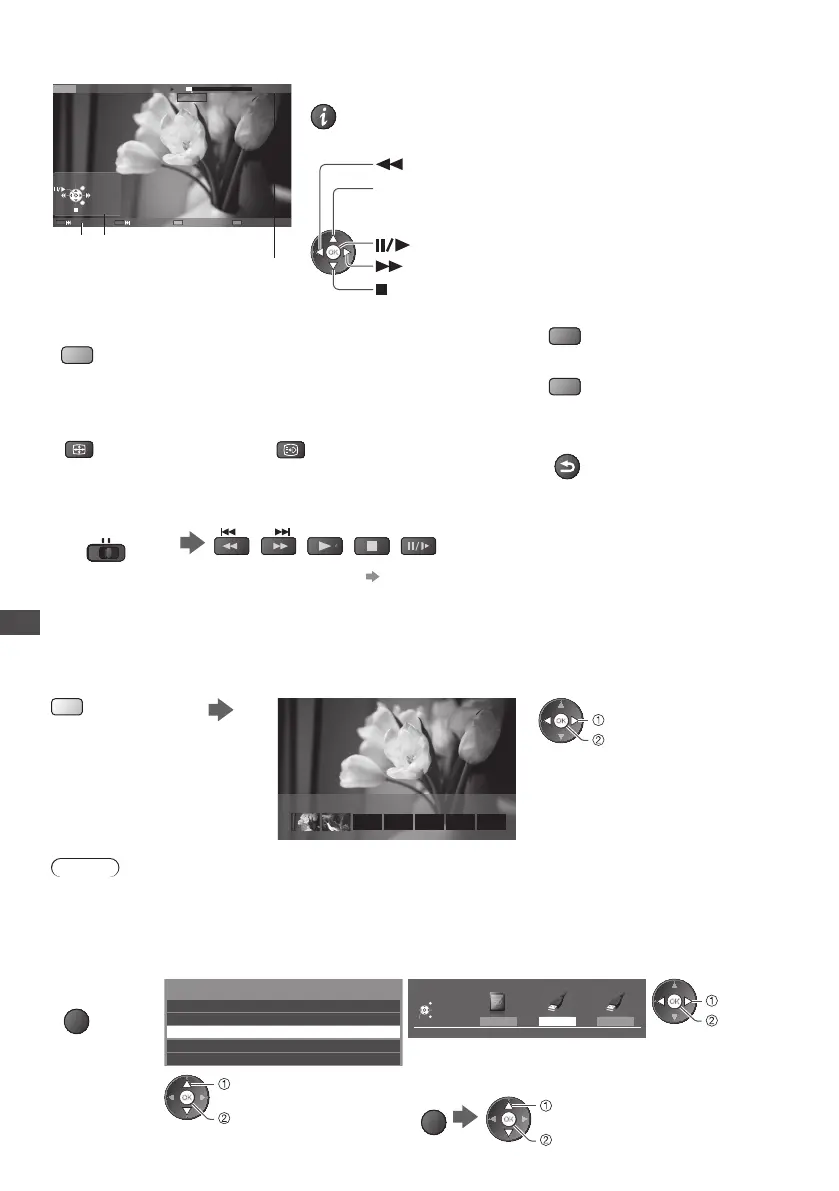
■ How to operate in the playback
Example : Playback
Das ErsteUSB00:15:39
00:02:05
EXIT
RETURN
M anual skip
O peration guide
I nformation banner
•
T o display / hide the operation guide and information banner
•
T o operate the playback
Rewind
[Manual skip]
•
Press to skip forward about 30 seconds
•
Press and hold to skip backward about 15 seconds
Pause / Playback
Fast forward
Stop
•
T o repeat between the starting point “A” and finishing point “B”
•
T o the previous chapter
(red)
•
T o the next chapter
(green)
Set “A” and “B” in order
(blue)
•
T he points will be reset by pressing this button again or
other operations.
•
T o change aspect
•
T o display the subtitle (if available)
•
T o return to list
ASPECT
STTL
BACK/
RETURN
•
Y ou can also use the following buttons. (p.28)
Set the position to “TV”
DVD/VCR
TV
•
T o confirm or change the current status (if available) “Display the selectable settings for the current status” (p.20)
■ Chapter List
Y ou can start playback from the chapter list you select.
•
A recorded content is automatically divided into chapters (about five minutes for each).
•
T he chapter list is not displayed while the selected content is being recorded.
T o play back from the chapter list
(yellow)
00:00:00 00:05:00
C hapter List
playback
select
Note
•
D epending on the recorded programmes, some playback operations may not work properly.
■ Change the device
Y ou can change to the other device directly in the same mode if two or more devices are connected.
1 Display the
option menu
OPTION
2 Select [Drive Select]
Option Menu
Create Group
R elease Group
Drive Select
C ontents Select
C hange Protect Status
access
select
3 Select the device you want to access to
USB HDD1 USB Flash...
Drive Select
U SB HDD1
EXIT
Select
RETURN
Access
SD Card
access
select
If you select the SD Card or USB Flash Memory, also change the
contents to enjoy photo, video or music.
•
T o change the content
OPTION
access
select [Contents Select]




 To Next Page