Using Network Services (DLNA / VIERA Connect)
75
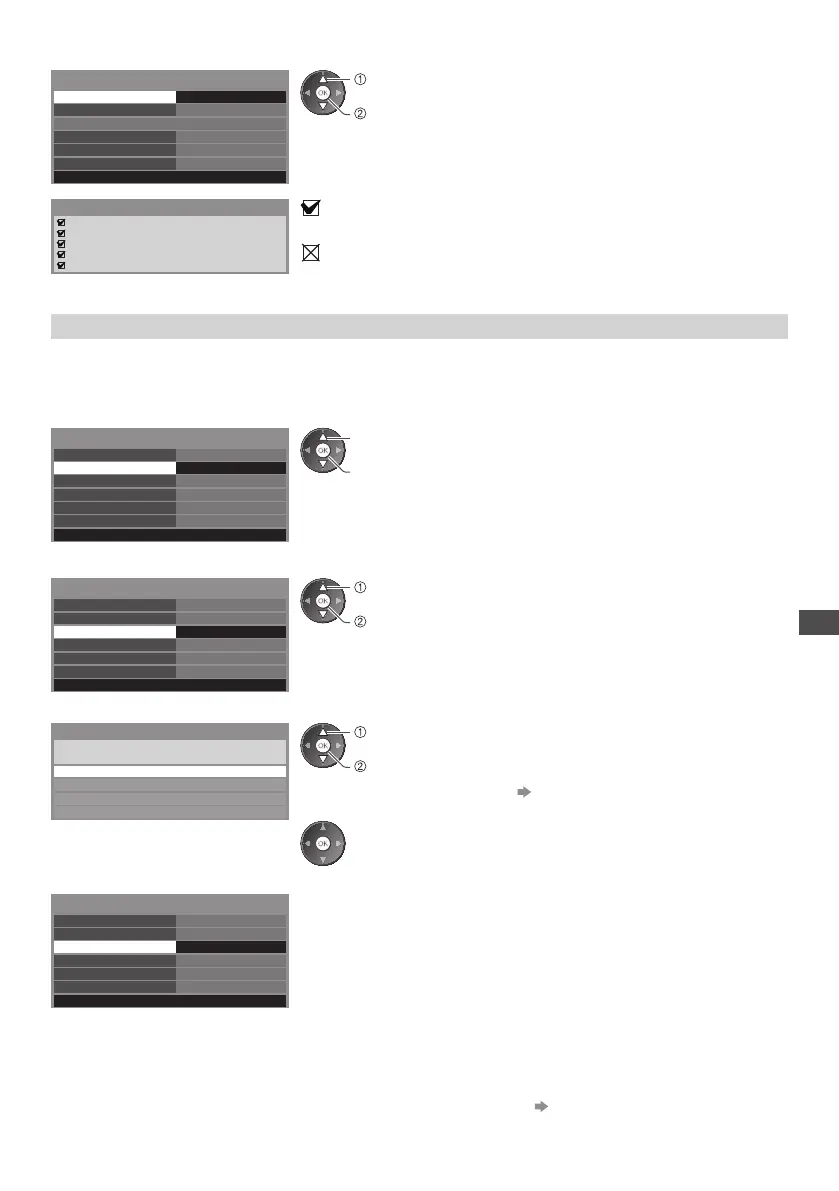
4 Select [Connection Test] and access to test
---
ab-cd-ef-gh-ij-kl
C onnection Test
N etwork Type
Access Point Settings
IP/DNS Settings
N etwork Link Settings
Software Update
MAC Address
Network Setup
Wired
Access
access
select
•
P erforms automatic testing of the network connection for the TV. (It takes a
while to test.)
C heck network cable connection.
C heck acquired IP address.
C heck for devices using same IP address.
C heck gateway connection.
C heck server connection.
Connection Test
: succeeded
T he test is successful and the TV is connected to the network.
: failed
C heck the settings and connections, and then perform this function again.
Wireless connection settings
T his setting is for the network connection by using the Wireless LAN Adaptor. (Wireless connection)
•
C onfirm the encryption key, settings and positions of your access point before starting setup. For details, read the manual of
the access point.
1 Select [Network Type] and set to [Wireless]
ab-cd-ef-gh-ij-kl
C onnection Test
N o settings
N etwork Type
Access Point Settings
IP/DNS Settings
N etwork Link Settings
Software Update
MAC Address
Network Setup
Wireless
access / store
select
2 Select [Access Point Settings]
ab-cd-ef-gh-ij-kl
C onnection Test
N etwork Type
Access Point Settings
IP/DNS Settings
N etwork Link Settings
Software Update
MAC Address
Network Setup
Wireless
N o settings
access
select
3 Select the connection type and set
Connection Type
Please select network connection type.
WPS(Push button)
WPS(PIN)
Search for access point
M anual
access
select
•
F or details of each connection type (p.76,77)
•
After settings, return to [Network Setup] screen
4 Confirm the connection status of [Access Point Settings]
ab-cd-ef-gh-ij-kl
C onnection Test
N etwork Type
Access Point Settings
IP/DNS Settings
N etwork Link Settings
Software Update
MAC Address
Network Setup
Wireless
C onnected
- - - : [ Wired] is selected in [Network Type].
[No adaptor] : Wireless LAN Adaptor is not connected.
[No settings] : Setting for connecting to the access point has not been set.
[Connecting...] : C onnecting to the acc
ess point in progress.
[Connected] : Wireless connection to the access point succeeded
•
T o display the current access point settings, press the OK
button.
T o change the settings, select [No] on this screen.
•
Some access points do not allow access to the internet.
P erform [Connection Test] (p.76) to check if internet
connection is available.
[USB overcurrent] : Overcurrent error
(p.101)




 To Next Page