EasyManua.ls Logo

Panasonic VL-WD619 - User Manual

Panasonic VL-WD619
41 pages
Print Icon
To Next Page IconTo Next Page
Loading...
Operating Instructions
Installation Guide is supplied separately.
Thank you for purchasing a Panasonic product.
Please read this document before using the product and save it for future reference.
Carefully read the information found in the section titled "For your safety" in particular.
This system is not designed to provide complete protection from property loss. To the maximum extent permitted by
applicable law, Panasonic will not be held responsible for any damage incurred as a result of property loss.
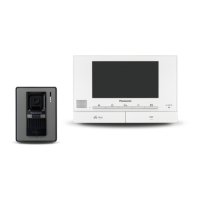
VL-MWD275
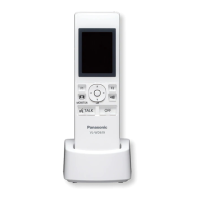
VL-SWD275
Model Name
Model No.
Wireless Video Intercom System
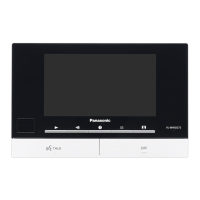
Main Monitor Station

Table of Contents

Other manuals for Panasonic VL-WD619

Questions and Answers

  • K
    Kayla ParkerAug 18, 2025
    How to improve night image quality on Panasonic VL-WD619?
    • J
      Jennifer WarrenAug 18, 2025
      If images are dark and faces are unidentifiable at night on your Panasonic Intercom System, first ensure that the 'Automatic illumination' setting is enabled. If faces are still difficult to identify even with the doorphone's LED lights on, consider installing additional lights in the area around the doorphone.
  • G
    graykarenAug 20, 2025
    Why does the sound cut out on my Panasonic Intercom System?
    • E
      Elizabeth EdwardsAug 20, 2025
      If the sound on your Panasonic Intercom System cuts in/out or fades, it could be due to a few reasons. If the area around the main monitor, extension monitor, sub monitor, or doorphone is noisy, try using the 'Press-to-talk' mode. Also, make sure that you are not covering the top part of the sub monitor with your hand. Finally, ensure that the sub monitor is not too far from the main monitor and that there are no obstructions like concrete walls blocking the signal; if there are, move the sub monitor closer or to an area without obstructions.
  • D
    Donald Black MDAug 23, 2025
    What to do if faces are dark on Panasonic VL-WD619 images?
    • B
      Brett PorterAug 23, 2025
      If the images of people's faces appear dark on your Panasonic Intercom System, it might be due to strong sunlight or backlight in the area around the doorphone. You can try using the backlight compensation function to improve the image.
  • S
    smithgregoryAug 26, 2025
    How to fix a Panasonic VL-WD619 when the ringtone doesn't sound?
    • Y
      ymorrisonAug 26, 2025
      If the ringtone on your Panasonic Intercom System doorphone is not sounding, first, ensure that the ringtone volume is not muted and activate the sound for the ringtone. Also, check if the sub monitor's batteries are discharged and charge them if necessary.
  • M
    Mr. George David IIAug 27, 2025
    Why are the images on my Panasonic Intercom System dirty and unclear?
    • W
      William TaylorAug 28, 2025
      If the images on your Panasonic Intercom System are dirty, unclear, or not in focus, it could be due to dirt or water condensation on the doorphone's lens. Try wiping the lens with a soft, dry cloth. If there is water condensation, wait for it to evaporate.
  • J
    janetpottsAug 30, 2025
    Why are images distorted on my Panasonic VL-WD619 Intercom System sub monitor?
    • M
      moconnellAug 30, 2025
      If the images on your Panasonic Intercom System sub monitor distort or are displayed slowly, ensure that the top part of the sub monitor is not being covered. Also, the sub monitor might be too far from the main monitor, or there might be an obstruction like a concrete wall blocking the signal. Try moving the sub monitor closer to the main monitor or to an area without obstructions.
  • K
    Katelyn WaltonSep 1, 2025
    What to do if Panasonic VL-WD619 does not work properly?
    • J
      jcortezSep 1, 2025
      If your Panasonic Intercom System is not working correctly, try pressing the MRESETN button on the side of the main monitor with a pointed object. Alternatively, remove the battery and insert it again.
  • R
    roy16Sep 3, 2025
    Why does registration fail on my Panasonic VL-WD619?
    • C
      christinechambersSep 3, 2025
      If the registration fails on your Panasonic Intercom System, it could be because registration to the main monitor has not been completed. Try bringing the sub monitor closer to the main monitor and try registering again.
  • T
    Tiffany BryanSep 6, 2025
    Why is the Panasonic Intercom System image black and white?
    • L
      leachkellySep 6, 2025
      If the image on your Panasonic Intercom System is displayed in black and white (or bluish-purple), it might be at night or when there is poor light around the doorphone. Turn on the LED lights when it is dark. It is also recommended to install extra lights in the area around the doorphone.
  • G
    garciamadisonSep 8, 2025
    Why are the images on my Panasonic VL-WD619 white or black?
    • D
      David JimenezSep 8, 2025
      If the images on your Panasonic Intercom System are white or black, the brightness of the display might not be correctly adjusted. Adjust the brightness when images are displayed.

Summary

Panasonic Wireless Video Intercom System: Introduction and Accessories

Model Composition Overview

Details the components and models included in the video intercom system package.

Accessory Information and Compatibility

Lists supplied accessories and notes for additional or replacement items.

Additional and Replacement Accessories

Provides a list of optional accessories with their order numbers and specifications.

Compatible Panasonic PBXs

Lists compatible Panasonic PBX models for system integration.

General Information and Symbols

General Information and Product Modes

Covers general usage notes, regional differences, and operational modes (House/Apartment).

Graphical Symbols Explained

Illustrates and explains the meaning of graphical symbols used throughout the manual.

Document Symbols, Expressions, and Styles

Explains the presentation styles for text, icons, buttons, and procedures in the document.

Trademarks and Copyright Information

Lists trademarks, software credits, and intellectual property rights.

Important Safety Information and Precautions

Safety Warnings: Fire and Electric Shock Prevention

Critical warnings to prevent fire and electric shock hazards during product use.

Accident Prevention Measures

Advisories to prevent accidents, including issues related to RF energy and medical devices.

Caution: Injury and Property Damage Prevention

Precautions to avoid injury from product falls, loud sounds, or improper use.

Sub Monitor Battery Safety

Safety guidelines for sub monitor batteries to prevent leakage and accidents.

Operational Guidelines and Best Practices

Important Safety Instructions

Fundamental safety precautions to minimize risks of fire, electric shock, and injury.

Optimizing Performance: Location and Environment

Guidance on selecting optimal locations and environmental conditions for best system performance.

Additional Important Information

Covers power, tapping risks, privacy rights, and product handling notes.

Privacy, Repairs, and Product Handling

Privacy and Portrait Rights Considerations

Discusses privacy considerations and legal regulations for using the doorphone system.

Personal Information Storage and Disclaimer

Explains personal data storage and Panasonic's liability for recorded information.

Procedure for Product Repair Requests

Instructions on initializing the device before sending it for repair.

Disposal, Transfer, or Return Recommendations

Advice on erasing private data before disposing of, transferring, or returning the product.

System Preparation and Setup

Control Panel Overview: Doorphone

Details the controls and indicators of the doorphone unit.

Control Panel Overview: Main;Extension Monitor

Explains the buttons, display, and indicators on the main and extension monitors.

Control Panel Overview: Sub Monitor

Details the controls, soft keys, and buttons on the sub monitor.

Sub Monitor Soft Keys and Volume Adjustment

Explains the functionality of sub monitor soft keys and volume controls.

Display Information and Initial Settings

Main Monitor Display Information

Describes the image viewing screen and status icons for the main monitor.

Sub Monitor Display Information

Explains the information screen and image viewing screen for the sub monitor.

Initial Setup: Language, Date, and Time

Guides the initial configuration of language, date, and time settings on the main monitor.

Image Settings: Wide;Zoom and Zoom Position

Configures how doorphone images are displayed (wide or zoom) and adjusts zoom position.

Powering and Mounting the System

Battery Installation for Sub Monitor

Instructions for installing the correct rechargeable batteries in the sub monitor.

Charging the Sub Monitor

Step-by-step guide on how to charge the sub monitor using the AC adaptor.

Wall Mounting Instructions

Provides guidance and notes for securely mounting the unit on a wall.

Core Communication Functions

Answering Doorphone Calls

How to answer, talk, and end calls received from the doorphone.

Press-to-Talk Mode Operation

Using the press-to-talk feature for clearer conversations in noisy environments.

Transferring Doorphone Calls

Procedure for transferring calls between main, sub, and extension monitors.

Monitoring Outside with the Doorphone

How to view and listen to the doorphone's camera and microphone feed.

Inter-device Communication and Recording

Making Calls Between Other Devices

Instructions for making intercom calls between main, sub, and extension monitors.

Recording Doorphone Images

Explains how the system captures still images from doorphone events.

Automatic Image Recording

Details automatic image capture upon receiving a doorphone call.

Manual Image Recording

How to manually record images while monitoring with the main or sub monitor.

Playing Recorded Images and Options

Playing Recorded Images: Main;Extension Monitor

Guides on how to play back recorded images on the main and extension monitors.

Image Playing Screen Layout

Shows the layout of the image playback screen and its controls.

Image Playback Options and Settings

Options for managing recorded images: guide, protect, delete, and adjust brightness.

Playing Recorded Images: Sub Monitor

Instructions for viewing recorded images using the sub monitor.

System Integration and Features

Using Electric Locks

How to connect and operate electric door or gate locks with the main monitor.

Configuring Electric Locks

Steps to set up electric locks, assign them, and configure unlock times.

Connecting and Using Doorbells

Guidance on connecting a doorbell to the system and its operation.

Panasonic PBX Integration

How to integrate the system with Panasonic PBXs for answering calls via extensions.

Managing Multiple Incoming Calls

Handling Multiple Incoming Calls

Explains how the system manages and notifies users of simultaneous incoming calls.

Advanced Functions and Settings

Zoom, Pan, and Tilt Functions

How to adjust zoom, pan, and tilt for doorphone images on monitors.

Sound and Display Settings for Calls

Adjusting volume, voice changer, and display settings for calls and monitoring.

Monitor Configuration and Customization

Ringtone Settings

Guides on changing the ringtone type and volume for incoming calls.

Main Monitor Function Settings List

Lists and explains the configurable settings for the main and extension monitors.

Image Quality and Language Settings

Adjusting image quality, color, frequency, and display language.

Ringtone and Connected Device Settings

Configuration options for ringtones and device connections.

System Management and Advanced Settings

Electric Lock and Illumination Settings

Configuration options for electric locks, unlock buzzer, and automatic illumination.

Lobby Connection and Device Registration

Settings for lobby station connection and registering/cancelling devices.

Other System Settings

Miscellaneous settings including touch sound, play lamp, image deletion, and demo mode.

Initializing System Settings

Instructions on how to reset system settings to default or factory defaults.

Sub Monitor Specific Settings

Sub Monitor Function Settings List

Lists and explains configurable settings specifically for the sub monitor.

Expanding System Capabilities

Registering Sub and Extension Monitors

Guides on adding more sub monitors and extension monitors to the system.

Registering Sub Monitors

Step-by-step instructions for registering sub monitors to the main monitor.

Registering Extension Monitors

Step-by-step instructions for registering extension monitors to the main monitor.

Using Repeaters for Extended Range

Explains the use of repeaters to improve signal range and reliability.

Device Management and Repeater Setup

Registering Repeaters to the System

Provides instructions for registering repeaters to the main monitor.

Cancelling Registered Devices

Guides on how to remove or cancel registered devices like monitors.

General Information and Maintenance

Cleaning Procedures

Instructions for cleaning the main monitor, charger, and sub monitor safely.

Technical Specifications: Main Monitor

Detailed technical specifications for the main monitor (VL-MWD275).

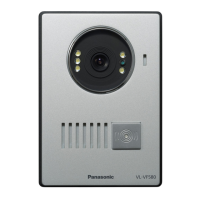
Technical Specifications: Doorphone (VL-V524)

Detailed technical specifications for the doorphone (VL-V524).

Technical Specifications: Sub Monitor (VL-WD619)

Detailed technical specifications for the sub monitor (VL-WD619).

Troubleshooting Common Issues

Troubleshooting Monitor Display Problems

Solutions for distorted, black and white, or dark doorphone images.

Troubleshooting Sub Monitor Display Issues

Addresses slow display or distorted images on the sub monitor.

Troubleshooting Ringtone and Call Issues

Resolves problems with no ringtone, sound cuts, noise, or voice transmission.

Troubleshooting Sub Monitor Charging

Solutions for charging indicator issues and battery problems with the sub monitor.

Error Messages and Troubleshooting

Main Monitor Error Messages

Lists and explains error messages that may appear on the main monitor.

Extension Monitor Error Messages

Lists and explains error messages that may appear on the extension monitor.

Sub Monitor Error Messages

Lists and explains error messages that may appear on the sub monitor.

VL-V901 Lobby Station Operations

Lobby Station Controls Overview

Identifies and describes the physical controls of the VL-V901 lobby station.

Lobby Station Operations: Calling Residents

Instructions for calling residents by room number or name using the lobby station.

Lobby Station Operations: Calling Receptionist

Explains how to contact a receptionist from the lobby station.

Lobby Station Operations: Opening Doors

Guides on using an unlock code to open doors via the lobby station.

Main Monitor Interaction with Lobby Station

Main Monitor Image Viewing with Lobby Station

Shows the main monitor's image screen when interacting with the lobby station.

Monitoring with Lobby Station or Camera

How to monitor the lobby station or connected cameras from the main monitor.

Opening Entrance Doors from Main Monitor

Instructions for opening entrance doors via the main monitor during calls.

Calling Extension Telephones

How to make calls to extension telephones from the main monitor.

System Conditions and Limitations

System Conditions and Limitations Overview

Outlines system constraints like single call handling, priorities, and timeouts.

Panasonic VL-WD619 Specifications

General IconGeneral
Screen Size7 inches
ConnectivityWired
Night VisionYes
DisplayLCD
CameraYes
AudioTwo-way communication
Operating Temperature0°C to 40°C

Related product manuals