PANTHERLINK
43
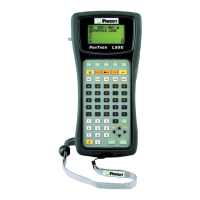
Using the PanTher™ LS8E Hand-Held Thermal Transfer Printer with
Microsoft Excel^
Create the Excel .CSV File
1. Start a new spreadsheet in Excel
2. Enter the legend data within the first 8 columns and 100 rows.
NOTE: Each column (up to 8) of the spreadsheet will be treated as a
line within the label. A blank cell will be treated as a blank line.
A line is limited to 32 characters. A blank row will be treated as a
blank label.
3. Select FILE, then SAVE AS
4. In the SAVE AS window, select the CSV (comma delimited)(*csv) in the
"Save as type:" list.
5. Enter a file name (no more than 8 characters in length), then browse to the
desired folder for saving the file.
6. Click the SAVE button.
7. Select OK for the first warning message.
8. Select YES for the second warning message.
9. The file is now saved.
Excel Screens


 To Next Page
 Loading...