48
Display
Icons
On, Off
Icons for video camera
Icon Name Description
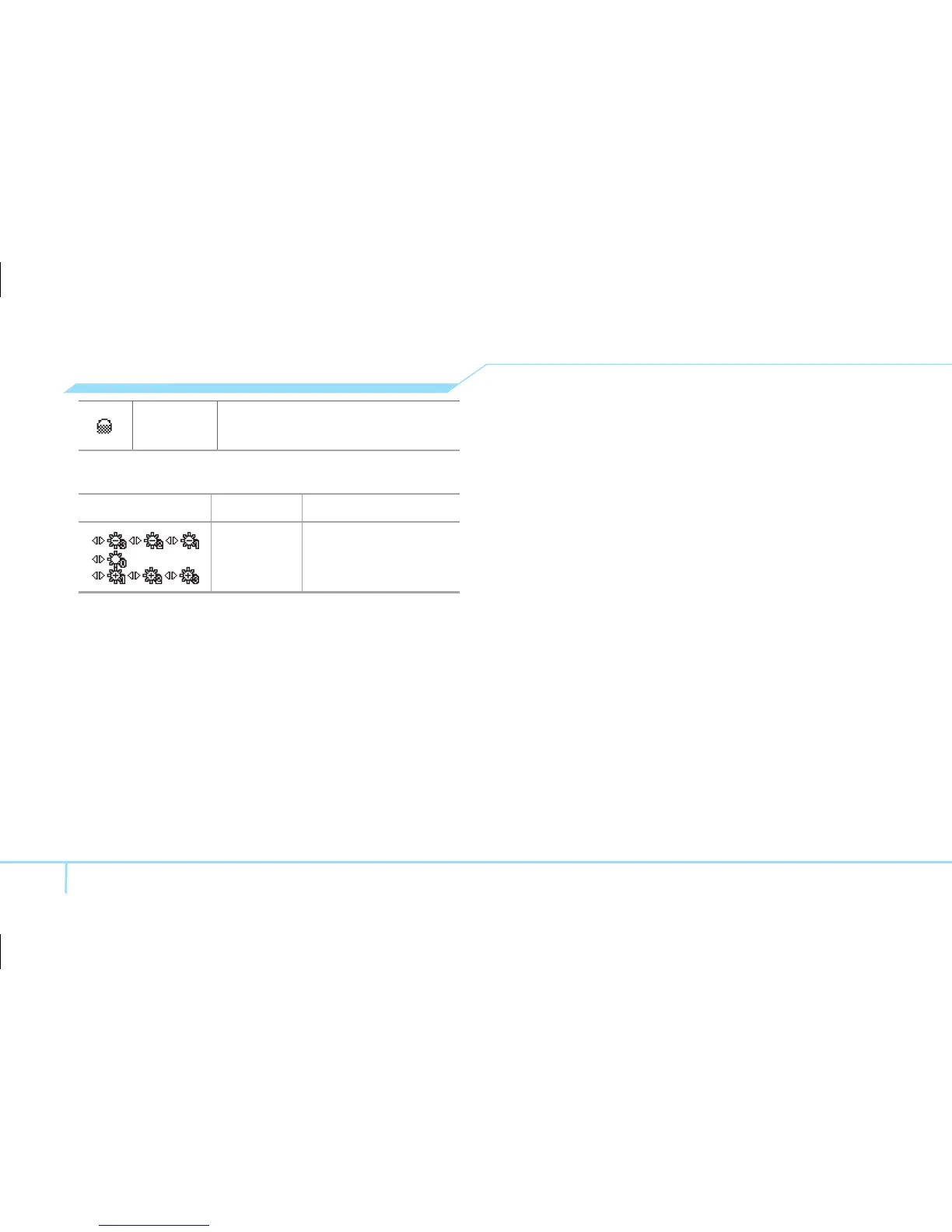
Brightness
-3, -2, -1
0
+1, +2, +3
Zoom in and out
1. Press
U/D
.
Increasing or decreasing the brightness
1. Press
L/R
.
Taking a picture
1. [EZ] Press
Q
in standby mode or press
Menu > Tools
.
[ADV] Press
Q
in standby mode or press
Menu > My Stuff > Tools
.
2. Press Camera > Take a Photo
.
3. Focus on the object >
@
or press Options >
Take a Picture
.
note:
Your photo will be saved automatically to
My Stuff > Photo Album
.
Changing to video camera mode
1. [EZ] Press
Q
in standby mode or press
Menu > Tools > Camera > Take a Photo
.
[ADV] Press
Q
in standby mode or press
Menu > My Stuff > Tools > Camera > Take a
Photo
.
2. Press Options while camera mode is
activated.
3. Press Take a Video
.
4. Focus on the object >
@
or press Options >
Take a Video
.
5. Press
@
to stop.



 To Next Page