71
File
Save
Load
Delete
Delete
One le
Folder contents
All les
Select Folder
Folder 1
Folder 2
Folder 3
Select File
A-1
A-2
A-3
Yes No
Delete
A-1 ?
71
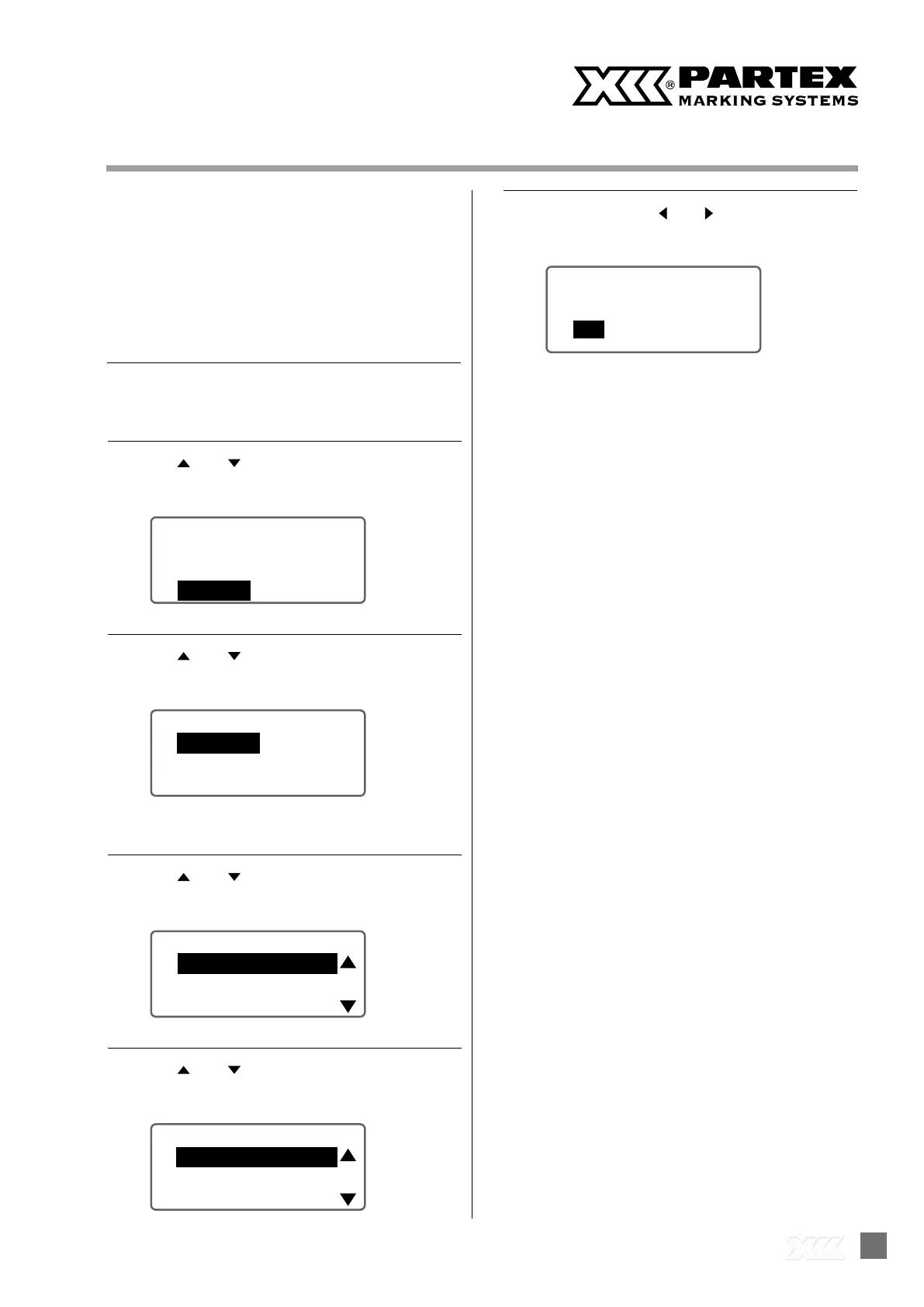
Deleting a File
• After the “Deleting...” message is displayed, you will be
returned to the character input display.
• Select “One le,” “Folder contents,” or “All les.”
This is how to delete a saved le. Select one of the following
options for le deletion.
One le: Deletes only one le in the folder.
Folder contents: Deletes all the les in the folder.
All les: Deletes all les in all folders.
[Example] Delete the le named “A-1” in “Folder 1.”
1
2
3
4
5
6
Press
the [File] key.
Use [
] or [
] to select “Delete,”
and press the [Enter] key.
Use [
] or [
] to select “One le,”
and then press the [Enter] key.
Use [
] or [
] to select “Folder 1,”
and then press the [Enter] key.
Use [
] or [
] to select “A-1”
and press the [Enter] key.
Select “Yes” with [ ] or [ ]
and press the [Enter] key.


 To Next Page