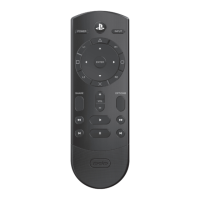
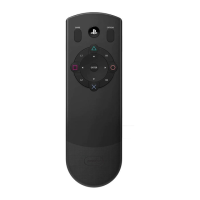
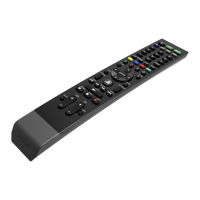
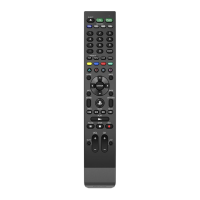
PS4™ system button Switch the remote to operate the PS4™ button
TV button Switch the remote to operate a TV
AMP button Switch the remote to operate an AV amplifier
CBL button Switch the remote to operate a cable/satellite set-top box
Buttons for operating a PS4™ system, TV, AV amplifier, or cable/satellite set-top box
The meaning of the icons shown in the table below is as follows:
(PS4) used to operate the PS4™ system
(TV) used to operate the TV
(AMP) used to operate the AV amplifier
(CBL) used to operate a cable/satellite set-top box
You can use the Universal Media Remote to operate a TV, A/V amplifier, or set-top box. Set the remote code to
match the product in use.
NOTE: Some functions of your original remote may not be controlled by this remote. Use the original remote, if
available, to control such functions. Sometimes buttons other than described in these instructions may actually
perform the function. For example, the channel and volume buttons might be used to navigate through menu choices.
We recommend you experiment with the remote to identify if such situations apply to your equipment.
Programming TV, AMP, and CBL devices
There are two ways to program TV, AMP, and CBL devices, AUTO SEARCH MODE, or MANUAL ENTRY MODE.
Auto Search Mode
1. Turn the target device ON.
2. Point the Universal Media Remote directly at the target device and make sure it stays pointed at the device
throughout the programming process.
3. On your Universal Media Remote, press and hold down the green PWR key and the desired device key for
about 5 seconds. The red LED on the remote will turn on, indicating that it is now in Auto Search Mode.
4. Keep the remote pointed at the device.
5. When the remote locates the correct code, the device will turn OFF.
6. When the device turns OFF, immediately press any key to complete programming.
7. If the red LED turns off and programming was not successful, please use manual entry mode.
Manual Entry Mode
1. Turn the target device ON
2. Refer to the Manufacturer’s Code List included in the product documentation.
3. Find the brand name of the target device.
4. On your Universal Media Remote, press and hold the gray device key, and enter the first 4-digit code from the
Code List. Release the gray device key.



 To Next Page