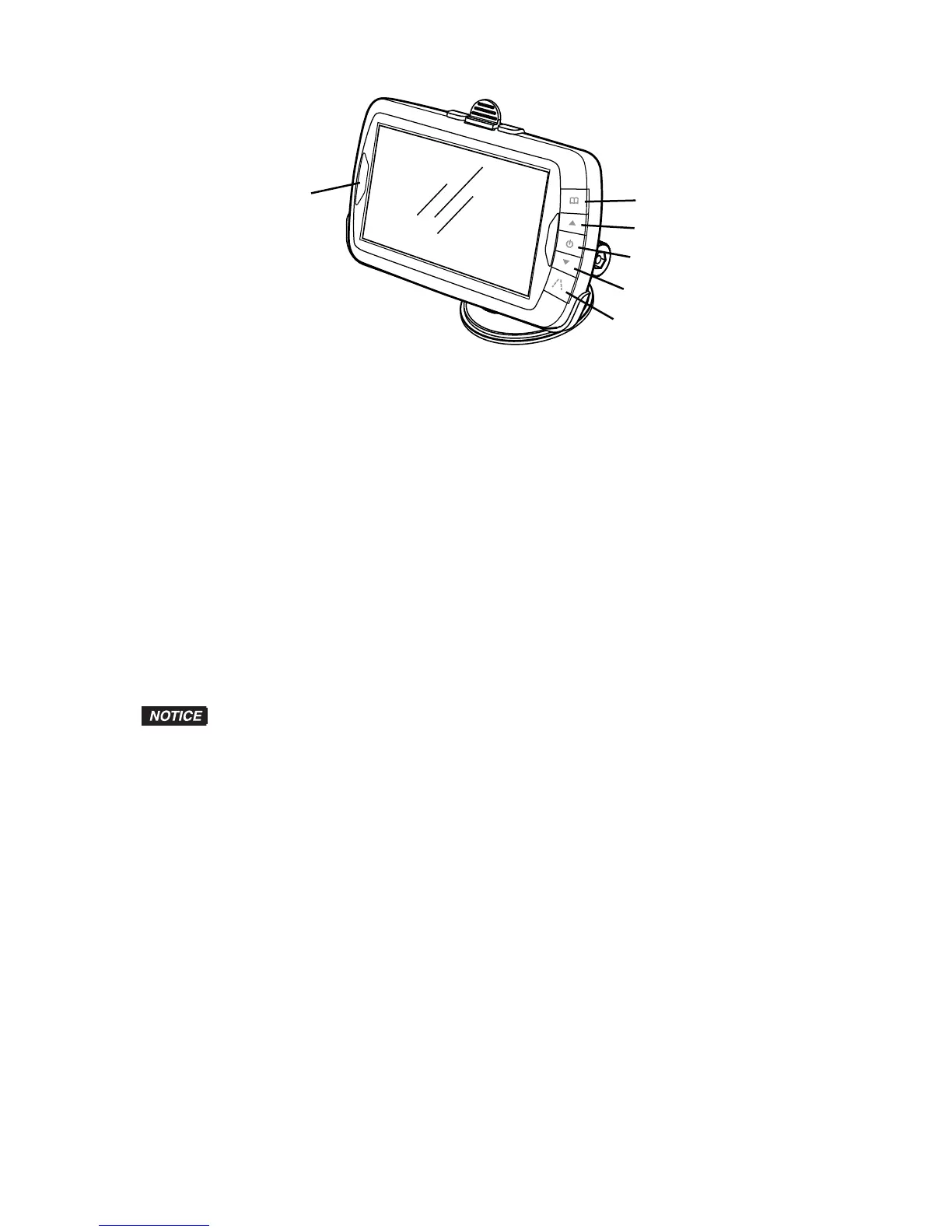
Legend
1.
Menu Button
2. Up Button
3. ON/OFF Button
4. Down Button
5. Guidelines Button
6. Blue Power LED
ON/OFF Button
Press to tur
n the display on. Press it again to turn the display off.
Blue Power LED
The LED will blink when the monitor has power and is turned on, but the vehicle is not in reverse
(standby mode). When the vehicle is in reverse, and the monitor has power and is turned on, the LED
will light continuously.
Adjusting Monitor Settings
To adjust the following monitor settings, make sure the park brake is applied, turn the ignition switch
to the ON position and shift the vehicle to reverse.
In extremely bright conditions, the screen image may take a few seconds to
stabilize. Wait until the image has stabilized before backing up.
1. Press the menu button to bring up the settings screen.
2.
Press the menu button to scroll through the different adjustments. Press the up button to increase
or the down button to decrease settings.
3. The monitor can be mounted in any position. To change the view on the screen, scroll to
direction. Press the up or down button to change the view and display the image correctly.
4. To exit, scroll to exit and press the down or up button.
5. To turn the guidelines on or off, press the guidelines button.


 To Next Page