2.3 Check Operational Readiness
1. Open the Windows Start menu.
2. Type Peak Settings and press |Enter|.
The window PEAK Settings appears.
3. Select LIN Hardware.
The connected CAN interface is displayed.
2.4 Connect LIN Bus
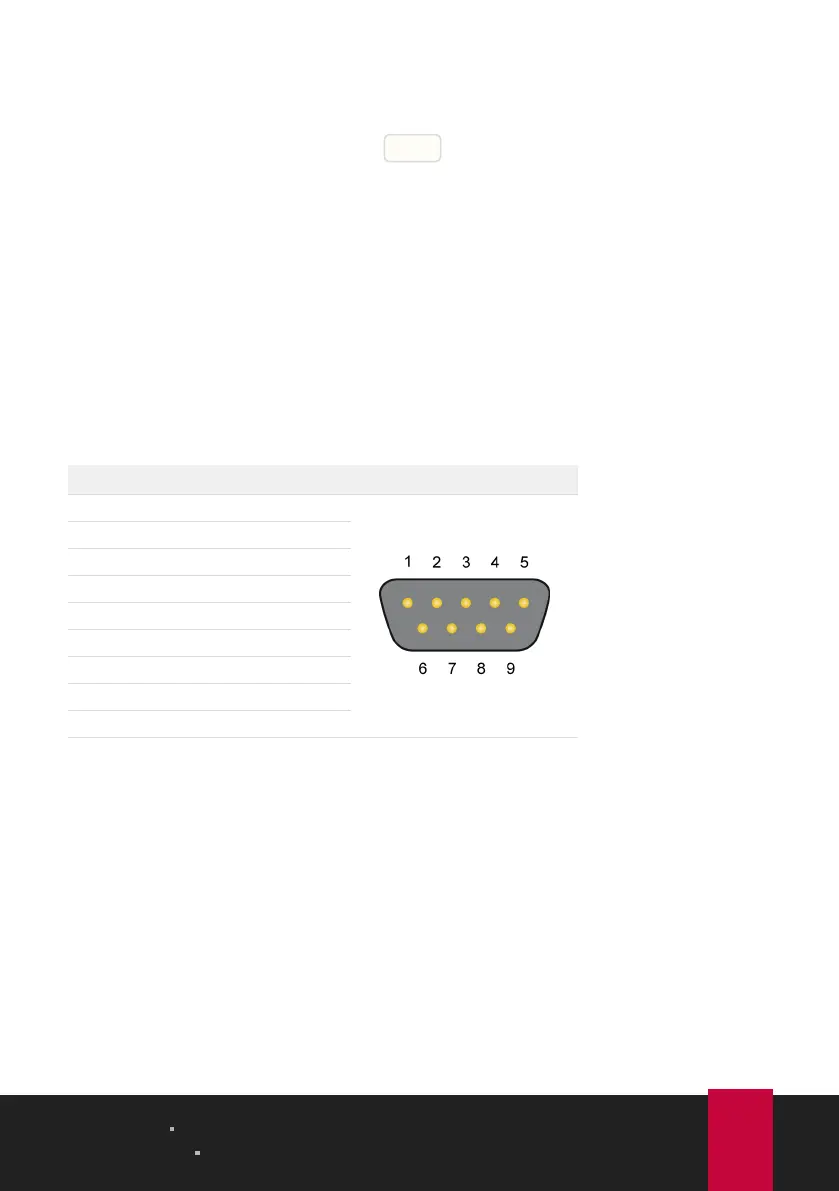
The transceiver of the LIN interface requires a power supply between 6 and 28 V
DC. This must be provided via pin 9 on the D-Sub connector.
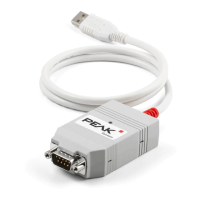
To facilitate the connection, use the optional LIN connection cable for PC LIN
interfaces (IPEK-003013).
Pin Assignment D-Sub plug on LIN interface
1 None
2 None
3 None
4 LIN
5 LIN_GND
6 LIN_GND
7 None
8 None
9 LIN_V
Bat
2.5 Example Application under Windows
As an example application for accessing the LIN interface, run the LIN monitor
PLIN-ViewPro from the Windows Start menu.
2 Installation PLIN-USB
User Manual 2.1.0 © 2023 PEAK-System Technik GmbH
8


 To Next Page