38
4. Petcube can’t register on your Wi-Fi network
You may see this message when there Petcube cannot receive the IP address
automatically using DHCP. Normally, the router should assign the IP address to your
Petcube automatically but if this didn’t happen, you can enter your router settings and
assign the IP address to your Petcube manually. You can also contact your ISP
or Petcube Customer Care team for help.
5. Petcube can’t establish the cloud connection / No Internet connection
If you get this error message, firstly, make sure you have Internet access on your
Wi-Fi by trying to open a few websites on a few devices. If you have Internet access but
Petcube still can’t be connected, try to reset the device by following these easy steps:
1. First, if you have previously set up your Petcube, open the Petcube app, go to ‘Home’
tab, then select ‘Settings’ and choose ‘Disconnect Camera’;
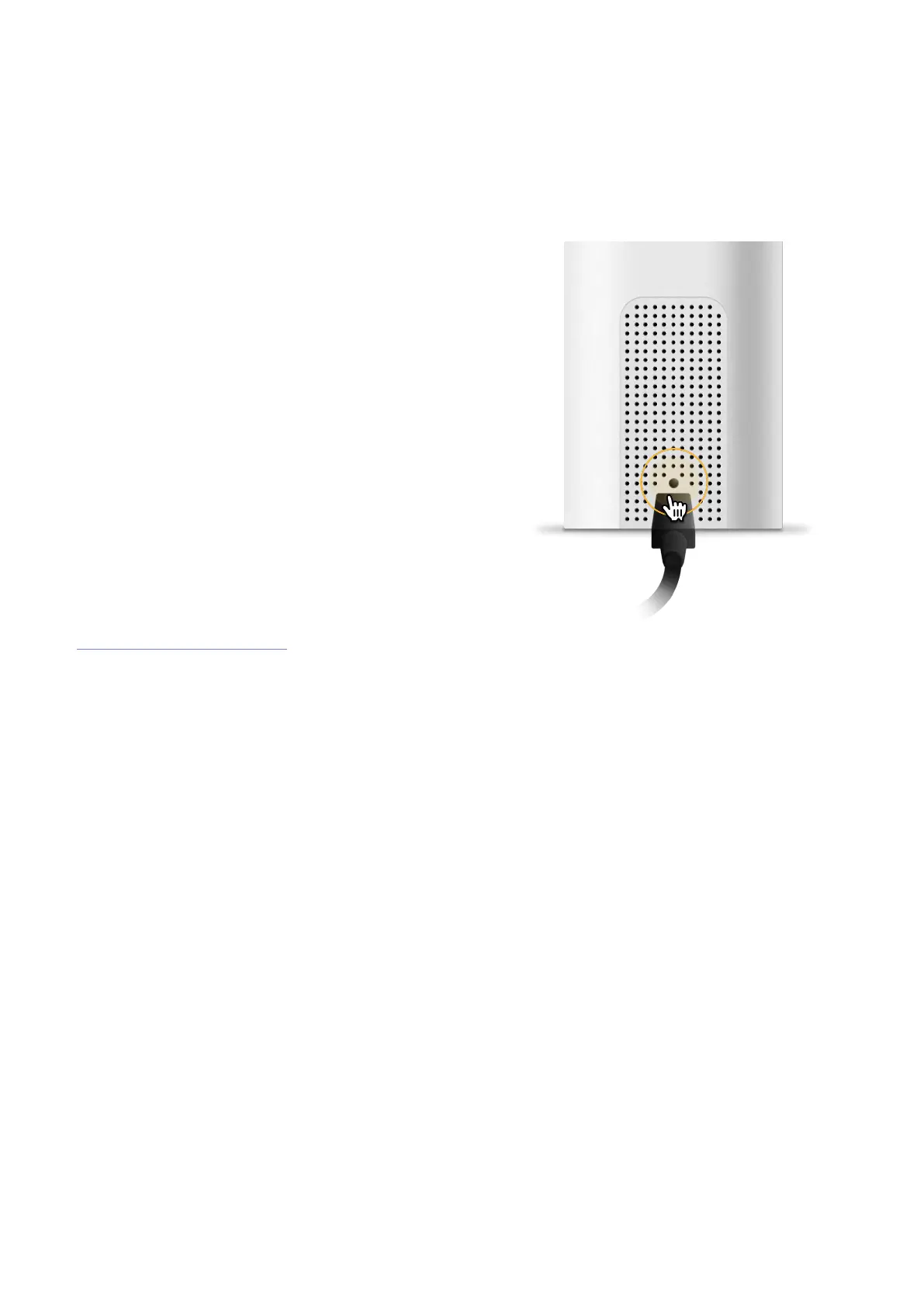
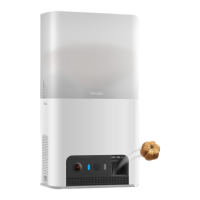
Fig. 8.3.5
7. Find setup button right above
the USB port of your Petcube
Bites 2 Lite (fig 8.3.5), hold it down
with a pin for 1 second until you hear
“Ready to connect”;
8. Open Petcube app, go to the ‘Home’
tab, select ‘connect your device’,
pick your Petcube from the list
of options and follow the steps
on the screen.
In case none of the above tips help,
contact Petcube Customer Care Team
at petcube.com/support/.


 To Next Page