10
Actions
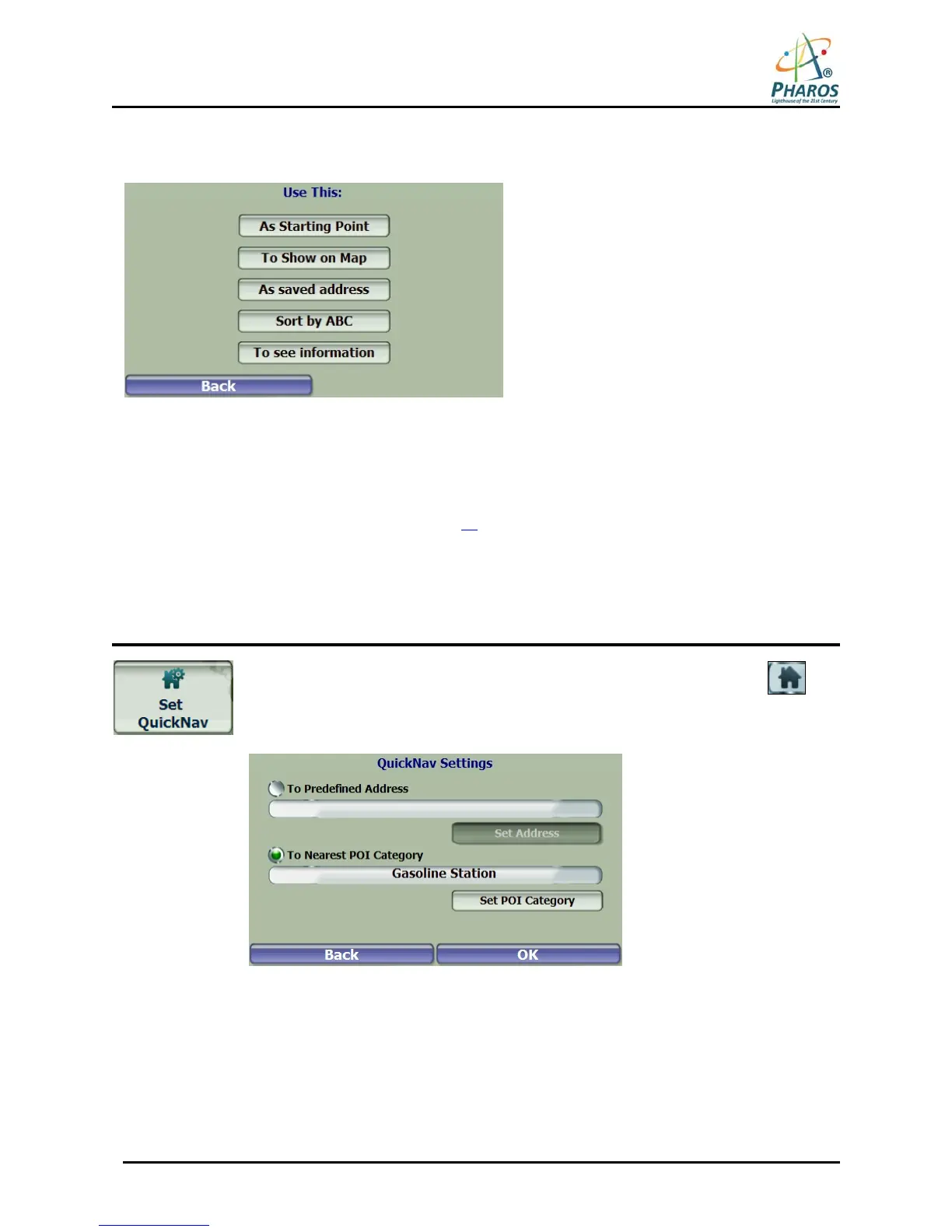
Tap the Actions button to use a POI:
Figure 11 – Actions for POIs
• As Starting Point, which designates the selected address as the route origin (Map Browsing mode
only).
• To Show on Map, which displays the selected address on the map.
• As saved address – Tap to add an address to your list of favorite locations. For more information
about favorites, see Address Book on page 13
.
• To Sort by ABC, which displays the category entries in alphabetical order.
• To see information, which shows additional address information and phone number (where
available).
QuickNav
You can set a QuickNav destination so that every time you tap the QuickNav
icon
on the Map Screen, the device automatically calculates the route to this destination for
you. When you tap the QuickNav button for the first time, you can select a predefined
address or a POI category.
Figure 12 – Setting the QuickNav Location
You can change the QuickNav settings by tapping the Set QuickNav button located on
the Setup 1 menu.



 To Next Page