5. Software Upgrading
5.1 Software Upgrading
Step 1: Ready for F/W Upgrade
1. Prepare a USB memory (File format: FLAT, Size: 1G~8G).
2. Copy the software to USB flash disk (root directory).
3. Switch off the TV and Insert the USB memory stick that contains the software update files in the TV’s USB 2.0 port.
Note the version of this F/W before you change the software file name.
Step 2: F/W Upgrade
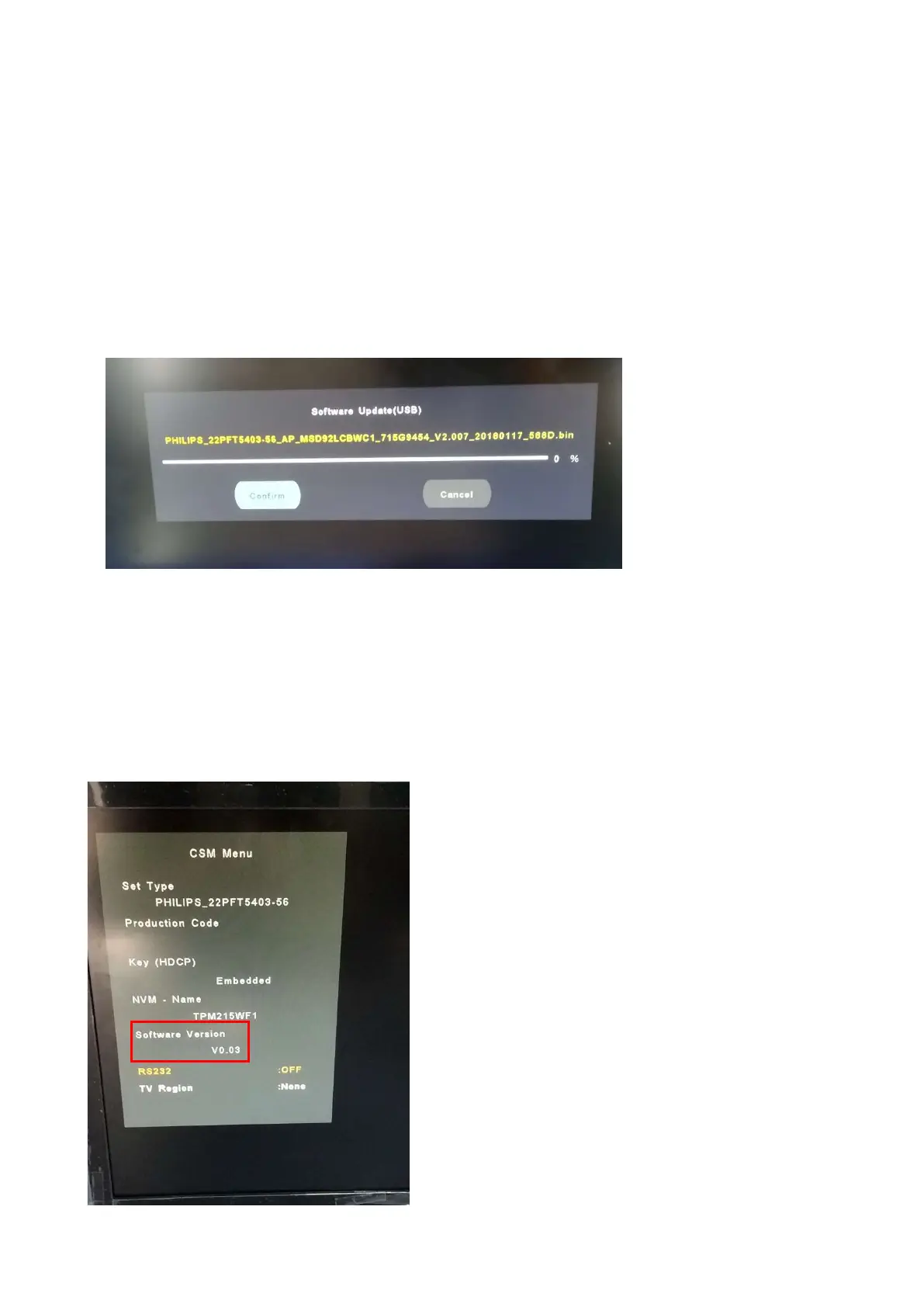
1. Power off then power on the TV. The TV will detect the USB memory stick automatically. Then a window jumps out as below:
2. Press “Confirm” to start the update.
3. When the TV software is updated, please reboot the TV. Remove your USB flash drive.
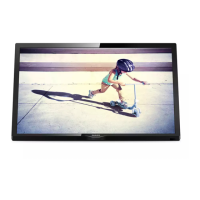
4. We can enter in CSM mode to check the current software version.
Caution: Please make sure that software upgrade is finished before unplug the USB and AC power!
Step 3: Check the SW version
1. After burning software, restart the TV
2. Press “Menu/Home +456987+Back”, enter Customer Service Mode to check if the software version is correct.




 To Next Page