EasyManua.ls Logo

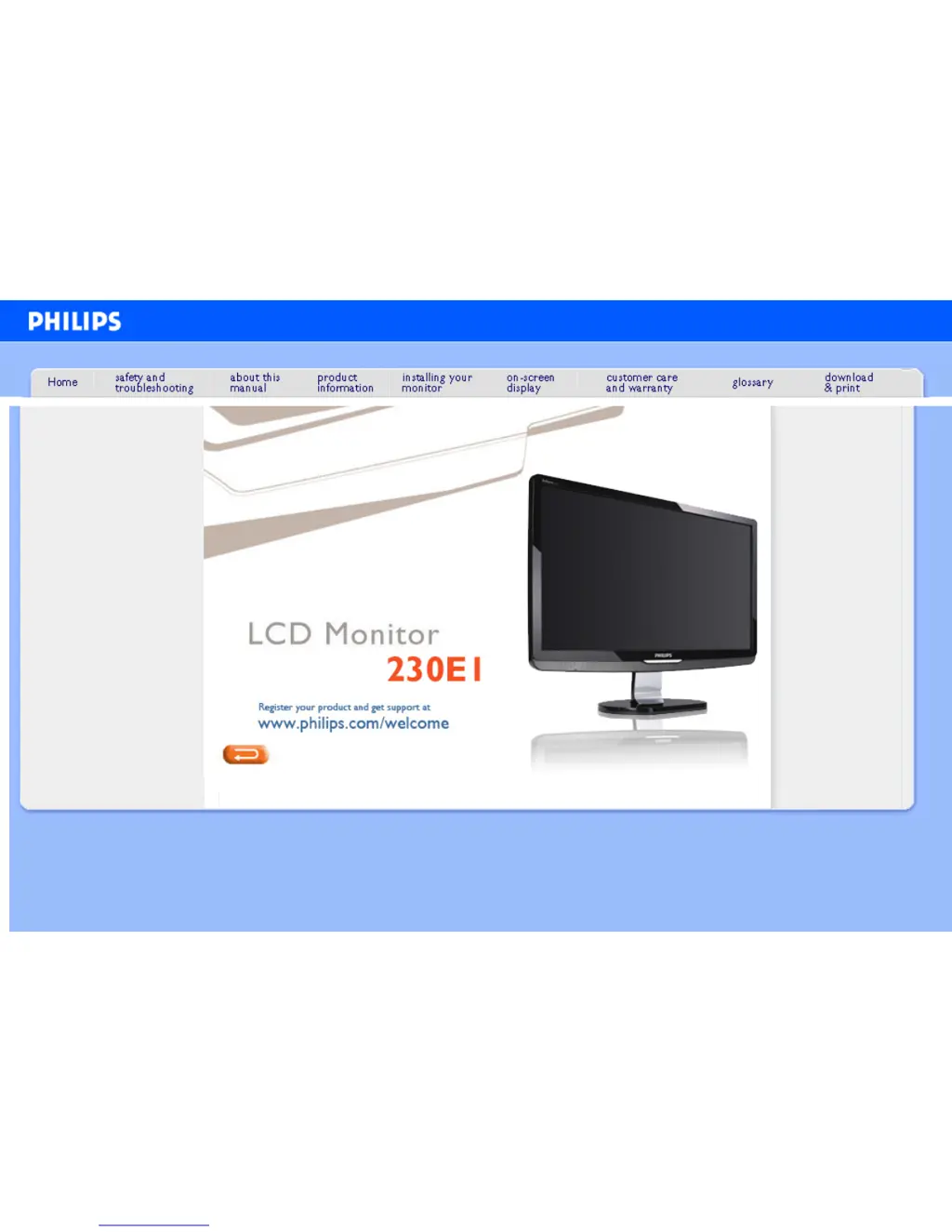
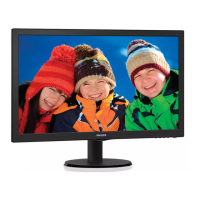
Philips 230E1HSB - User Manual

Philips 230E1HSB
126 pages
Print Icon
To Next Page IconTo Next Page
Loading...
e-Manual
Philips LCD Monitor Electronic User’s Manual
file:///D|/songaiyu/PHILIPS/230E1%20CD%20EDFU/Phililps%20230E1%20081228/lcd/manual/ENGLISH/PRODUCT/INDEX.HTM2008/12/28 下午 02:14:17

Other manuals for Philips 230E1HSB

Questions and Answers

  • C
    Christopher ReedAug 13, 2025
    What to do if my Philips 230E1HSB Monitor has no picture and the power LED is amber?
    • J
      James HayesAug 13, 2025
      If your Philips Monitor's power LED is amber or yellow but there's no picture, make sure the computer is turned on and the signal cable is properly connected. Also, check for bent pins on the monitor cable. The Energy Saving feature might also be activated.
  • A
    Andrew HayesAug 16, 2025
    How to fix a Philips 230E1HSB Monitor when there is no picture and the power LED is not lit?
    • A
      Angelica MendozaAug 16, 2025
      If your Philips Monitor shows no picture and the power LED is not lit, ensure the power cord is correctly plugged into both the power outlet and the back of the monitor. Also, check that the power button on the front of the monitor is in the ON position.
  • M
    mary53Aug 20, 2025
    Why is the AUTO button on my Philips 230E1HSB not working properly?
    • J
      Joseph BlackburnAug 20, 2025
      The AUTO button function is designed for standard Macintosh or IBM-compatible PCs running Microsoft Windows. It might not work correctly if you are using a nonstandard PC or video card. Also, make sure the computer is turned on.
  • L
    lindahouseAug 23, 2025
    How to fix incorrect display position on my Philips 230E1HSB?
    • D
      Dr. Jerry WalkerAug 23, 2025
      To correct an incorrect display position on your Philips Monitor, first, try pressing the Auto button. If that doesn't work, adjust the image position using the Phase/Clock settings in the OSD Main Controls.
  • D
    David OrtizAug 27, 2025
    What to do if my Philips Monitor screen says 'no signal'?
    • J
      Jon DyerAug 28, 2025
      If your Philips Monitor screen displays a 'no signal' message, ensure the monitor cable is properly connected to your computer. Also, check for any bent pins on the monitor cable and make sure the computer is turned on.
  • D
    Danny Johnson Jr.Aug 31, 2025
    What to do if the image vibrates on the screen of my Philips Monitor?
    • E
      elizabethsuttonAug 31, 2025
      If the image on your Philips Monitor vibrates, check that the signal cable is properly connected to the graphics board or PC.
  • P
    Patrick HernandezSep 3, 2025
    How to eliminate horizontal flicker on my Philips Monitor?
    • C
      cynthiahillSep 3, 2025
      To address horizontal flicker on your Philips Monitor, try pressing the Auto button. Additionally, you can attempt to eliminate the flicker using the Phase/Clock settings within the OSD Main Controls.
  • E
    Erin HarringtonSep 8, 2025
    How to get rid of vertical flicker on my Philips 230E1HSB?
    • S
      Scott ReyesSep 8, 2025
      To get rid of vertical flicker on your Philips Monitor, first, try pressing the Auto button. If the issue persists, use the Phase/Clock settings in the OSD Main Controls to eliminate the vertical bars.

Summary

Safety and Troubleshooting Information

Safety Precautions and Maintenance

Tips and solutions for common problems and other related information.

Troubleshooting

Solutions for common problems that can be corrected by the user.

Regulatory Information

Information regarding compliance and standards.

Other Related Information

Additional information for specific regions or topics.

About This Manual

About This Guide

Overview of the electronic user's guide and its contents.

Notational Descriptions

Explains icons and conventions used in the document.

Product Information

Your LCD monitor

Congratulations and overview of Philips support.

SmartImage

Presets for optimizing display for different content types.

SmartContrast

Technology for optimizing contrast ratio for visual clarity.

Technical Specifications

Detailed specifications of the LCD panel and scanning.

Resolution & Preset Modes

Maximum and recommended resolutions, and factory presets.

Philips Pixel Defect Policy

Policy on acceptable levels of pixel and sub-pixel defects.

SmartManage & SmartControl II

Software for managing and fine-tuning monitor settings.

Installing Your LCD Monitor

Front View Product Description

Description of the monitor's front view and controls.

Connecting to Your PC

Instructions for connecting the monitor to a computer.

The Base

Instructions for attaching and detaching the monitor base stand.

Getting Started

Procedures for installing the monitor driver for various Windows versions.

Optimizing Performance

Ensures optimal display settings for best performance.

On-Screen Display

Description of the On-Screen Display

Explains the OSD feature and its interface.

The OSD Tree

Overview of the On-Screen Display structure for adjustments.

Customer Care & Warranty

Your Philips F1 rst Choice Warranty

Details of the warranty coverage and service.

F1 rst Choice Contact Information

Contact details for warranty service by country.

Glossary

Active matrix

LCD structure with transistors at each pixel for control.

Aspect ratio

The width-to-height ratio of the active display area.

Color temperature

Measurement of the color of light radiated by an object.

Contrast

The luminance variation between light and dark areas in an image.

Refresh rate

The number of times per second the screen is refreshed or redrawn.

USB or Universal Serial Bus

A smart plug for PC peripherals that automatically determines resources.

Download and Print

Installing Your LCD monitor driver

System requirements and instructions for driver installation.

Printing Instructions

Steps to print the manual from an open file.

Philips 230E1HSB Specifications

Picture/Display IconPicture/Display
LCD panel typeTFT-LCD
Panel Size23 inch / 58.42 cm
Aspect ratio16:9
Pixel pitch0.265 x 0.265 mm
Viewing angle176º (H) / 170º (V), @ C/R > 5
Brightness300 cd/m²
SmartContrast25000:1
Response time (typical)5 ms
Optimum resolution1920 x 1080 @ 60Hz
Display colors16.7 M
Scanning Frequency30 - 83 kHz (H) / 56 - 76 Hz (V)
Connectivity IconConnectivity
Signal InputVGA (Analog ), DVI-D, HDMI
Sync InputSeparate Sync, Sync on Green
HDMI features480i, 480p, 576i, 576p, 720p, 1080i, 1080p (support HDCP)
Power IconPower
Power supplyBuilt-in, 100-240VAC, 50/60Hz
On mode power consumption<29.8W (EnergyStar 5.0 test method)
Off mode power consumption< 0.5 W
Operating Environment IconOperating Environment
Temperature range (operation)0 - 40 °C
Temperature range (storage)-20 - 60 °C
Relative humidity20 - 80 %
MTBF50, 000 hour(s)
Weight and Dimensions IconWeight and Dimensions
Product dimensions with stand547 x 433 x 201 mm
Product dimensions without stand351 x 547 x 68 mm
Packaging dimensions596 x 495 x 134 mm
Weight with stand5.6 kg
Weight without stand5.2 kg
Weight with packaging7.3 kg

Related product manuals