3. USB docking display
Introduction
If you are among the majority of the Notebook
users who do not have the convenience of a
docking station, then this USB docking display is
your best choice.
This USB docking display combines the power
of super speed USB 3.0 and standard USB 2.0
hub, along with ethernet connection and stereo
speakers. It allows you to connect your laptop
to this display with a single USB cable delivering
full HD video, digital audio and internet
browsing. It also offers you the convenience of
permanently attaching accessories like keyboard,
mouse or other peripherals to this display,
freeing up valuable USB ports for example on
your Ultrabook.
3.1 How to operate USB docking
display
DisplayLink Graphics Software Installation
In order to use your USB docking display,
DisplayLink Graphic software is required to be
installed in your windows system. This software
allows you to easily control your display
preferences. The driver is compatible with
Microsoft Windows 8, 7, Vista and XP. Please
note that this display will not work in DOS.
The installation procedure:
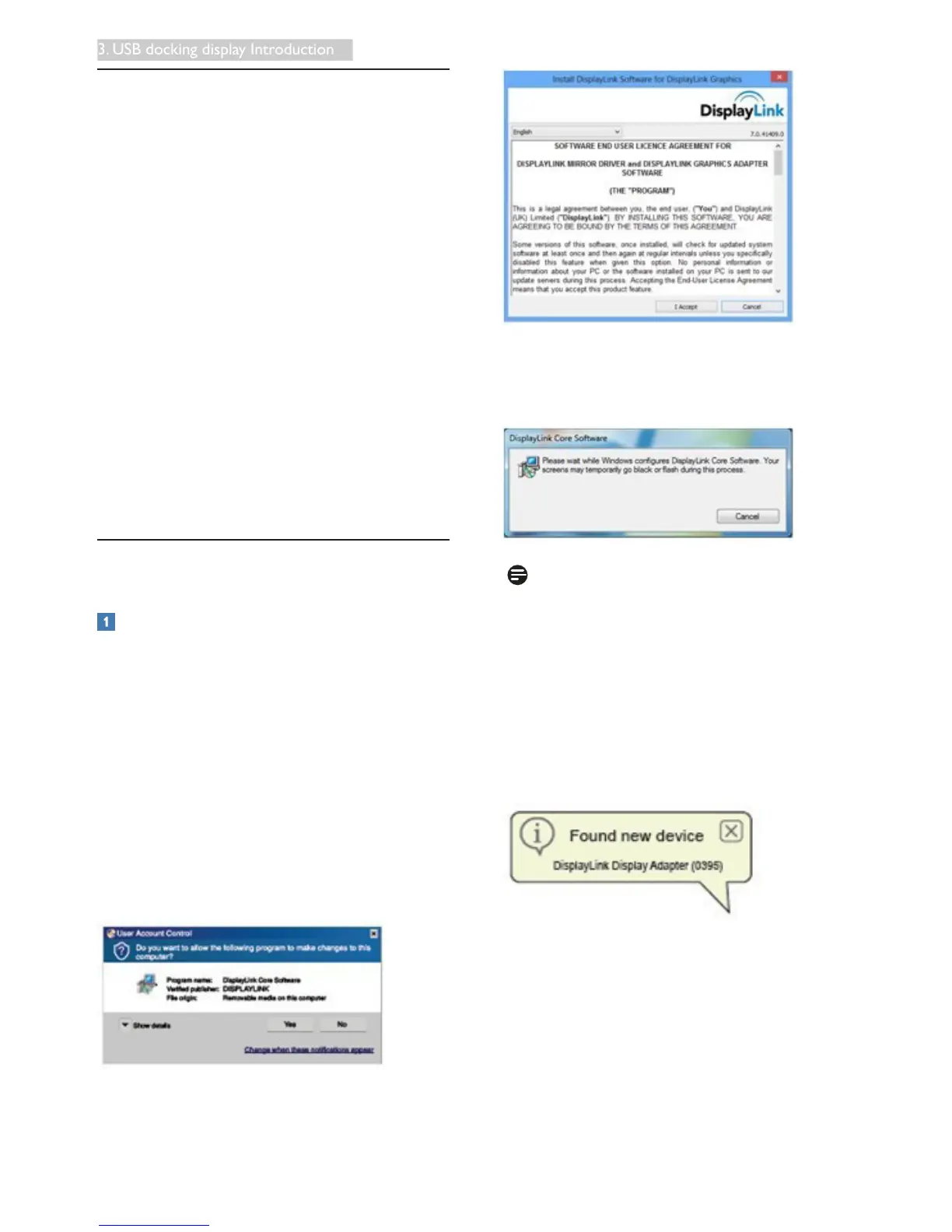
1. Double click Setup.exe le in CD disk
enclosed. Windows User Account Control
window will pop out. (if enabled in the OS)
2. Click Yes, then DisplayLink software end user
license agreement window opens.
3. Click I Accept, then software start to install
DisplayLink Core software and DisplayLink
Graphics installs.
Note
The screen may ash or go black during the
installation. The installation box above will
disappear but no message will be shown at the
end of the installation.
4. After the software is installed completely,
connect your USB display to your laptop with
USB cable and then below "Found new device"
will be shown on the taskbar.
5. When the device is found, then DisplayLink
Graphics will automatically install.
6. After the installation has completed, your
laptop will be required to reboot in order to
start using the USB docking display.
7. You will be able to see pictures on the USB
docking display after Windows completes boot
up process.



 To Next Page