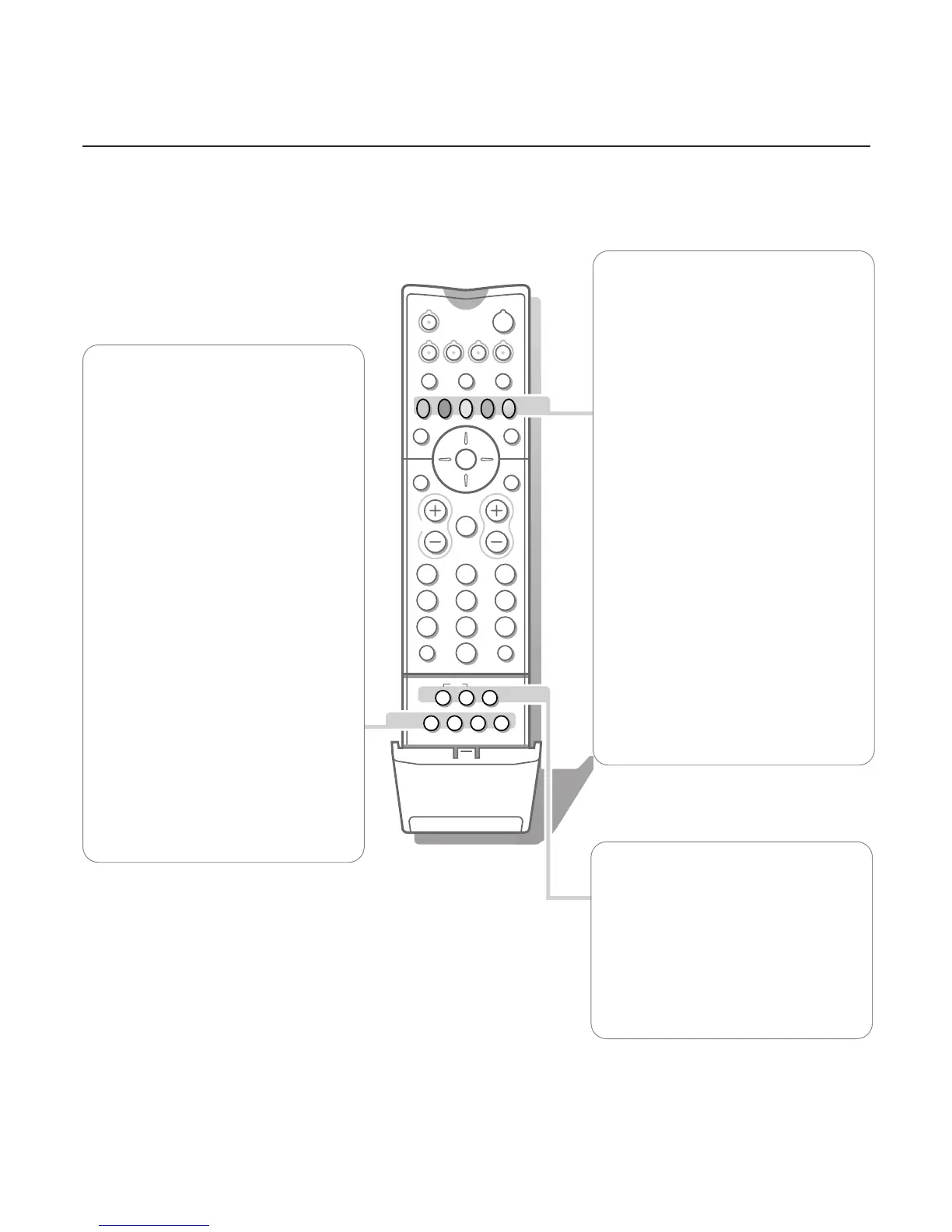
X Bilingual choice and
sound mode selection
Press this key
• to switch from
Stereo to Mono sound, in
case of stereo transmission, or from
Nicam Stereo to Nicam available, in case
of digital transmission;
• to choose between language Y (Dual Y) or
language Z (Dual Z), in case of bilingual
transmission.The setting is separately
stored for each TV channel.
® Instant record
If your video recorder has the EasyLink
function the
INSTANT ® key for record can
be operated in the TV mode.
q Picture format
Press this key to switch to a wide screen
format.
A black bar appears at the top and the
bottom of the screen.
P Dyn. Noise Reduction
To reduce the image noise and improve
picture quality when receiving weak signals.
Press the P key to select
Off, Minimum,
Medium or Maximum
.
Select TV channels by theme
If programmes in the TV guide of
NEXTVIEW
have defined themes, it is possible to quickly
select TV programmes with the coloured
keys.
& Press the red, green, yellow or blue key to
select one of the four predefined theme
categories
MOVIES, SPORTS, CHILDREN,
NEWS.
The TV switches to the first TV channel
broadcasting a programme of the selected
theme. At the same time a list of all the
TV channels currently transmitting a
programme of the selected theme appears
on the screen.
é Use the cursor up/down to select a
programme.
“ Press the same colour key again to
remove the list.
‘ Under the white key you can programme
your own theme category.
(Default; the theme category
Shows has
been preprogrammed in the factory.)
Press the cursor up and select a preferred
theme from the theme list with the cursor
left/right.
From now on the selected theme category
is stored under the white key.
A list of all the TV channels currently
transmitting a programme of the selected
theme appears on the screen.
U Time display
The time, downloaded from the TV channel
(with teletext) stored on programme number
1 or the lowest favourite programme
number, is displayed on the screen.
This function is not available when continuous
subtitles have been switched on.
Ufh Teletext functions
see p. 24




 To Next Page