15
English
Summary of picture settings
The following picture settings can be confi gured. Depending on the
format of the picture source, some picture settings are not available.
• [Auto Picture]: Sets all picture settings to the factory default.
• [Brightness]: Adjusts the intensity and details of dark areas.
• [Contrast]: Adjusts the intensity of bright areas, keeping dark areas
unchanged.
• [Color]: Adjusts color saturation.
• [Tint]: Adjusts the color balance in an image.
• [Sharpness]: Adjusts the level of sharpness in image details.
• [Color Temperature]: To set the color temperature to [Normal],
[Warm] or [Cool].
Changing auto picture mode
1 Press AUTO PIC to set your TV to a predefi ned picture setting.
2 Press or to select one of the following settings:
• [Personal]: The customized settings you defi ned by using the
[Picture] menu.
• [Standard]: For normal TV viewing.
• [Sports]: Vivid picture settings for high action.
• [Movie]: Brilliant picture settings for a cinematic experience.
• [Game]: Optimized for PCs, games consoles and playstations.
6 Use more of your TV
Changing picture and sound settings
You must set [Home] in [Location] (refer to page 21).
Otherwise, the settings you adjusted will not be memorized after you
turn off the unit.
Changing picture settings
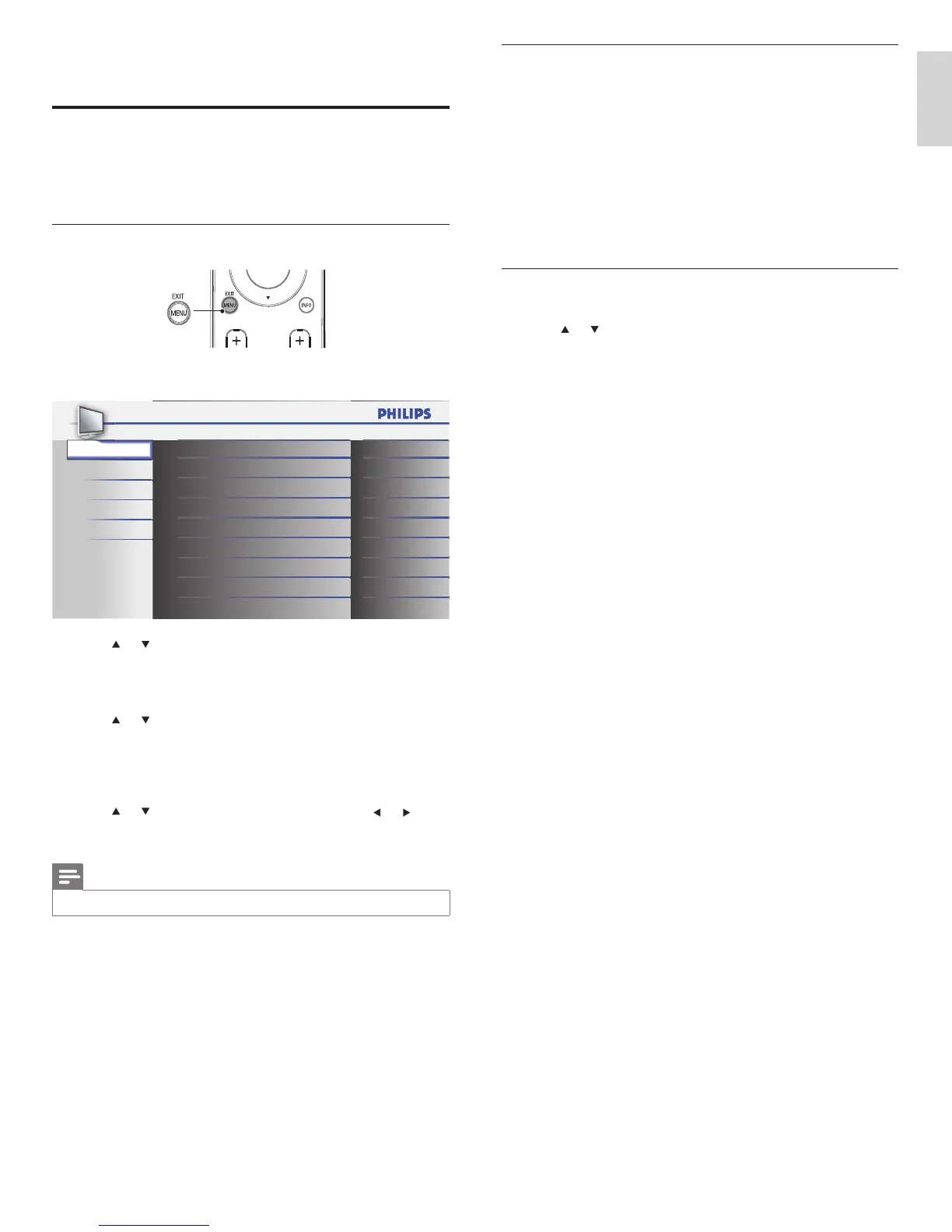
1 Press MENU on the remote control.
2 Press OK to enter the [Picture].
Sound
Setup
Features
Language
Tint
Sharpness
Brightness
Contrast
Color
Color Temperature
Auto Picture
Settings assistant
0
0
30
60
36
Normal
Personal
Picture
3 Press or to select one of the picture settings, and press OK to
enter the setting.
4 Adjust the picture quality.
[Auto Picture]
Press
or to select the desired setting, then press OK.
([Personal], [Standard], [Sports], [Movie] and [Game])
[Brightness], [Contrast], [Color], [Tint], [Sharpness],
[Color Temperature]
Press
or to select the desired setting, then Press or to
adjust.
5 Press MENU to exit.
Note
• To cancel picture adjustment, press MENU.
EN



 To Next Page