20 EN
Enabling or disabling EasyLink
Once an HDMI-CEC compatible device has
been switched on, the TV will automatically turn
on and switch to the correct signal source.
Note
•
Do not enable this function if you would prefer not to
use Philips EasyLink.
1 Press (Home) and select [Setting] to
enter the [Setting] menu.
2 Press to select [EasyLink] >
[HDMI CEC].
3 Select [Off] or [On], then press OK.
Using One-touch Play
1 Once EasyLink has been enabled, press
play on the device.
» The TV will automatically switch to the
correct signal source.
Using One-touch Standby
1 Press (Standby/On) on the remote control.
» The TV and all connected HDMI
devices will automatically enter standby
mode.
• Press to select [Settings] >
[Picture Format].
• Select a picture format.
• Press OK to conrm.
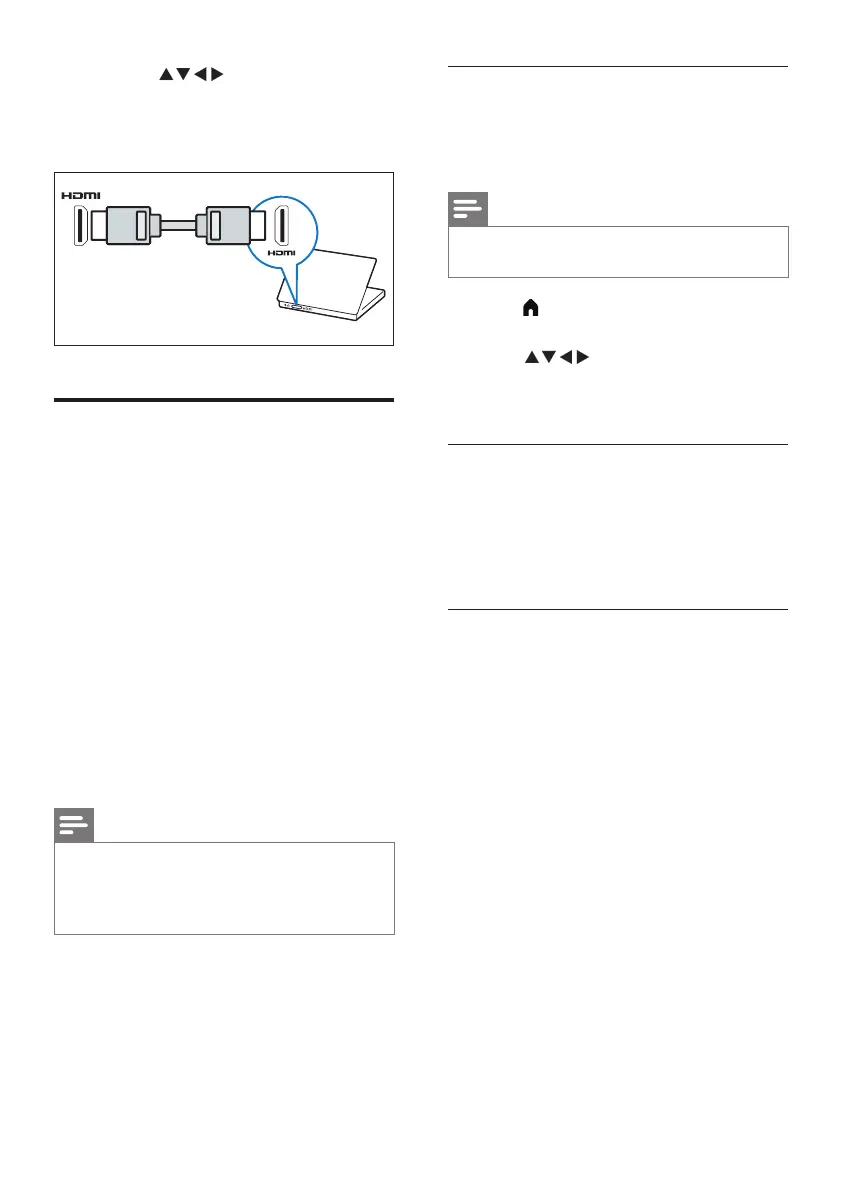
Using Philips EasyLink
Making full use of your Philips EasyLink HDMI-
CEC compatible devices can enhance control
features to achieve the best possible results.
HDMI-CEC compatible devices connected
through the HDMI connector can be controlled
by a TV remote control.
To enable Philips EasyLink, you will need to:
• Connect two or more HDMI-CEC
compatible devices using HDMI
connections.
• Make sure that each HDMI-CEC
compatible device is operating normally.
• Switch to EasyLink.
Note
•
EasyLink compatible devices must be switched on and
selected as a signal source.
•
Philips does not guarantee 100% interoperability with
all HDMI-CEC devices.



 To Next Page
 Loading...