Controlling other devices through CEC
Consumer Electronics Control (CEC) enables your TV and other CEC-
compatible home entertainment devices to control one another in
various ways. First, the CEC-compatible devices must “discover” one
another and report their capabilities. After this, one device can control
another according to the features you enable. For example, playing
a disc on a Blu-ray
™
player could switch the TV to the Blu-ray
™
player’s
input. Or, powering off the TV could also power off the Blu-ray
™
player
and the home theater receiver.
Discover connected CEC devices
To discover CEC devices:
1
Make sure that your CEC-compatible devices are connected to
the TV with a suitable High Speed HDMI
®
Cable that supports
HDMI
®
ARC and CEC control.
2
Turn on each device and make sure all devices are CEC enabled.
Tip(s)
●
Some manufacturers have their own branded names for CEC
functionality, so you might need to read the product
documentation to correctly identify the CEC features of the
device.
3
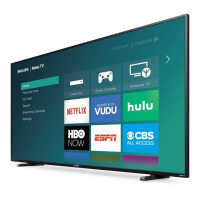
On the TV’s Home screen menu, navigate to Settings
> System >
Control other devices (CEC) and then select Search for CEC
devices. Press
OK
to repeat the discovery process, if necessary.
When finished, the TV displays a list of CEC devices that are
connected to each HDMI
®
input, as well as any devices that had
previously been connected. The TV remembers the names of multiple
CEC devices even when they are no longer connected. If the list is
longer than the allowed space, press A to see a complete list in a
scrollable window.
Enable HDMI
®
ARC
HDMI
®
ARC is the audio return channel that is available on one of the
TV’s HDMI
®
ports. The audio return channel enables you to send a
Dolby Audio
™
signal back to a home theater receiver that is also
sending an audio and video signal into the TV. Using HDMI
®
ARC
reduces the number of cables needed and optionally lets you control
the volume and mute state of the receiver by enabling system audio
control.
HDMI
®
ARC is disabled by default.To enable or disable system audio
control, in the Home screen menu, navigate to Settings > System >
Control other devices (CEC) and highlight System audio control. Press
OK to enable or disable the feature.
Note(s)
●
Enabling HDMI ARC also enables System audio control. After enabling
HDMI ARC, you can disable System audio control if you prefer.
Enable system audio control
System audio control enables the TV remote to change the volume
and mute state of an amplifier or sound bar connected through
HDMI
®
, and to display the external device’s volume and mute status
in the TV’s on-screen display.
The TV automatically turns off its internal speakers and sends volume
and mute control signals to an external amplifier when all of the
following are true:
●
System audio control is enabled on the TV.
●
The TV is connected to a CEC-compatible amplifier, it is powered
on, and CEC discoverability is enabled.
●
The CEC-compatible amplifier’s HDMI
®
ARC connector is
connected to the TV’s HDMI ARC connector with a suitable HDMI
®
cable.
When the CEC-compatible amplifier is off, the TV automatically turns
on its speakers (unless you have turned them off as described in
Turning off the TV speakers for home theater use L p. 55) and
resumes local control of volume and mute state.
To enable or disable system audio control, in the Home screen menu,
navigate to Settings > System > Control other devices (CEC) and
highlight System audio control. Press OK to enable or disable the
feature.
Enable 1-touch play
1-touch play enables a device to control which TV input is active. For
example, pressing Play on your Blu-ray
™
player switches the TV to
the Blu-ray
™
input.
1-touch play is disabled by default. To enable 1-touch play, in the
Home screen menu, navigate to Settings > System > Control other
devices (CEC) and highlight 1-touch play. Press OK to enable or
disable the feature.
Enable system standby
The system standby feature causes other devices to power off when
you power off your TV. Depending on the CEC System Standby
implementation, it also might enable connected devices to power off
your TV when you power off the device.
System standby is disabled by default. To enable system standby, in
the Home screen menu, navigate to Settings > System > Control
other devices (CEC) and highlight System standby. Press OK to
enable or disable the feature.
Restarting the TV
You can restart the TV when necessary. Restarting has the same effect
as unplugging the TV power and then plugging it in again.
To restart the TV, navigate to Settings > System > Power, and then
select System restart. Highlight Restart, and then press OK to confirm
restart.
While the TV restarts, the screen goes dark for a few seconds, and then
displays the startup screen for a few more seconds. When the restart
operation completes, the TV displays the activity you selected in
Power on settings L p. 47.
56 .English






 To Next Page