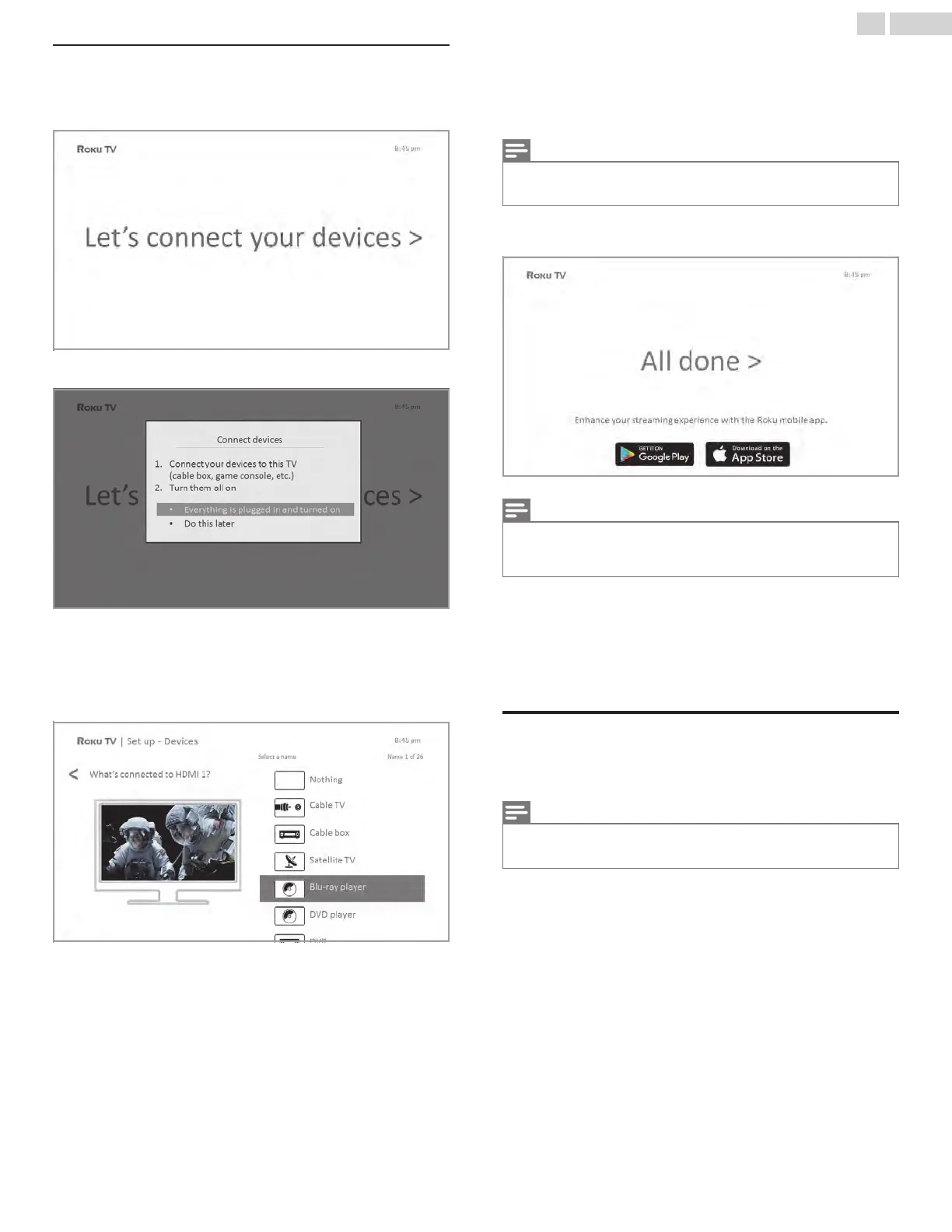
Connect your devices
Next, Guided Setup helps you set up the external devices that you
want to use with it, such as a cable box, Blu-ray
™
player, or game
console.
11
Press OK or the Right arrow to proceed:
12
Connect all the devices you plan to use with your TV, turn them
all on, and then select Everything is plugged in and turned on.
The TV now takes you step by step through each of its inputs and
asks what kind of device you have connected. On each input that
has a connected and active device, you can see its picture and
hear its sound.
13
Press the Up or Down arrows to highlight the label you want to
associate with the input. If you are not using the input, select
Nothing, and the input won’t appear on the Home screen.
14
While setting up your devices, rather than using the predefined
names and icons, you can set a custom name and icon. To do so,
scroll up or down to highlight Set custom name & icon, and then
press OK. Follow the instructions on the screen to enter a name
and select an icon for the input. See Rename inputs L p. 45.
Note(s)
●
If you have renamed the inputs, you cannot use voice commands to switch
inputs. Voice commands can only switch among inputs that have their
original names, such as “AV,” and “HDMI 1.”
15
Repeat the previous step for each input.
You’re done with Guided Setup.
Note(s)
●
Some Roku TVs, depending on where you live and other factors, show you
an introductory video filled with some great hints and tips. If you’re not
interested in viewing this video, press
8
on the remote to return to the Roku
TV Home screen.
Whenever you press 8 on the remote, the Home screen greets you.
From here, you can explore everything your TV has to offer. Press the
arrow keys to move around, and press OK to select a highlighted item.
We’ve designed the TV to encourage you to explore, and you can
probably figure out most of the capabilities and settings on your own.
If you have any questions or difficulties, you can find answers and
solutions in this guide.
Home screen
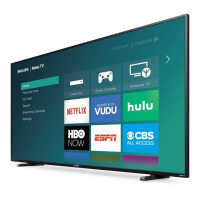
The following illustrations show typical Home screens, which vary
depending on location, connected mode, selected theme, number of
TV inputs enabled, and streaming channels and apps added.
Note(s)
●
A paid subscription or other payments may be required for some channel
content. Channel availability is subject to change and varies by country. Not
all content is available in countries or regions where Roku
®
products are sold.
19 .English



 To Next Page