BDL4330QL
16
4.5. Play options
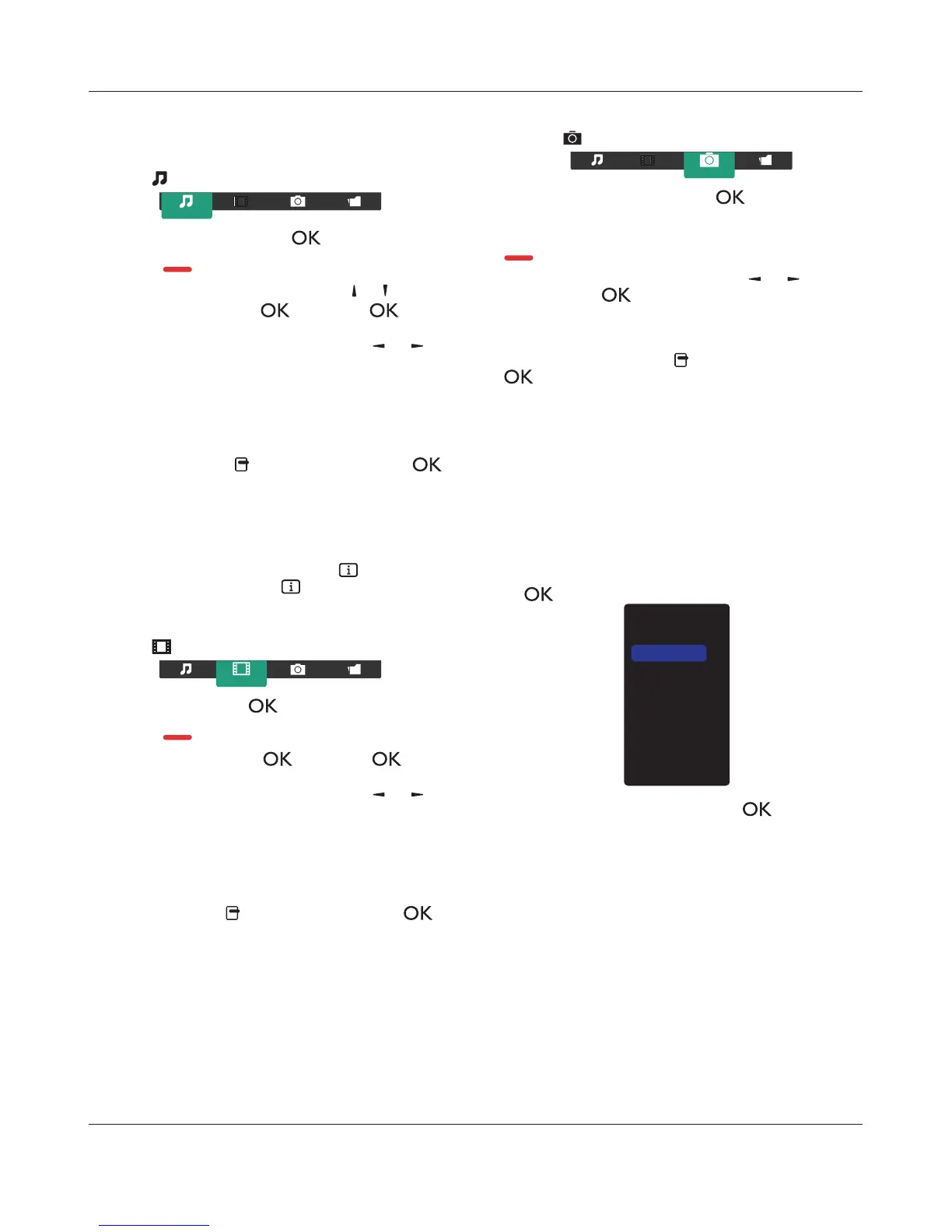
4.5.1. Playing music files
1. Choose
Music
in the top bar.
Music
2. Choose one music track, and press [ ] button.
7RSOD\DOOWKHWUDFNVLQDIROGHUFKRRVHRQHPXVLFÀOH7KHQ
press [
] to
Play All
.
To skip to the next or previous track, press [
] or [ ] button.
To pause the track, press [
] button. Press [ ] button
again to resume playback.
To skip backward or forward 10 seconds, press [
] or [ ]
button.
To search backward or forward, press [
G
]
or
[
J
] button,
press repeatedly to toggle between different speeds.
To stop the music, press [
H
] button.
Music options
While you play music, press [ ] OPTIONS button, then press [ ]
button to choose an option:
{6KXIÁH}: Enable or disable random play of tracks.
{Repeat}: Choose {Repeat} to play a track or an album repeatedly,
or choose {3OD\RQFH} to play a track once.
NOTE: To view information about a song (for example, title, artist or
duration), choose the song, then press [
] INFO button. To
hide the information, press [
] INFO button again.
4.5.2. Playing movie files
1. Choose
Movie
in the top bar.
Movie
2. Choose a video, and press [ ] button.
7RSOD\DOOWKHYLGHRVLQDIROGHUFKRRVHRQHYLGHRÀOH7KHQ
press [
] to
Play All
.
To pause the video, press [
] button. Press [ ] button
again to resume playback.
To skip backward or forward 10 seconds, press [
] or [ ]
button.
To search backward or forward, press [
G
]
or
[
J
] button,
press repeatedly to toggle between different speeds.
To stop the video, press [
H
] button.
Movie options
While playing video, press [ ] OPTIONS button, then press [ ]
button to choose an option:
{6XEWLWOHV}: Choose the available subtitle settings.
{6XEWLWOHODQJXDJH}: Choose the language for subtitles if available.
{6KXIÁH`(QDEOHRUGLVDEOHUDQGRPSOD\RIYLGHRÀOHV
{Repeat}: Choose {Repeat`WRSOD\WKHYLGHRÀOHUHSHDWHGO\RU
{3OD\ once`WRSOD\WKHYLGHRÀOHRQFH
{Status}: To view information about a video (for example, played
position, duration, title, or date).
4.5.3. Playing photo files
1. Choose
Photo
in the top bar.
Photo
2. Choose a photo thumbnail, then press ] button.
Start a slideshow
If there are multiple photos in a folder, choose a photo. Then, press
[
] to
Play All
.
To skip to the previous or next photo, press [
] or [ ] button,
and then press [
] button.
To stop the slideshow, press [
H
] button.
Slideshow options
While you play a slideshow, press [ ] OPTIONS button, then press
[
] button to choose an option:
{6KXIÁH}: Enable or disable random display of pictures in the
slideshow.
{Repeat}: Choose {Repeat} to watch a slideshow repeatedly or
{3OD\RQFH} to watch once.
{6OLGHVKRZ7LPH}: Choose the displaying time for each photo in the
slideshow.
{Slideshow Transitions}: Choose the transition from one photo to
the next.
4.6. How to use Opera browser (HTML5)
1. Press Source button, and choose
Internet
and press
[
] button.
USB
Network
Internet
SmartCMS
CVBS
YPbPr
VGA
HDMI
DVI-D
2. Move the cursor to URL address bar. Press [ ] button and it
will pop out the on-screen keyboard. You can move the cursor to
HQWHUWKH85/DGGUHVV$IWHUÀQLVKLQJWKH85/DGGUHVVFKRRVH
Done
.







 To Next Page