15
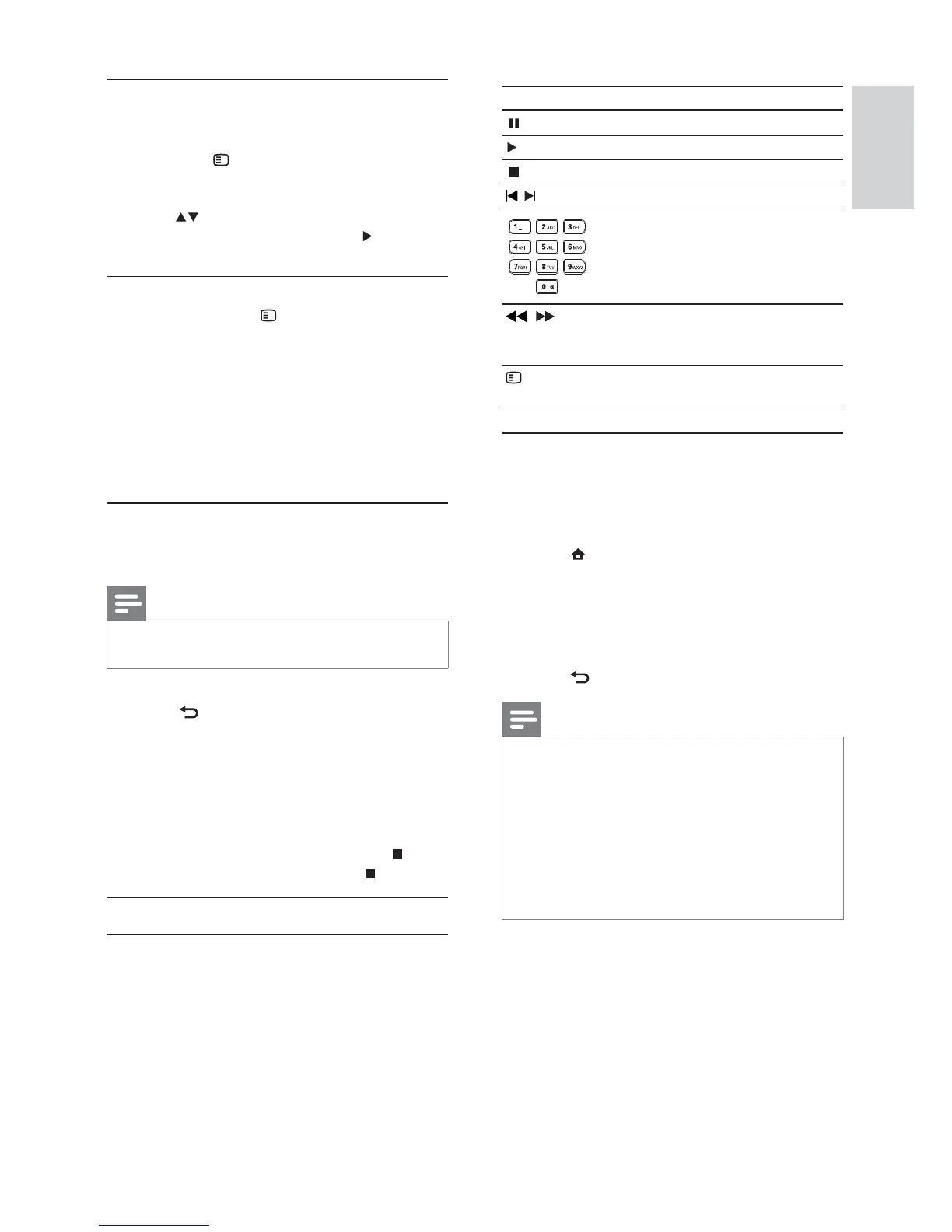
Button Action
Pause play.
Start or resume play.
Stop play.
/
Skip to a previous/next track.
Select an item to play.
/
Search fast-backward or fast-
forward. Press repeatedly to
change the search speed.
OPTIONS
Access the repeat or shuffle
play mode.
Play MP3/WMA music
MP3/WMA is a type of compressed audio file (files
with .mp3, .wma extensions).
1 Insert a disc or USB device that contains the
MP3/WMA music.
2 Press , select [play Disc] or [browse USB],
and then press OK.
A contents menu is displayed. »
3 Select a music folder, and press OK.
4 Select a file to play, and press OK.
To return to the main menu, press •
BACK.
Note
For disc recorded in multiple sessions, only the first •
session is played.
For a WMA file that is protected by Digital Rights
•
Management (DRM), it cannot be played on this product.
This product does not support MP3PRO audio format.
•
For any special character that is present in the MP3 track •
name (ID3) or album name, it might not be displayed
correctly on the screen because these characters are not
supported.
Folders/files that exceed the supported limit of this
•
product cannot be displayed or played.
Control photo play
1
Play a photo slideshow.
2 Use the remote control to control the play.
Press •
OPTIONS to access play
options, select an option, and press OK.
During slideshow play, you may also press •
to flip a photo horizontally/vertically.
If the slideshow stops, press •
to
continue play.
Set slideshow interval and animation
1
During play, press OPTIONS.
The play options menu is displayed. »
2 Select [Duration per slide] in the menu, and
press OK.
3 Select a duration, and press OK.
4 Select [Slide Animation] in the menu, and
press OK.
5 Select a type of animation effect, and press
OK.
Play musical slideshow
Create a musical slideshow to play simultaneously
MP3/WMA music files and JPEG photo files.
Note
To create a musical slideshow, you must store the MP3/ •
WMA and JPEG files on the same disc or USB device.
1 Play MP3/WMA music.
2 Press BACK to return to the main menu.
3 Navigate to enter a photo folder, and press
OK to start slideshow play.
Slideshow begins and continues till the end »
of the photo folder.
Audio continues to play until the end of »
the disc.
To stop the slideshow play, press•
.
To stop the music play, press•
again.
Play music
Control a track
1
Play a track.
2 Use the remote control to control the play.
English
EN


 To Next Page