7EN
2 Change
settings
This section helps you change the
settings of this player.
Note
•
You cannot change a menu option that is
grayed out.
• To return to the previous menu, press .
To exit the menu, press .
Picture
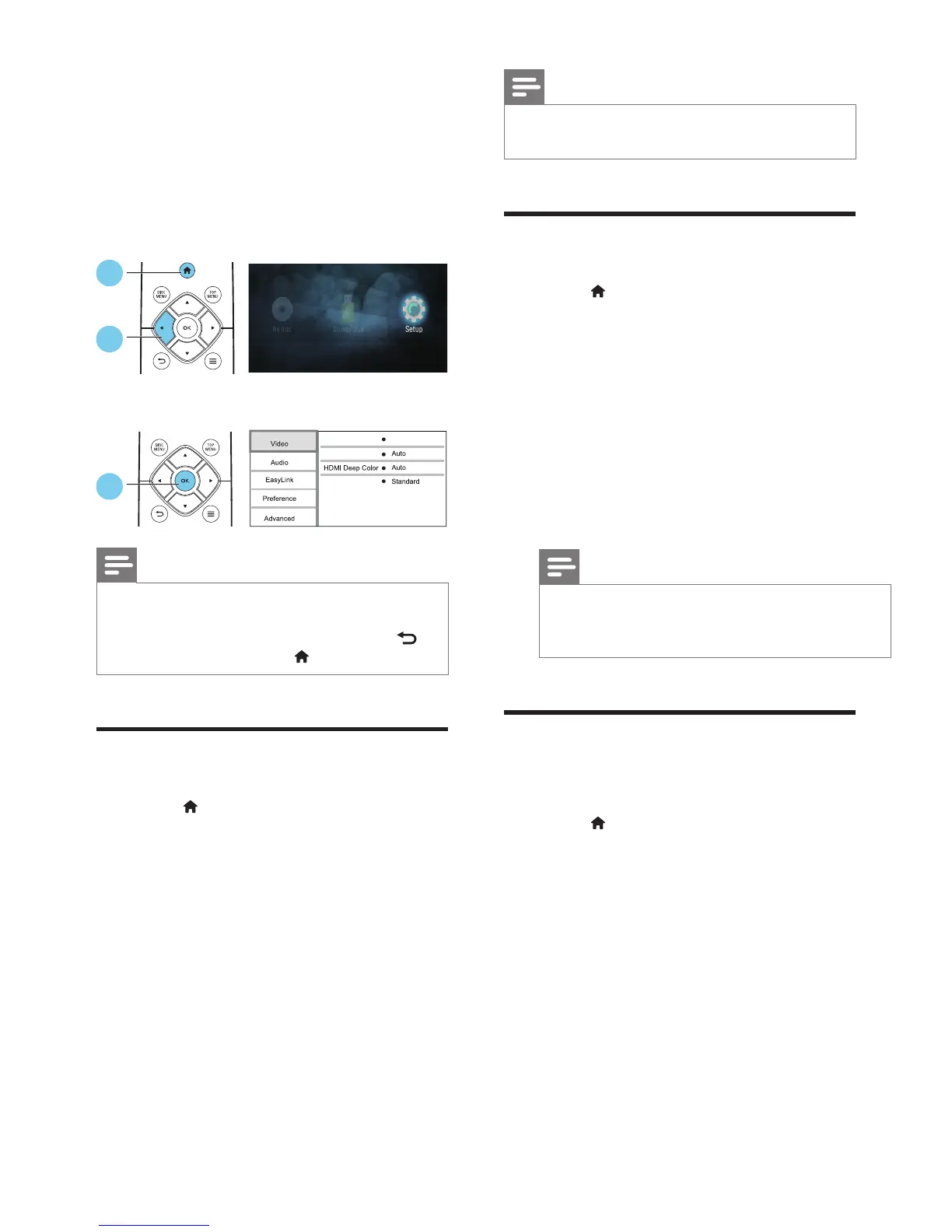
1
Press .
2 Select [Setup] > [Video] to access
the video setup options.
• [TV display]: Select a picture display
format to t the TV screen.
• [HDMI video]: Select an HDMI video
resolution.
• [HDMI Deep Color]: Display colors
with more shades and hues when
the video content is recorded in
Deep Color and the TV supports this
feature.
• [Picture settings]: Select a
predened color setting.
1
3
2
3
TV display
HDMI video
16:9 Widescreen
Picture settings
Note
•
If you change a setting, make sure that the
TV supports the new setting.
Sound
1
Press .
2 Select [Setup] > [Audio] to access
the audio setup options.
• [Night mode]: Select quiet or
full dynamic sound. Night mode
decreases the volume of loud
sound and increases the volume of
soft sound (such as speech).
• [HDMI audio]: Set an HDMI
audio format when this player is
connected through HDMI.
Note
•
Night mode is only available for Dolby®
TrueHD / Dolby® Digital Plus encoded DVD
and Blu-ray discs.
Preference (languages,
parental control...)
1
Press .
2 Select [Setup] > [Preference]
to access the preference setup
options.
• [Menu language]: Select an
onscreen display menu language.
• [Audio]: Select an audio language
for video.
• [Subtitle]: Select a subtitle language
for video.
• [Disc menu]: Select a menu
language for a video disc.



 To Next Page