14 EN
Set up Karaoke via the Karaoke menu
• [Microphone]: Turn on or off microphone
sound output.
• [Microphone volume]: Change the
microphone volume.
• [Echo]: Change the echo level.
• [Key]: Change the pitch level that matches
your voice.
Original vocal for Karaoke
Press repeatedly AUDIO on the remote
control until the original vocal is turned off.
Complete cancelation of the original vocal is
disc dependent.
Set up a network
Connect this player to a computer network and
the Internet to access the services:
• Browse PC (DLNA): play photos, music,
and video les streamed from your
computer.
• Internet services: access online services,
such as pictures, music and video stores.
• Update software: update the software of
this player via the Internet.
• BD-Live: access online bonus features
(applicable to Blu-ray discs that are BD-
Live enabled).
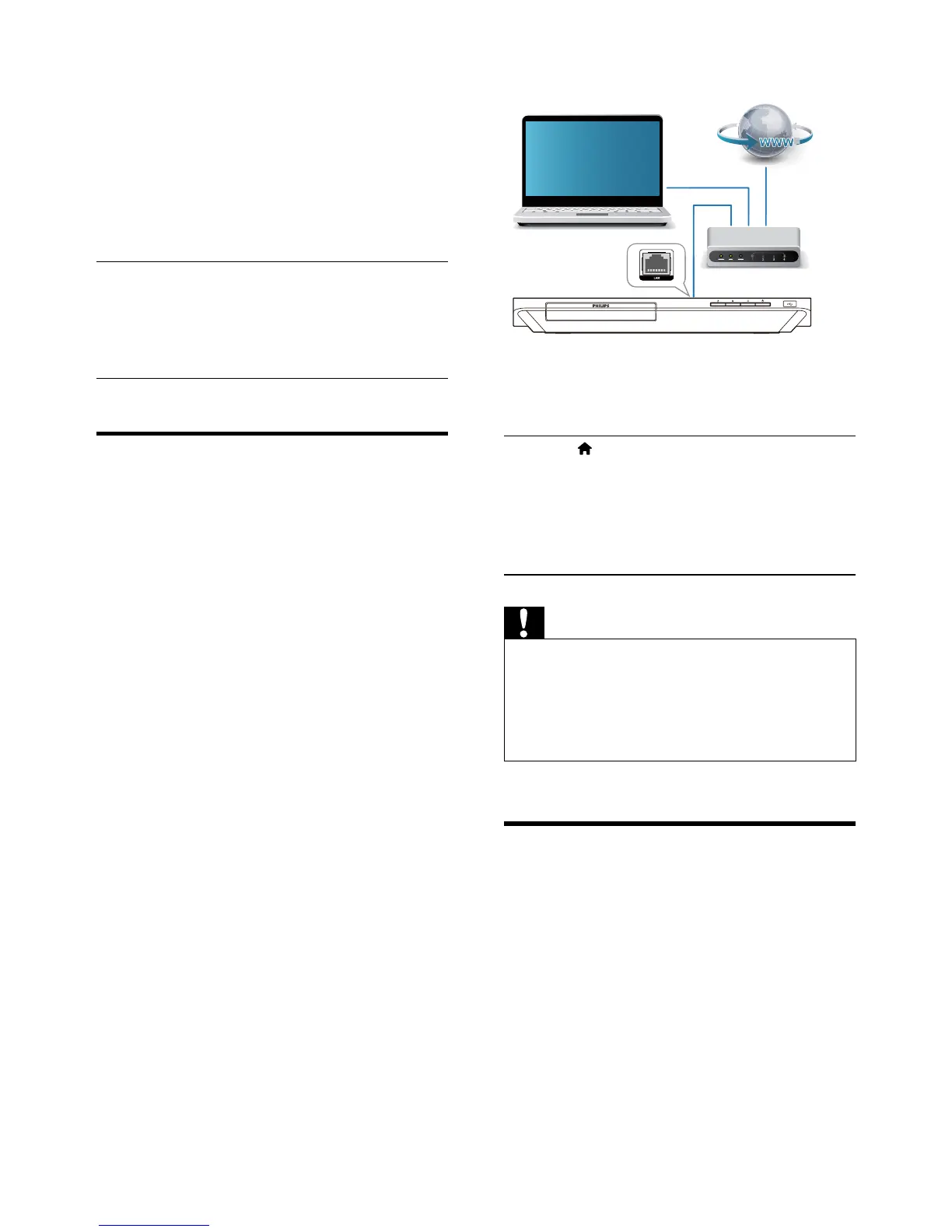
1 Connect this player to a computer
network and the Internet, through wired
(Ethernet) or wireless connection.
• For wired connection, connect a
network cable (not supplied) to the
LAN port on the back panel of this
player.
2 Perform the network installation.
1) Press .
2) Select [Setup], and press OK.
3) Select [Network] > [Network
installation], and press OK.
4) Follow the instructions on the TV screen to
complete the installation.
Caution
•
Before you connect to a network, familiarize yourself
with the network router, media server software for
DLNA, and networking principles. If necessary, read
documentation accompanying network components.
Philips is not responsible for lost, damaged, or corrupt
data.
Browse PC through DLNA
Through this player, you can stream and play
video, music and photo from a computer on
your TV.
Before you start
• On your PC, install a DLNA-compliant
media server application (such as Windows
Media Player 11 or higher)
• On your PC, enable media sharing and le
sharing (see the "Help" document in the
media server application)
PC (DLNA)



 To Next Page