4
EN
• [Information]: Display picture information.
• [Duration per slide]: Set a display interval
for a slideshow.
• [Slide animation]: Select a transition effect
for a slideshow.
• [Picture settings]: Select the most
optimum picture setting (powered by
CinemaPerfect HD).
• [Repeat]: Repeat a selected folder.
• [2D to 3D]: Convert instantly a 2D picture
to be viewed in 3D effect.
Audio options
Press repeatedly to cycle through the
following options.
• Repeat the current track.
• Repeat all the tracks on the disc or folder.
• Play audio tracks in a random loop.
• Turn off a repeat mode.
DivX videos
You can play DivX videos from a disc, a USB
storage device, or an online video store (see
"Rent online videos).
VOD code for DivX
• Before you purchase DivX videos and play
them on this player, register this player on
www.divx.com using the DivX VOD code.
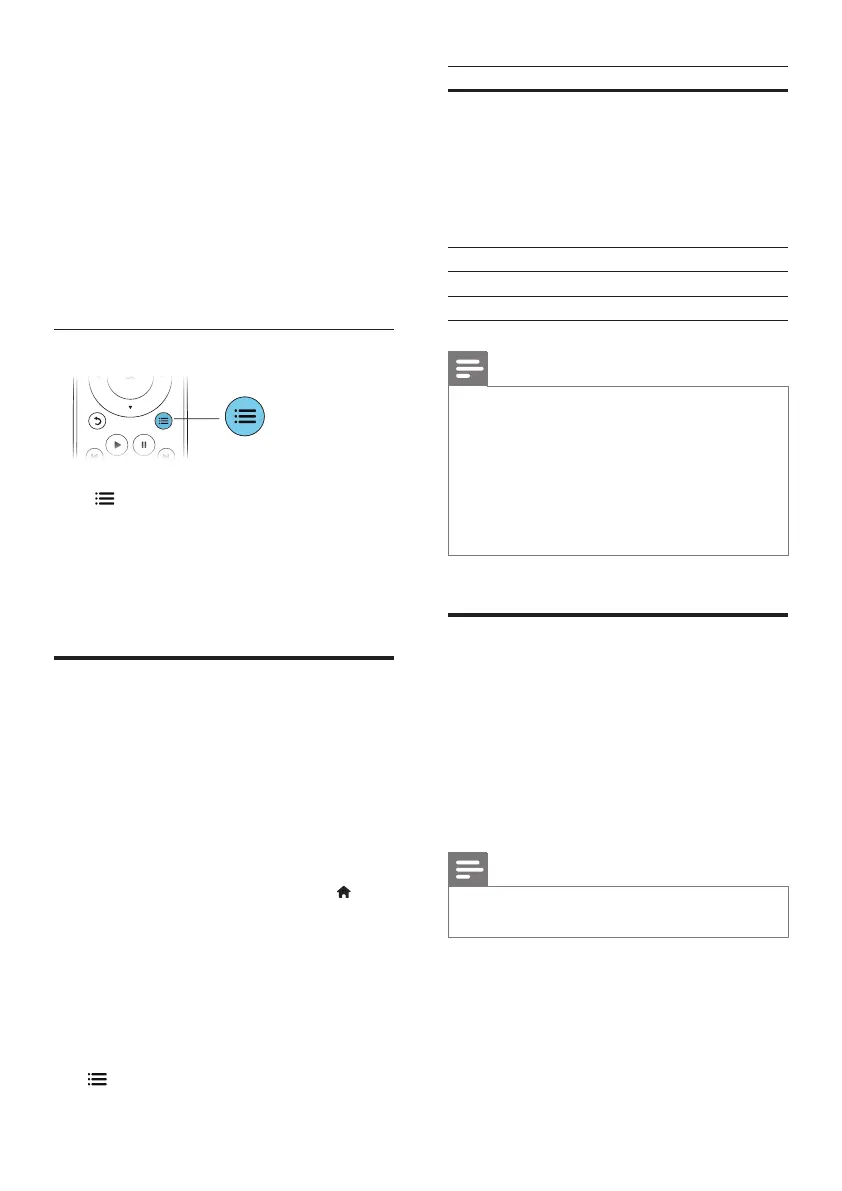
• Display the DivX VOD code: press
, and
select [Setup] > [Advanced] > [DivX
®
VOD Code].
DivX subtitles
• Press SUBTITLE to select a language.
• If the subtitle is not displayed correctly,
change the character set that supports the
DivX subtitle. Select a character set: press
, and select [Character set].
Character set Languages
[Standard] English, Albanian,
Danish, Dutch,
Finnish, French, Gaelic,
German, Italian, Kurdish
(Latin), Norwegian,
Portuguese, Spanish,
Swedish and Turkish
[Chinese] Simplied Chinese
[Chinese-Traditional] Traditional Chinese
[Korean] English and Korean
Note
•
To play DivX DRM protected les from a USB storage
device, or an online video store, connect this player to a
TV through HDMI.
• To use the subtitles, make sure that the subtitle le
has the same name as the DivX video le name. For
example, if the DivX video le is named “movie.avi",
save the subtitle le as “movie.srt”, or “movie.sub”.
• This player can play subtitle les in the following
formats: .srt, .sub, .txt, .ssa, and .smi.
RMVB or RM les
You can play RMVB or RM les from a disc or a
USB storage device.
An Real Media Variable Bitrate (RMVB) and
RealMedia (RM) le contains both audio and
video. You can copy an RMVB or RM le from
your computer onto a recordable disc or USB
storage device. And play them from this player.
Note
•
Make sure that the le extension must be ".RMVB" or
".RM".
BDP7750_96_UM_V4.0.indb 4 2016/4/28 17:35:25


 To Next Page