2.2 Operating the monitor
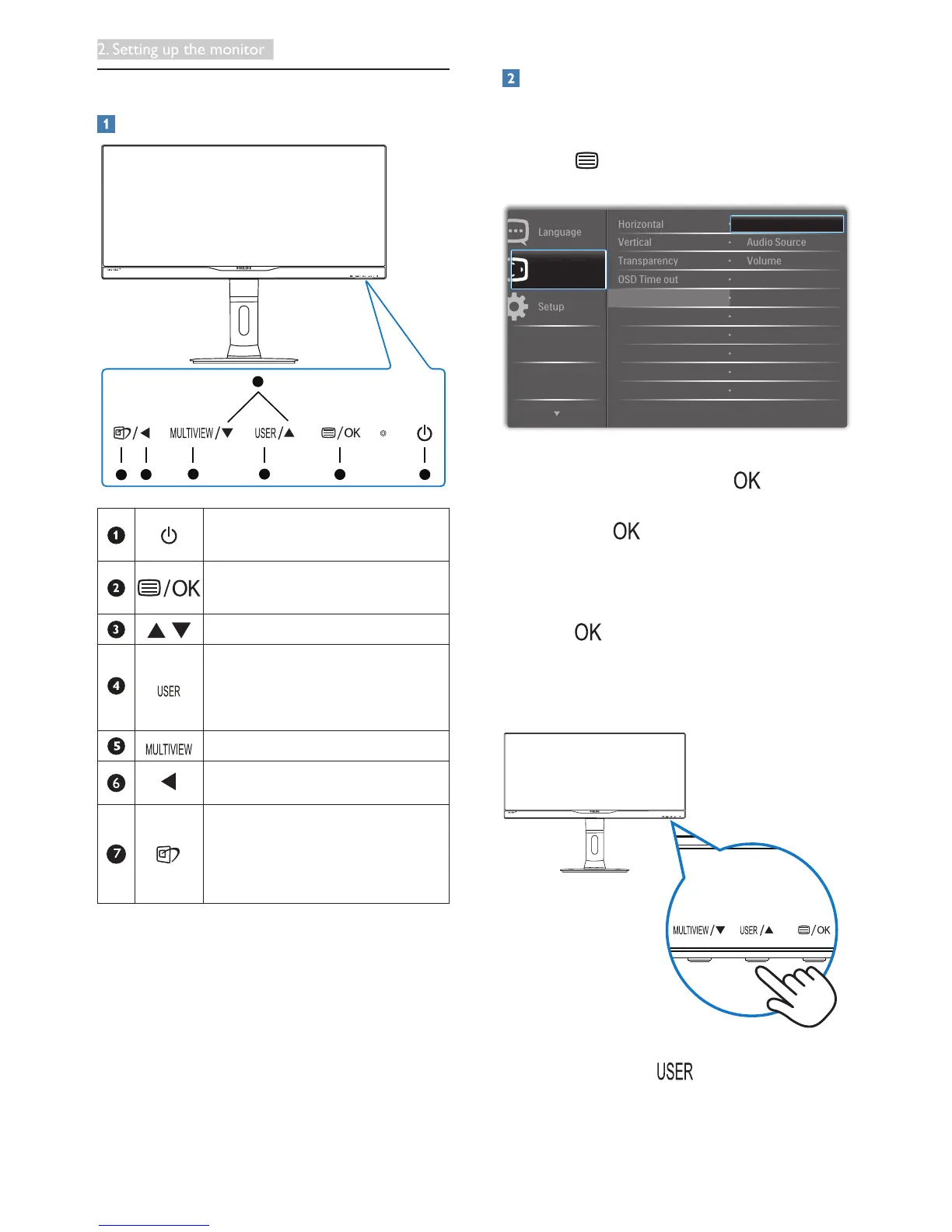
Description of the control buttons
5 4
3
2
1
7
6
Switch monitor’s power ON or
OFF.
Access the OSD menu
.
ConrmtheOSDadjustment.
Adjust the OSD menu.
User preference key. Customize
your own preference function
from OSD to become the “user
key”.
PiP/PbP/Off/Swap
Return to previous OSD level.
SmartImage hot key. There
are7modestoselect:Ofce,
Photo, Movie, Game, Economy,
SmartUniformity, Off.
Customize your own “USER” key
This hot key allows you to setup your favorite
function key.
1. Press button on the front bezel to
enter OSD Menu Screen.
2. Press▲or▼buttontoselectmainmenu
[OSD Settings], then press button.
3. Press▲or▼buttontoselect[User],
then press button.
4. Press▲or▼buttontoselectyour
preferred function: [Audio Source],
[Volume], or [Input].
5. Press buttontoconrmyourselection.
Now you can press the hotkey directly on the
front bezel. Only your pre-selected function will
appear for quick access.
For example, if you selected [Audio Source] as
the hotkey, press the button on the front
bezel, the [Audio Source] menu appears.









 To Next Page