EasyManua.ls Logo

Philips CEM210/51 - User Manual

Philips CEM210/51
24 pages
Print Icon
To Next Page IconTo Next Page
Loading...
Register your product and get support at
www.philips.com/welcome
CEM210
EN User manual

Other manuals for Philips CEM210/51

Question and Answer IconNeed help?

Do you have a question about the Philips CEM210/51 and is the answer not in the manual?

Summary

Important

Safety Precautions

Read and understand all instructions before use. Failure to follow instructions voids warranty.

Copyright Notice

Unauthorized copying of copy-protected material may infringe copyrights and is a criminal offence.

Your Car Audio System

Introduction to the System

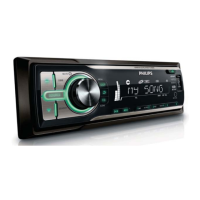
Enjoy your drive listening to FM/AM radio, CD/MP3, USB, or external devices with the in-car audio system.

Package Contents

Identify all package contents: audio system, remote control, accessories, and manuals.

Main Unit Overview

Details components and controls of the main unit, with numbered parts and their functions.

Remote Control Overview

Details buttons and functions of the remote control, with numbered parts and their operations.

Get Started

Install the Car Audio Unit

Instructions for installing the car audio unit into the dashboard, covering electrical connections and safety precautions.

Install Remote Control Battery

Guide on installing or replacing the remote control battery, including safety precautions and first-time use.

Turn Unit On and Off

Instructions on how to turn the car audio unit on and off using the power button.

Set the Clock

Procedure to set the current time on the car audio system by adjusting hours and minutes.

Listen to Radio

Tune to a Radio Station

Steps to select radio band and manually tune to a station or perform an automatic search.

Store Radio Stations in Memory

Instructions on storing up to six radio stations per band, automatically or manually.

Tune to a Preset Station

How to select a stored radio station using the preset number buttons.

Play with RDS

Explanation of the Radio Data System (RDS) for displaying station or program information.

Play Audio Files

Play a Disc

Instructions for playing audio CDs, CD-Rs, CD-RWs, MP3 CDs, and WMA CDs.

Play from USB

Steps to insert a USB device and play music files, including notes on compatible formats.

Control Playback

Basic playback controls: folder selection, track skipping, pausing, and resuming audio playback.

Search for MP3;WMA Tracks

Guide on searching for MP3/WMA tracks by folder sequence or by track name.

View Play Information

Display track number, elapsed time, artist, album, title, folder, file, and clock during USB playback.

Intro Playback

Enables playing the first 10 seconds of each track for previewing content.

Shuffle Playback

Allows playback of tracks in a random order for variety.

Repeat Playback

Options to repeat the current track, all tracks in a folder, or all tracks in the library.

Connect External Sound Source

Instructions for connecting an external audio device via the MP3 LINK socket using a 3.5mm cable.

Adjust Sound

Adjust Volume

Instructions on how to increase or decrease the audio volume using the control knob.

Mute Audio

How to temporarily turn off the audio output and restore it using the Mute button.

Dynamic Bass Boost (DBB)

Guide to activating or deactivating the Dynamic Bass Boost (DBB) sound enhancement feature.

Select Preset Equalizer

How to choose from various equalizer presets like FLAT, POP, ROCK, CLASSIC, JAZZ, and USER.

Other Sound Settings

Adjusting other sound parameters like Bass, Treble, Balance, and Fader for personalized audio.

Adjust System Settings

Select Blackout Setting

Configure the screen to automatically turn off after 10 or 20 seconds of inactivity, or disable blackout.

Turn Demo Mode On;Off

Enables or disables demo mode, which displays all functions when the unit is idle for over 2 minutes.

Select Start Volume

Set the unit to start with the last listened volume or a preset volume level.

Turn Beep Sound On;Off

Enable or disable the audible beep sound that occurs when buttons are pressed.

Turn Display Scroll On;Off

Configure scrolling for track information longer than the display, or disable auto scroll.

Select Shock-Protect Setting

Adjust shock protection (ESP) based on road conditions (smooth or bumpy) to prevent playback skipping.

Reset the Unit

Procedure to reset the unit to its default factory settings, erasing preset channels and sound adjustments.

Additional Information

Detach the Front Panel

Instructions on how to detach the front panel for theft deterrence and storage in the carry case.

Replace the Fuse

Guidance on how to check for a blown fuse and replace it with one of the correct voltage.

Product Information

Troubleshooting

Common Issues and Solutions

Solutions for common problems like no power, no sound, noise, disc playback errors, CD skipping, and display errors.

Glossary

Summary

Important

Safety Precautions

Read and understand all instructions before use. Failure to follow instructions voids warranty.

Copyright Notice

Unauthorized copying of copy-protected material may infringe copyrights and is a criminal offence.

Your Car Audio System

Introduction to the System

Enjoy your drive listening to FM/AM radio, CD/MP3, USB, or external devices with the in-car audio system.

Package Contents

Identify all package contents: audio system, remote control, accessories, and manuals.

Main Unit Overview

Details components and controls of the main unit, with numbered parts and their functions.

Remote Control Overview

Details buttons and functions of the remote control, with numbered parts and their operations.

Get Started

Install the Car Audio Unit

Instructions for installing the car audio unit into the dashboard, covering electrical connections and safety precautions.

Install Remote Control Battery

Guide on installing or replacing the remote control battery, including safety precautions and first-time use.

Turn Unit On and Off

Instructions on how to turn the car audio unit on and off using the power button.

Set the Clock

Procedure to set the current time on the car audio system by adjusting hours and minutes.

Listen to Radio

Tune to a Radio Station

Steps to select radio band and manually tune to a station or perform an automatic search.

Store Radio Stations in Memory

Instructions on storing up to six radio stations per band, automatically or manually.

Tune to a Preset Station

How to select a stored radio station using the preset number buttons.

Play with RDS

Explanation of the Radio Data System (RDS) for displaying station or program information.

Play Audio Files

Play a Disc

Instructions for playing audio CDs, CD-Rs, CD-RWs, MP3 CDs, and WMA CDs.

Play from USB

Steps to insert a USB device and play music files, including notes on compatible formats.

Control Playback

Basic playback controls: folder selection, track skipping, pausing, and resuming audio playback.

Search for MP3;WMA Tracks

Guide on searching for MP3/WMA tracks by folder sequence or by track name.

View Play Information

Display track number, elapsed time, artist, album, title, folder, file, and clock during USB playback.

Intro Playback

Enables playing the first 10 seconds of each track for previewing content.

Shuffle Playback

Allows playback of tracks in a random order for variety.

Repeat Playback

Options to repeat the current track, all tracks in a folder, or all tracks in the library.

Connect External Sound Source

Instructions for connecting an external audio device via the MP3 LINK socket using a 3.5mm cable.

Adjust Sound

Adjust Volume

Instructions on how to increase or decrease the audio volume using the control knob.

Mute Audio

How to temporarily turn off the audio output and restore it using the Mute button.

Dynamic Bass Boost (DBB)

Guide to activating or deactivating the Dynamic Bass Boost (DBB) sound enhancement feature.

Select Preset Equalizer

How to choose from various equalizer presets like FLAT, POP, ROCK, CLASSIC, JAZZ, and USER.

Other Sound Settings

Adjusting other sound parameters like Bass, Treble, Balance, and Fader for personalized audio.

Adjust System Settings

Select Blackout Setting

Configure the screen to automatically turn off after 10 or 20 seconds of inactivity, or disable blackout.

Turn Demo Mode On;Off

Enables or disables demo mode, which displays all functions when the unit is idle for over 2 minutes.

Select Start Volume

Set the unit to start with the last listened volume or a preset volume level.

Turn Beep Sound On;Off

Enable or disable the audible beep sound that occurs when buttons are pressed.

Turn Display Scroll On;Off

Configure scrolling for track information longer than the display, or disable auto scroll.

Select Shock-Protect Setting

Adjust shock protection (ESP) based on road conditions (smooth or bumpy) to prevent playback skipping.

Reset the Unit

Procedure to reset the unit to its default factory settings, erasing preset channels and sound adjustments.

Additional Information

Detach the Front Panel

Instructions on how to detach the front panel for theft deterrence and storage in the carry case.

Replace the Fuse

Guidance on how to check for a blown fuse and replace it with one of the correct voltage.

Product Information

Troubleshooting

Common Issues and Solutions

Solutions for common problems like no power, no sound, noise, disc playback errors, CD skipping, and display errors.

Glossary

Philips CEM210/51 Specifications

General IconGeneral
BrandPhilips
ModelCEM210/51
CategoryCar Receiver
LanguageEnglish

Related product manuals