9
English
Wi-Fi connection
Setting up the Wi-Fi connection for the first time
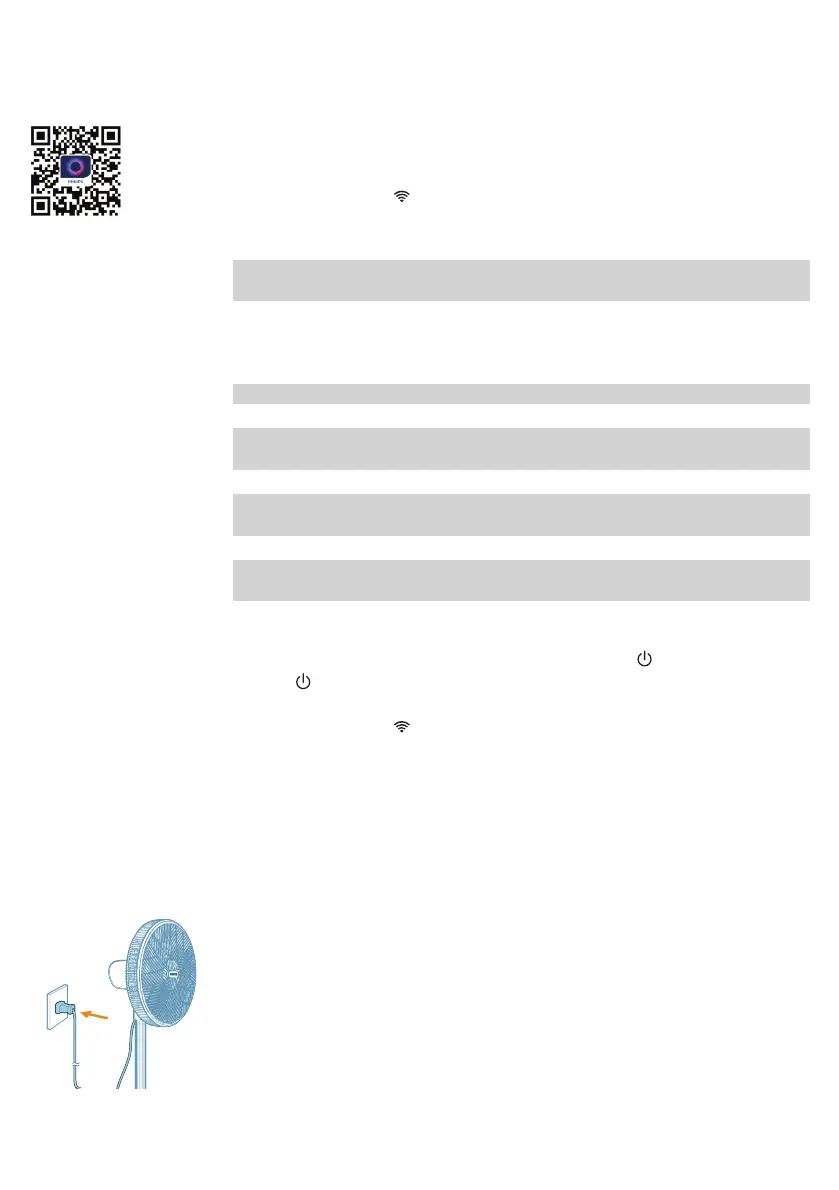
1 Download and install the Philips “Air+” app from the App Store or Google
Play.
2 Put the plug of the fan in the power socket and press to turn on the fan.
-
The Wi-Fi indicator blinks orange for the first time.
3 Make sure that your smart phone or tablet is successfully connected to your
Wi-Fi network.
Note: Enable Bluetooth feature on your smart phone to ensure the smooth
pairing.
4 Launch the Philips “ Air+” app and click on “Add a device” or press the “+”
button on the screen. Follow the on-screen instructions to connect the fan to
your network.
Note:
This instruction is only valid when the fan is being set up for the first time. If the
network has changed or the setup needs to be performed again.
If you want to connect more than one fan to your smart phone or tablet, you
have to do this one by one.
Make sure that the distance between your smart phone or tablet and the fan is
less than 10 m without any obstructions.
Reset the Wi-Fi connection
1 Put the plug of the fan in the power socket and press to turn on the fan.
2 Press for 3 seconds until you hear a beep.
-
The fan goes to pairing mode.
-
The Wi-Fi indicator blinks orange.
3 Follow the steps 3-4 in “Setting up the Wi-Fi connection for the first
time”section.
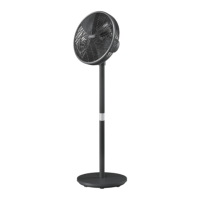
Using your pedestal fan
Turning on and off
1 Put the plug in the power socket.


 To Next Page