EasyManua.ls Logo

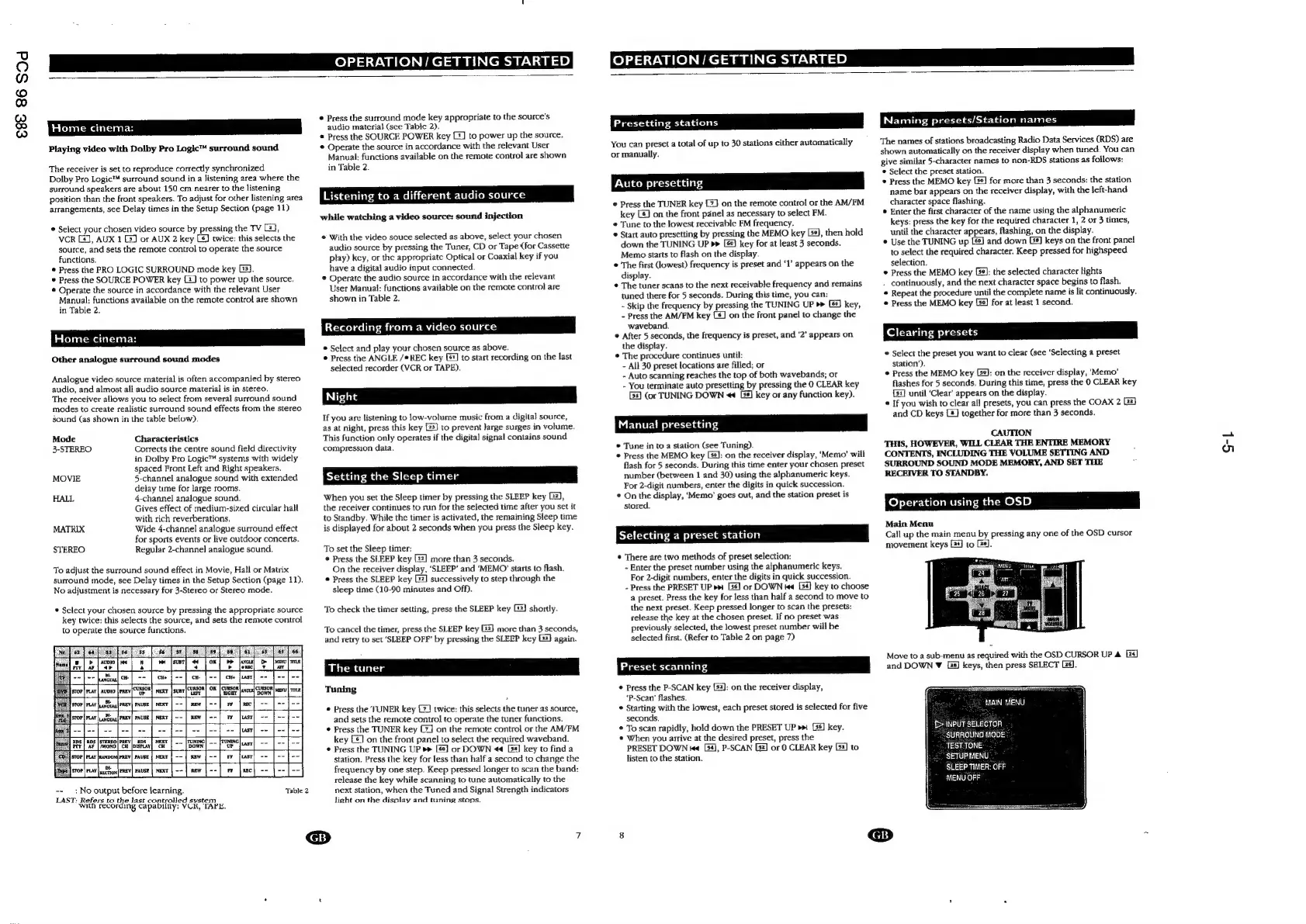
Philips FR980 - Home cinema: Other analogue surround sound modes; Setting the Sleep timer; Presetting stations; Operation using the OSD

Philips FR980
63 pages
Print Icon
To Next Page IconTo Next Page
To Previous Page IconTo Previous Page
Loading...
ese
86
SOd
OPERATION
/
GETTING
STARTED
OPERATION
/
GETTING
STARTED
Home
cinema:
Playing
video
with
Dolby
Pro
Logic™
surround
sound
The
receiver
is
set
to
reproduce
correctly
synchronized
Dolby
Pro
Logic™
surround
sound
in
a
listening
area
where
the
surround
speakers
are
about
150
cm
nearer
to
the
listening
position
than
the
front
speakers.
To
adjust
for
other
listening
area
arrangements,
see
Delay
times
in
the
Setup
Section
(page
11)
¢
Select
your
chosen
video
source
by
pressing
the
TV
[2],
vcr
[4],
AUX
1
(J
or
AUX
2
key
C6]
twice:
this
selects
the
source,
and
sets
the
remote
control
to
operate
the
source
functions.
©
Press
the
PRO
LOGIC
SURROUND
mode
key
13).
©
Press
the
SOURCE
POWER
key
[2]
to
power
up
the
source.
*
Operate
the
source
in
accordance
with
the
relevant
User
Manual:
functions
available
on
the
remote
control
are
shown
in
Table
2.
Home
cinema:
Other
analogue
surround
sound
modes
Analogue
video
source
material
is
often
accompanied
by
stereo
audio,
and
almost
all
audio
source
material
is
in
stereo.
The
receiver
allows
you
to
select
from
several
surround
sound
modes
to
create
realistic
surround
sound
effects
from
the
stereo
sound
(as
shown
in
the
table
below).
Mode
Characteristics
3-STEREO
Corrects
the
centre
sound
field
directivity
in
Dolby
Pro
Logic™
systems
with
widely
spaced
Front
Left
and
Right
speakers.
MOVIE
5-channel
analogue
sound
with
extended
delay
tume
for
large
rooms.
HALL
4-channel
analogue
sound.
Gives
effect
of
medium-sized
circular
hall
with
rich
reverberations.
MATRIX
Wide
4-channel
analogue
surround
effect
for
sports
events
or
live
outdoor
concerts.
STEREO
Regular
2-channel
analogue
sound.
To
adjust
the
surround
sound
effect
in
Movie,
Hall
or
Matrix
surround
mode,
see
Delay
times
in
the
Setup
Section
(page
11).
No
adjustment
is
necessary
for
3-Stereo
or
Stereo
mode.
©
Select
your
chosen
source
by
pressing
the
appropriate
source
key
twice:
this
selects
the
source,
and
sets
the
remote
control
to
operate
the
source
functions.
*
Press
the
surround
mode
key
appropriate
to
the
source’s
audio
material
(sce
Table
2),
@
Press
the
SOURCE
POWER
key
[1]
to
power
up
the
source.
©
Operate
the
source
in
accordance
with
the
relevant
User
Manual:
functions
available
on
the
remote
control
are
shown
in
Table
2.
Listening
to
a
different
audio
source
while
watching
a
video
source:
sound
injection
©
With
the
video
souce
selected
as
above,
select
your
chosen
audio
source
by
pressing
the
Tuner,
CD
or
Tape
(for
Cassette
play)
key,
or
the
appropriate
Optical
or
Coaxial
key
if
you
have
a
digital
audio
input
connected
©
Operate
the
audio
source
in
accordance
with
the
relevant
User
Manual:
functions
available
on
the
remote
control
are
shown
in
Table
2.
Recording
from
a
video
source
©
Select
and
play
your
chosen
source
as
above.
©
Press
the
ANGLE
/®REC
key
[]
to
stact
recording
on
the
last
selected
recorder
(VCR
or
TAPE).
If
you
are
listening
to
low-volume
music
from
a
digital
source,
as
at
night,
press
this
key
{23}
to
prevent
large
surges
in
volume.
This
function
only
operates
if
the
digital
signal
contains
sound
compression
data.
Setting
the
Sleep
timer
When
you
set
the
Sleep
timer
by
pressing
the
SLEEP
key
G3),
the
receiver
continues
to
run
for
the
selected
time
after
you
set
it
to
Standby.
While
the
timer
is
activated,
the
remaining
Sleep
time
is
displayed
for
about
2
seconds
when
you
press
the
Sleep
key.
To
set
the
Sleep
timer:
*
Press
the
SLEEP
key
[2]
more
than
3
seconds.
On
the
receiver
display,
‘SLEEP’
and
‘MEMO’
starts
to
flash.
©
Press
the
SLEEP
key
[2]
successively
to
step
through
the
sleep
time
(10-90
minutes
and
Off).
To
check
the
timer
setting,
press
the
SLEEP
key
22)
shortly.
To
cancel
the
timer,
press
the
SLEEP
key
[2]
more
than
3
seconds,
and
retry
to
set
‘SLEEP
OFF’
by
pressing
the
SLEEP
key
G2)
again.
Tuning
©
Press
the
TUNER
key
[7]
twice:
this
selects
the
tuner
as
source,
and
sets
the
remote
control
to
operate
the
tuner
functions.
¢
Press
the
TUNER
key
on
the
remote
control
or
the
AM/FM
--
:No
output
before
learning.
LAST:
Refars
to
the
last
controlled
system
with
recording
Capability:
VOK,
TAPE,
key
[£]
on
the
front
panel
to
select
the
required
waveband.
*
Press
the
TUNING
UP
[62]
or
DOWN
<4
[8]
key
to
find
a
station.
Press
the
key
for
less
than
half
a
second
to
change
the
frequency
by
one
step.
Keep
pressed
longer
to
scan
the
band:
release
the
key
while
scanning
to
tune
automatically
to
the
next
station,
when
the
Tuned
and
Signal
Strength
indicators
light
on
the
display
and
tuning
stops.
Presetting
stations
You
can
preset
a
total
of
up
to
30
stations
either
automatically
or
manually.
Auto
presetting
©
Press
the
TUNER
key
[2]
on
the
remote
contro!
or
the
AM/FM
key
(5
on
the
front
panel
as
necessary
to
select
FM.
©
Tune
to
the
lowest
receivable
FM
frequency.
©
Start
auto
presetting
by
pressing
the
MEMO
key
Le],
then hold
down
the
TUNING
UP
[6]
key
for
at
least
3
seconds.
Memo
starts
to
flash
on
the
display.
The
first
(lowest)
frequency
is
preset
and
‘1’
appears
on
the
display.
¢
The
tuner
scans
to
the
next
receivable
frequency
and
remains
tuned
there
for
5
seconds.
During
this
time,
you
can:
-
Skip
the
frequency
by
pressing
the
TUNING
UP
[6]
key,
-
Press
the
AM/EM
key
(&]
on
the
front
panel
to
change
the
waveband.
©
After
5
seconds,
the
frequency
is
preset,
and
‘2’
appears
on
the
display.
©
The
procedure
continues
until:
-
All
30
preset
locations
are
filled;
or
-
Auto
scanning
reaches
the
top
of
both
wavebands;
or
-
You
terminate
auto
presetting
by
pressing
the
0
CLEAR
key
G4)
(or
TUNING
DOWN
<<
[8]
key
or
any
function
key).
Manual
presetting
©
Tune
in
to
a
station
(see
Tuning).
©
Press
the
MEMO
key
[5¢]:
on
the
receiver
display,
‘Memo’
will
flash
for
5
seconds.
During
this
time
enter
your
chosen
preset
number
(between
1
and
30)
using
the
alphanumeric
keys.
For
2-digit
numbers,
enter
the
digits
in
quick
succession.
©
On
the
display,
‘Memo’
goes
out,
and
the
station
preset
is
stored.
Selecting
a
preset
station
©
There
are
two
methods
of
preset
selection:
-
Enter
the
preset
number
using
the
alphanumeric
keys.
For
2-digit
numbers,
enter
the
digits
in
quick
succession.
-
Press
the
PRESET
UP
[36]
or
DOWN
te
[54]
key
to
choose
a
preset.
Press
the
key
for
less
than
half
a
second
to
move
to
the
next
preset.
Keep
pressed
longer
to
scan
the
presets:
release
the
key
at
the
chosen
preset.
If
no
preset
was
previously
selected,
the
lowest
preset
number
will
be
selected
first.
(Refer
to
Table
2
on
page
7)
Preset
scanning
©
Press
the
P-SCAN
key
[{s2]:
on
the
receiver
display,
‘P-Scan’
flashes.
©
Starting
with
the
lowest,
each
preset
stored
is
selected
for
five
seconds.
To
scan
rapidly,
hold
down
the
PRESET
UP
key.
©
When
you
arrive
at
the
desired
preset,
press
the
PRESET
DOWN
[54],
P-SCAN
G2]
or
0
CLEAR
key
[2]
to
listen
to
the
station.
Naming
presets/Station
names
The
names
of
stations
broadcasting
Radio
Data
Services
(RDS)
are
shown
automatically
on
the
receiver
display
when
tuned.
You
can
give
similar
5-character
names
to
non-RDS
stations
as
follows:
®
Select
the
preset
station.
©
Press
the
MEMO
key
[3¢]
for
more
than
3
seconds:
the
station
name
bar
appears
on
the
receiver
display,
with
the
left-hand
character
space
flashing.
®
Enter
the
first
character
of
the
name
using
the
alphanumeric
keys:
press
the
key
for
the
required
character
1,
2
or
3
times,
until
the
character
appears,
flashing,
on
the
display.
¢
Use
the
TUNING
up
and
down
[8]
keys
on
the
front
panel
to
select
the
required
character.
Keep
pressed
for
highspeed
selection.
©
Press
the
MEMO
key
Gs]:
the
selected
character
tights
.
continuously,
and
the
next
character
space
begins
to
flash.
©
Repeat
the
procedure
until
the
complete
name
is
lit
continuously.
©
Press
the
MEMO
key
{e]
for
at
least
1
second.
Clearing
presets
©
Select
the
preset
you
want
to
clear
(see
‘Selecting
a
preset
station’).
©
Press
the
MEMO
key
Gel:
on
the
receiver
display,
‘Memo’
flashes
for
5
seconds.
During
this
time,
press
the
0
CLEAR
key
{)
until
‘Clear’
appears
on
the
display.
©
If
you
wish
to
clear
all
presets,
you
can
press
the
COAX
2
[2]
and
CD
keys
[#}
together
for
more
than
3
seconds.
CAUTION
THIS,
HOWEVER,
WILL
CLEAR
THE
ENTIRE
MEMORY
CONTENTS,
INCLUDING
THE
VOLUME
SETTING
AND
SURROUND
SOUND
MODE
MEMORY,
AND
SET
THE
RECEIVER
TO
STANDBY.
Operation
using
the
OSD
Main
Menu
Call
up
the
main
menu
by
pressing
any
one
of
the
OSD
cursor
movement
keys
24]
to
Es].
Move
to
a
sub-menu
as
required
with
the
OSD
CURSOR
UP
&
[24]
and
DOWN
VW
Ls]
keys,
then
press
SELECT
Es].
MAIN
MENU
£>
INPUT
SELECTOR
SURROUND
MODE
TEST.TONE
SETUP.MENU
SLEEP
TIMER:
OFF
MENU
OFF

Other manuals for Philips FR980

Related product manuals