13
English
EN
• Make the necessary connections described
in quick start guide, and then switch the
TV to the correct source for your Blu-ray
Surround Base .
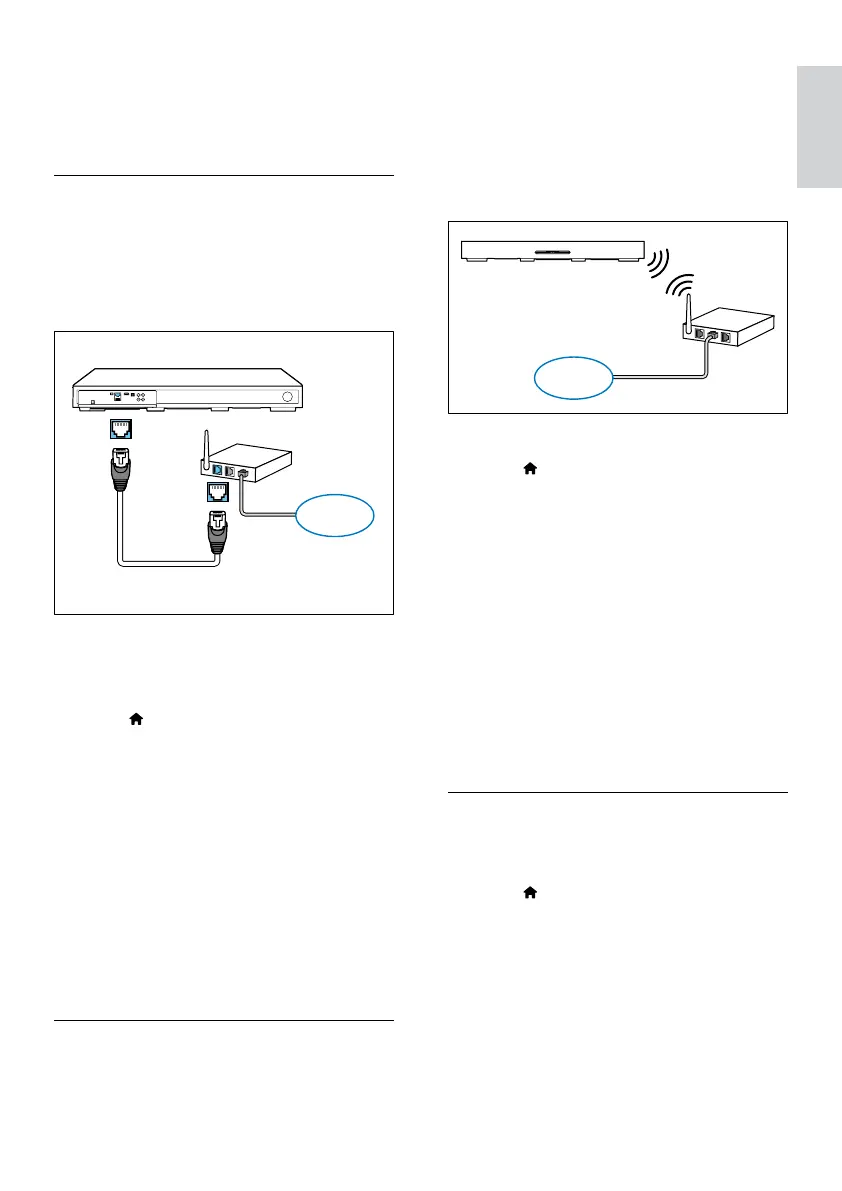
Set up the wired network
What you need
• A network cable (RJ45 straight cable).
• A network router (with DHCP enabled).
1 Using a network cable, connect the
ETHERNET connector on your Blu-ray
Surround Base to the network router.
2 Press .
3 Select [Setup], and then press OK.
4 Select [Network] > [Network
installation] > [Wired (Ethernet)].
5 Follow the onscreen instructions to
complete the setup.
• If connection fails, select [Retry], and
then press OK.
6 Select [Finish], and then press OK to exit.
• To view the network settings, select
[Setup] > [Network] > [View
network settings].
Set up the wireless network
ETHERNET
ETHERNET
www
Your Blu-ray Surround Base has a built-in Wi-Fi
for easy access to a wireless network.
What you need
• A network router (with DHCP enabled).
For best wireless performance, coverage,
and compatibility, use 802.11n router.
1 Press .
2 Select [Setup], and then press OK.
3 Select [Network] > [Network
installation] > [Wireless (Wi-Fi)], and
then press OK.
4 Follow the onscreen instructions to select
and set up the wireless network.
• If connection fails, select [Retry], and
then press OK.
5 Select [Finish], and then press OK to exit.
• To view the network settings, select
[Setup] > [Network] > [View
wireless settings].
Personalize the network name
Name your Blu-ray Surround Base to easily
identify it on your home network.
1 Press .
2 Select [Setup], and then press OK.
3 Select [Network] > [Name your
Product:].
4 Press the Alphanumeric buttons to enter
the name.
5 Select [Done], and then press OK to exit.
www



 To Next Page